
Password manager programs are tools designed to securely store passwords, generate strong and unique passwords, and automatically fill in login credentials. These programs provide advanced encryption to protect personal and professional accounts, with easy synchronization across devices and advanced security features such as two-factor authentication and secure data sharing.
What Are the Top 10 Password Manager Programs?
Password manager programs are applications designed to securely store strong passwords. These programs use advanced encryption to protect your data. Below is a list of the top 10 password manager programs:
- LastPass
- 1Password
- Dashlane
- Bitwarden
- KeePass
- RoboForm
- Enpass
- NordPass
- Keeper
- Sticky Password
LastPass Program (LastPass)
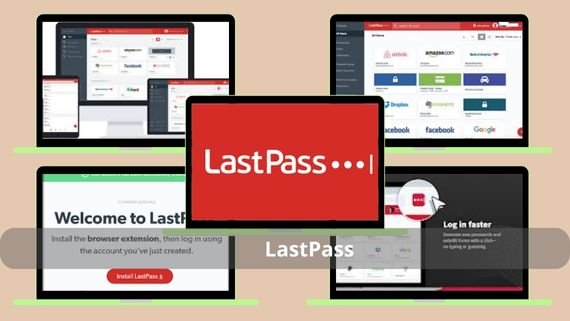
LastPass is one of the most popular password managers; it provides secure storage for passwords and synchronization across all your devices. It features an easy-to-use interface and advanced features. The main specifications of the LastPass program are as follows:
- Secure storage for all passwords
- Automatically generate strong passwords
- Unlimited synchronization across devices
- Two-factor authentication (2FA)
- Secure password sharing
- Support for all browsers and devices
- AES-256 encryption
Steps to Install the LastPass Program
To begin using LastPass, you will first need to install the application on your device and set up your personal account. Follow these simple instructions to manage your passwords easily and securely.
- Download the program directly from the link below.
- Click the “Get LastPass Free” button on the homepage.
- Choose the version suitable for your operating system (Windows, Mac, Linux, Android, iOS).
- Download the installation file and run it.
- Follow the on‑screen instructions to complete the installation.
- After installation, open the application and create a new account using your email address and a strong password.
- Confirm your email through the link sent to your inbox.
- Install the browser extension for your preferred browser.
- Start adding your passwords to LastPass.
Download LastPass Password Manager Vault and store your passwords safely and easily 🔐✨
1Password Program (1Password)
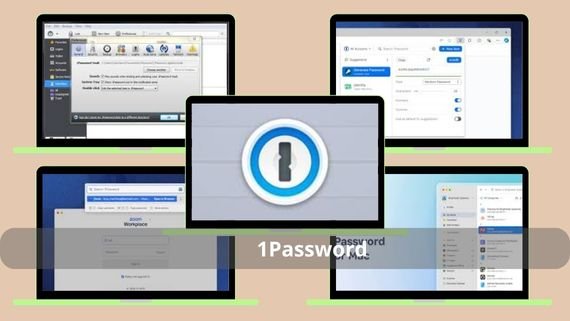
1Password is a professional password manager distinguished by its high security and elegant design. It provides a comprehensive solution for managing all your sensitive data. The main specifications of the 1Password program are as follows:
- Secure storage for passwords and documents
- Generate strong and unique passwords
- “Digital Vault” feature
- Advanced two-factor authentication
- Secure sharing with team and family
- Elegant and easy user interface
- Support for all devices and browsers
- AES-256 encryption
- Free trial version
Steps to Install the 1Password Program
To benefit from 1Password’s secure features, you will need to install the program and create your personal digital vault. These steps will guide you through the installation and initial setup.
- Download the program directly from below.
- Click on “Try 1Password free” to start the free trial.
- Select the operating system compatible with your device (Windows, Mac, iOS, Android, Linux).
- Download the installation file and open it to start the installation.
- Follow the on‑screen instructions to complete the installation.
- After finishing, open the application and select “Set up 1Password.”
- Create a strong, memorable master password (this is the only password you will need to remember).
- Set up the Secret Key and keep it in a safe place.
- Log in using the master password and Secret Key.
- Install the browser extension to make the service easier to use while browsing.
Download 1Password Password Manager & Passkeys and store passwords and keys safely and quickly 🔐⚡️
Dashlane Program (Dashlane)
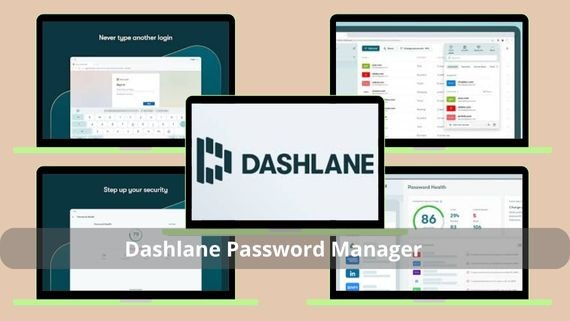
Dashlane is an all-in-one password and identity protection program that provides advanced security features alongside password management. It is popular among professional users. The main specifications of the Dashlane program are as follows:
- Secure storage for all passwords
- Advanced identity protection
- Dark Web Monitoring
- Generate strong passwords
- Built-in VPN (in the paid version)
- Two-factor authentication
- Secure password sharing
- User-friendly interface
- Free version and paid version
Steps to Install the Dashlane Program
Dashlane offers a smooth installation experience that ensures you can quickly start protecting your digital identity. Follow these steps to install and set up the program on your device.
- First, visit the official website and download the program directly using the link below.
- Then, click the “Download Dashlane” button at the top of the page.
- Next, choose the version appropriate for your operating system.
- Now, download the file and run it to begin installation.
- After finishing, open the application and click “Create an account.”
- Fill in your basic information (name, email, password).
- Confirm your email.
- Install the browser extension so you can use Dashlane while browsing.
Download Dashlane Password Manager and protect your secrets safely and easily 🔐⚡️
Bitwarden Program (Bitwarden)
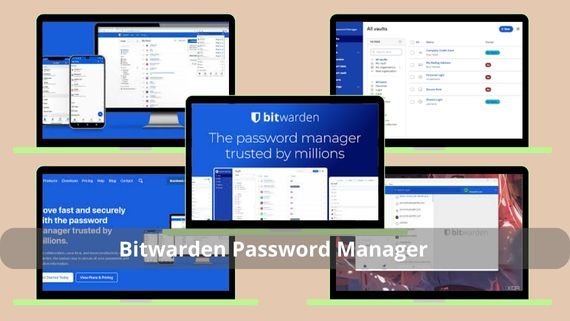
Bitwarden is a free and open-source password manager known for its transparency and high security. It offers all the essential features for free. The main specifications of the Bitwarden program are as follows:
- Free and open source
- Unlimited password storage
- Synchronization across all devices
- Generate strong passwords
- Two-factor authentication
- Secure sharing
- Password audit
- Simple user interface
- AES-256 encryption
Steps to Install the Bitwarden Program
Because Bitwarden is free and open source, you can easily install it on any device and start managing passwords securely. These steps will help you set up the program quickly.
- Visit the Bitwarden website below and download the program directly.
- Click “Get Started” or “Download” on the homepage.
- Choose the platform on which you wish to install the program (desktop, mobile, or browser).
- Download the installation file suitable for your system.
- Run the downloaded file and follow the on‑screen installation instructions.
- After installation, open the application and select “Create Account.”
- Enter your details and create a strong password for your account.
- Verify your email and click the activation link.
- Install the browser extension to make it easier to access passwords while browsing.
Download Password Manager Program and get strong protection and secure organization for your secrets 🔐✨
KeePass Program (KeePass)
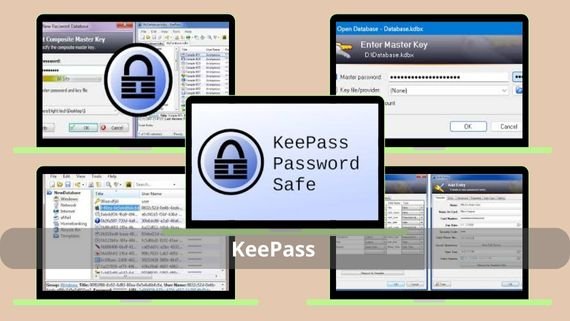
KeePass is a free and open-source password manager known for its flexibility and strong data protection. It runs locally on the device without the need for the cloud. The main specifications of the KeePass program are as follows:
- Completely free and open source
- Secure local storage (no cloud)
- Strong encryption (AES-256)
- Generate strong passwords
- Import/export passwords
- Plugin support
- Customizable interface
- Works offline
- Supports all operating systems
- Light on system resources
Steps to Install the KeePass Program
KeePass differs from other programs in that it runs locally on your device without the need for the cloud. These steps will show you how to install the program and create your secure local database.
- To begin, go to the link below and download the program.
- From there, go to the “Downloads” section and choose the version appropriate for your operating system (Windows, macOS, Linux).
- Download the compressed package (ZIP) or the installer file (EXE/MSI/DPKG).
- If you downloaded the portable version, extract the file to your preferred folder.
- If you downloaded the installer file, run it and follow the on‑screen instructions.
- After installation, open KeePass from the Start menu or the folder where you extracted it.
- Click “File” then “New” to create a new database.
- Choose a location to save the database and create a strong master password (you can also use an additional key file).
- Save the database in a safe location on your device.
- You can now start adding your passwords to the local database.
Download KeePass Password Manager and store your passwords safely and easily 🔐✨
RoboForm Program (RoboForm)
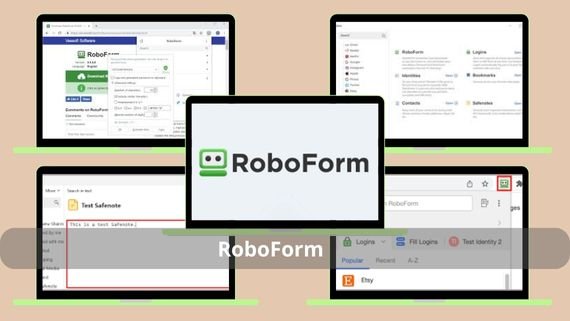
RoboForm is a long-standing and reliable password manager known for its speed and efficiency in form filling. It provides a comprehensive solution for password management. The main specifications of the RoboForm program are as follows:
- Secure password storage
- Secure sharing
- Synchronization across devices
- Simple user interface
- Support for all browsers
- Free version and paid version
- AES-256 encryption
Steps to Install the RoboForm Program
RoboForm provides a straightforward installation process that allows you to quickly start managing passwords and filling forms. Follow these steps to install the program on your device.
- Start by visiting the link below and downloading the program.
- Click the “Download” or “Free Download” button on the homepage.
- Select the version suitable for your operating system (Windows, Mac, Android, iOS).
- Download the installation file and run it.
- Follow the on‑screen instructions to complete the installation.
- After installation, open the application and choose “Create Account.”
- Enter your email address and create a strong password for your account.
- Confirm your email via the link sent.
- Install the browser extension so you can use RoboForm while browsing.
Download RoboForm Password Manager and store your passwords safely and quickly 🔐⚡️
Enpass Program (Enpass)
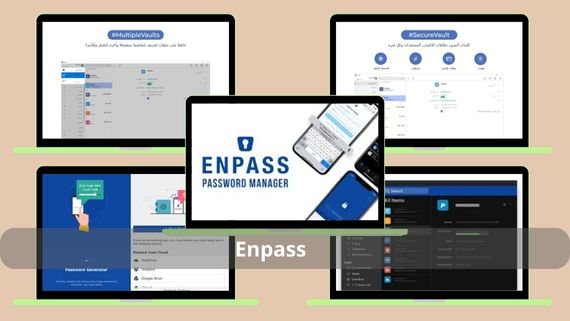
Enpass is a password manager that works locally without the need for the cloud, offering high security and flexible storage. The main specifications of the Enpass program are as follows:
- Local storage without cloud
- AES-256 encryption
- Optional synchronization via third-party services
- Generate strong passwords
- Support for all devices
- Elegant user interface
- Free version for personal use
- Import/export data support
- Password audit
Steps to Install the Enpass Program
Enpass gives you full control of your data through local storage. These steps will help you install the program and set up your secure local vault.
- Visit the Enpass website below.
- Click “Download” and choose your operating system.
- Download the appropriate installation file.
- Run the downloaded file and follow the installation instructions.
- After installation, open the application and choose “Get Started.”
- Create a strong master password to protect your local vault.
- Choose a location to save your vault on your device.
- Set up optional synchronization if you wish to sync across multiple devices.
- Log in to the application using the master password.
- Start adding passwords and sensitive information to your local vault.
Download Enpass Offline Password Manager and store your passwords safely without internet 🔐📲✨
NordPass Program (NordPass)
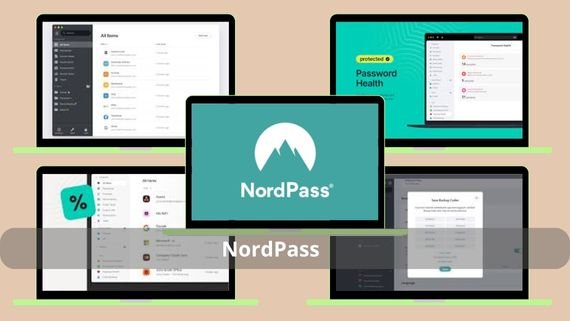
NordPass is a password manager from the well-known NordSec company, characterized by its high security and ease of use. It provides a comprehensive solution for password management. The main specifications of the NordPass program are as follows:
- Generate strong passwords
- AES-256 encryption
- Automatic form filling
- Secure synchronization across devices
- Two-factor authentication
- Simple user interface
- Secure sharing
- Support for all devices
- Free version available and a paid version
- Zero-knowledge architecture
Steps to Install the NordPass Program
NordPass offers an easy and fast installation experience that ensures you can quickly start protecting your passwords. Follow these steps to install and set up the program.
- Visit the NordPass website via the link below.
- Click “Download NordPass” on the homepage.
- Select the version appropriate for your operating system.
- Download the installation file and run it.
- After installation, open the application and choose “Create Account.”
- Enter your email address and create a strong password.
- Confirm the email through the link sent to you.
- Install the browser extension to make NordPass easier to use while browsing.
Download NordPass Cloud Password Manager and store your passwords safely in the cloud with ease 🔐☁️✨
Keeper Program (Keeper)
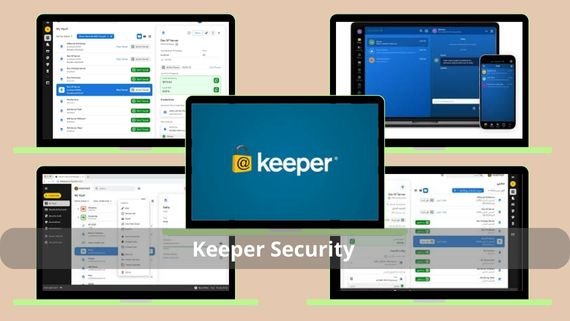
Keeper is a professional password manager focused on security and the protection of sensitive data. It is popular among companies and organizations. The main specifications of the Keeper program are as follows:
- AES-256 encryption
- Secure password storage
- Generate strong passwords
- Automatic form filling
- Secure sharing
- Dark Web monitoring
- Support for all devices
- Professional user interface
- Free trial version
Steps to Install the Keeper Program
Keeper provides a professional solution for password management with a strong focus on security. These steps will show you how to install the program and set it up for personal or enterprise use.
- To start using Keeper, download it from the link below.
- From the homepage, click “Try Free” or “Get Started.”
- Select the version suited to your needs (Personal, Business, Family).
- Download the installation file appropriate for your operating system.
- After installation, open the application and choose “Create Account.”
- Enter your email address and create a strong master password.
- Confirm your email address via the link sent to you.
- Finally, install the browser extension so you can use Keeper while browsing.
Download Keeper Security Password Manager and protect your secrets with the highest level of security 🔐✨
Sticky Password Program (Sticky Password)
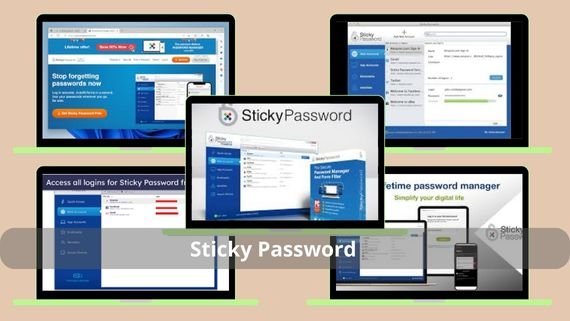
Sticky Password is a password manager distinguished by its smart synchronization technology, providing a secure and convenient solution for managing passwords. The main specifications of the Sticky Password program are as follows:
- AES-256 encryption
- Secure password storage
- Smart synchronization via local Wi-Fi
- Generate strong passwords
- Automatic form filling
- Fingerprint authentication
- Simple user interface
- Support for all devices
- Free version available and a paid version
Step-by-Step Installation of the Sticky Password Program
Sticky Password provides a unique method for smart synchronization between your devices. These steps will help you install the program and take advantage of its innovative features.
- Go to the Sticky Password website via the attached link and download the program.
- Click “Download” and choose the version appropriate for your system.
- Download the installation file and run it.
- Follow the on‑screen instructions to complete the installation.
- After installation, open the application and choose “Create Account.”
- Enter your email address and create a master password.
- Log in to the application using your new account details.
- Set up smart synchronization via local Wi-Fi if desired.
- Start adding passwords to Sticky Password.
Download Sticky Password Manager and store your passwords safely and quickly 🔐✨
Choosing the Best Password Manager Program
Choosing the best password manager program depends on your needs and personal preferences. If you are looking for a free solution, Bitwarden or KeePass may be the best choice. If you prefer paid solutions with advanced features, 1Password or Dashlane may be more suitable. The comparison table below will help you decide:
| Program | Features | Drawbacks |
|---|---|---|
|
|
|
|
|
|
|
|
|
|
|
|
|
|
|
|
|
|
|
|
|
|
|
|
|
|
|
|
|
|
|
|
|
|
|
|
|
|
|
|









Password manager programs have become essential for protecting your digital identity today. These programs provide a secure and convenient solution for managing the countless passwords we use every day. The important thing is to choose the program that meets your needs and offers the required level of security.