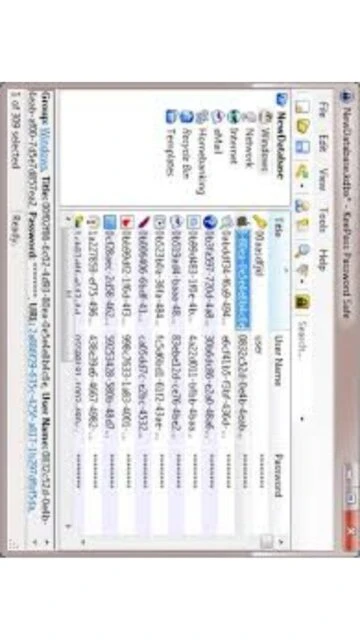
KeePass 2.60 stands as the leading open-source password manager, offering users complete control over their encrypted password databases with zero cloud reliance. Unlike subscription-based competitors like Dashlane or 1Password, KeePass stores all data locally, with optional backup portability via USB drives or network storage. This makes it ideal for security-conscious users, IT professionals, and organizations requiring auditable, offline password management solutions. The 2.60 release introduces enhanced UI integration and expanded translation support, reinforcing KeePass as the gold standard for transparent, community-reviewed password security.
How to Install KeePass
KeePass offers two installation methods: a traditional installer for automatic system shortcuts and registry integration, or a portable version for USB-based usage without installation rights. Both approaches complete setup within minutes, requiring only .NET Framework 4.8 and Windows Vista or later. Choose the installer for convenient desktop access or the portable version for running directly from removable media.
- Download from Official Source – Visit keepass.info/download.html and select either the KeePass-2.60-Setup.exe installer or KeePass-2.60.zip portable package (4.86 MB)
- Run the Installer or Extract Archive – Execute the setup program following on-screen prompts, or unzip the portable version to your preferred location
- Create Master Password – Launch KeePass and create a new database with a strong master password or import an existing .kdbx file
- Begin Password Management – Start adding passwords, organizing them into groups, and utilizing the built-in password generator for creating secure credentials
Who Should Use KeePass
KeePass serves technical users seeking complete control over password management without cloud dependencies. It suits system administrators managing organizational credentials, privacy advocates avoiding commercial surveillance, and users requiring offline-first security architecture. Individuals comfortable with local database management will appreciate its flexibility; those prioritizing convenience and cross-device sync may prefer cloud-based alternatives.
- IT Professionals & System Administrators – Deploy encrypted password databases across Windows networks with plugin extensibility and portable deployment options
- Privacy-Conscious Individuals – Store passwords entirely offline without trusting external servers or cloud providers
- Technical Users – Customize encryption algorithms, key derivation functions, and auto-type behaviors for advanced use cases
- NOT Ideal For – Users wanting automatic cross-platform sync, mobile-first design, or zero technical configuration
KeePass Platform Compatibility
KeePass natively runs on Windows with full feature parity, while community ports including KeePassXC provide Linux and macOS support with enhanced interface design. Cross-platform databases ensure identical .kdbx file compatibility across all supported operating systems, enabling users to maintain consistent password repositories regardless of platform choice.
| Platform |
Min. Version |
Unique Features |
Limitations |
| Windows |
Windows Vista SP1 or later (32/64-bit) |
Auto-Type global hotkey, IE/Edge integration, Windows Hello support |
None – full feature set |
| macOS |
macOS 11 (via KeePassXC) |
Touch ID integration, native Aqua interface, Liquid Glass icon |
Requires KeePassXC fork, not official KeePass |
| Linux |
Ubuntu 20.04+ (via KeePassXC) |
Flatpak distribution, snap package support, GTK integration |
Requires KeePassXC, not official KeePass binary |
| Web |
Not available |
N/A – desktop-only application |
Web version unavailable; must use desktop app |
KeePass Integrations & Plugins
KeePass plugin architecture enables browser extensions, two-factor authentication modules, and import/export adapters for seamless integration with existing password ecosystems. Popular plugins include browser-based auto-fill tools, cloud storage integration modules, and backup automation scripts. The extensibility ensures KeePass remains adaptable to organizational security workflows without requiring core software modifications.
- Browser Extensions – KeePass browser plugins for Chrome, Firefox, and Edge enable webpage auto-type functionality using the global hotkey system
- Cloud Sync Plugins – Synchronize .kdbx databases via Google Drive, Dropbox, or OneDrive using third-party sync tools maintaining offline encryption
- 2FA/TOTP Modules – Plugins generate time-based one-time passwords alongside password entries for multi-factor authentication support
- Import Adapters – Convert passwords from Dashlane, 1Password, LastPass, Bitwarden, and KWallet formats into KeePass databases
Best Alternatives to KeePass
While KeePass excels in offline security and open-source transparency, alternative password managers offer different strengths. Dashlane provides superior cross-platform sync and premium features; 1Password emphasizes team collaboration with sophisticated key management; Bitwarden combines open-source principles with cloud convenience; Lastly, NordPass delivers enterprise-grade security with user-friendly interface design.
- Dashlane – Best for cross-platform users needing automatic cloud sync, advanced breach monitoring, and identity theft protection with premium features
- 1Password – Best for teams requiring collaborative password sharing, organization-wide policies, and sophisticated item categorization
- Bitwarden – Best for open-source enthusiasts wanting cloud sync alternatives combining self-hosting options with modern UX
- NordPass – Best for users prioritizing enterprise security with simplified setup, data breach scanning, and unified password management
KeePass vs Top Competitors
KeePass differentiates through offline-first architecture and transparent open-source code, contrasting against competitors emphasizing cloud convenience and premium feature sets. Direct comparison reveals KeePass excelling for privacy-focused users while competitors dominate cross-platform synchronization and subscription-based benefits.
| Feature |
KeePass |
Dashlane |
1Password |
| Pricing |
Free, open-source, perpetual license |
$4.99/month (Premium), $7.49/month (Families) |
$2.99/month (Personal), $4.99/month (Family) |
| Key Strength |
Offline encryption, zero cloud trust, plugin extensibility |
Automatic breach monitoring, identity protection suite |
Team collaboration, advanced sharing, organization policies |
| Target Users |
Technical users, privacy advocates, system administrators |
General consumers seeking convenience and monitoring |
Teams and organizations requiring shared access control |
| Unique Feature |
Portable USB execution, local-only storage, plugin architecture |
Dark web breach scanning, password health dashboard |
Vaults for items beyond passwords, Emergency Access feature |
| Learning Curve |
Moderate – requires technical understanding of encryption |
Easy – intuitive interface with automatic features |
Easy – streamlined setup with sensible defaults |
KeePass Keyboard Shortcuts
Keyboard shortcuts accelerate password management efficiency, enabling rapid database operations without mouse interaction. Mastering common shortcuts reduces workflow interruptions and enhances productivity for power users managing hundreds of password entries across multiple databases.
| Action |
Windows |
macOS (KeePassXC) |
| Open Database |
Ctrl+O |
Cmd+O |
| Save Database |
Ctrl+S |
Cmd+S |
| Save Database As |
Ctrl+Shift+S |
Cmd+Shift+S |
| Global Auto-Type |
Ctrl+Alt+A |
Cmd+Option+A |
KeePass Performance Optimization
Optimize KeePass performance through database maintenance, memory settings, and encryption parameter tuning. Larger databases may experience slower load times; implementing proper index management and Argon2 configuration ensures responsive operation even with thousands of password entries stored securely.
- Database Compaction – Regularly export and reimport databases to remove deleted entry artifacts and reduce file size by 20-30 percent
- Argon2 Configuration – Adjust Argon2 memory (minimum 1024 MiB recommended) and iteration counts balancing security strength with acceptable unlock times
- Limit Attachments – Store database files under 10-15 MB; keep attachments minimal since large files slow opening and increase sync latency
- Disable History – Turn off entry history for non-critical passwords to reduce database overhead and improve search responsiveness
- Use Portable Version – Run portable KeePass from SSD-equipped USB drives, bypassing disk I/O bottlenecks on slower hard drives
KeePass Accessibility Features
KeePass provides foundational accessibility through keyboard-only navigation and configurable interface elements, though dedicated screen reader support remains limited compared to modern applications. Users relying on assistive technologies should evaluate accessibility requirements before adopting KeePass in accessibility-critical environments.
- Screen Reader – Basic NVDA/JAWS compatibility with keyboard navigation; incomplete UI labeling may limit screen reader effectiveness
- Visual – Adjustable font sizes, high-contrast display modes, and customizable interface colors available through options dialog
- Motor – Full keyboard-only operation without mouse dependency; configurable hotkeys for all primary functions
- Languages – UI available in 50+ languages including right-to-left support for Arabic, Hebrew, Persian, and Urdu interfaces
KeePass Support & Documentation
Official documentation provides comprehensive technical guides covering installation, encryption configuration, auto-type programming, and plugin development. Community forums actively assist users with configuration questions; official FAQ addresses frequent security inquiries and technical concerns regarding encryption algorithms and data integrity.
- Official Documentation – Extensive help system at keepass.info/help/ covering installation, features, troubleshooting, and advanced configuration
- Community Forum – Active discussion board where users exchange tips, discuss security practices, and report issues to development team
- Video Tutorials – YouTube community-created tutorials demonstrating setup, database creation, and plugin installation procedures
- Contact Support – Direct developer contact through official website; community-based support responsive to GitHub issue reports and forum inquiries