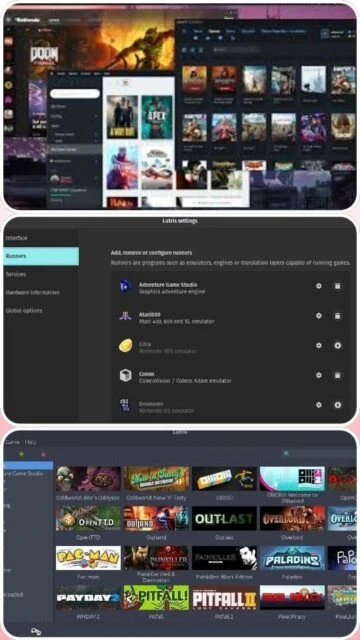
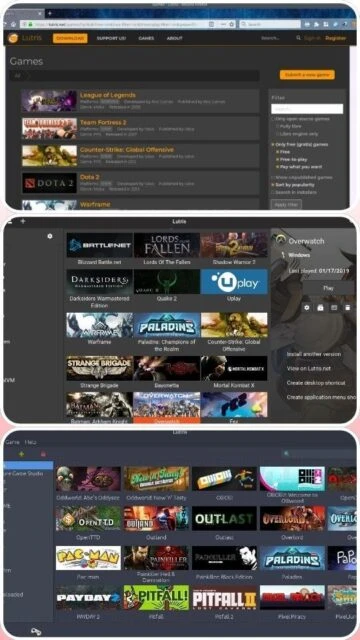
Lutris is a comprehensive open-source gaming platform that consolidates your entire game collection from multiple sources into one unified interface. It provides seamless integration with Steam, GOG, Epic Games Store, and other platforms while maintaining an extensive library of emulators for retro gaming. Lutris uses Wine and Proton to enable compatibility with Windows games on Linux, automatically downloading and configuring the necessary compatibility layers. The platform is built entirely on open-source technology and leverages Vulkan for superior graphics performance and stability.
System Requirements
Operating System:Ubuntu 20.04 or any current Linux distribution
Processor:64-bit processor with 2+ cores
RAM:4 GB
Disk Space:2 GB
Additional Requirements:Wine or Proton, Python 3, GTK libraries, graphics drivers
Features Of Lutris
Multi-store game library integration (Steam, GOG, Epic Games)
Extensive emulator support for retro gaming
Automatic Wine and Proton configuration management
Game installation wizards with community-contributed scripts
DXVK and VKD3D support for DirectX games
Playtime tracking and achievement integration
PlayOnLinux compatibility with legacy installers
Native Linux game support and detection
Pros & Cons
Pros
Completely free and open-source platform
Supports hundreds of game libraries and sources
Excellent Windows game compatibility on Linux
Amazing community with regular updates and support
No vendor lock-in or proprietary systems
Active development with frequent improvements
Flexible runner and emulator configuration
Cons
Steep learning curve for beginners
Some games still require manual configuration
Wine-based games may have performance overhead
Not all game features work correctly
Less polished than commercial alternatives
Requires technical knowledge for optimal setup
Changelog
Version 0.5.18 (December 2025):
- Dark theme enabled by default
- Enhanced search with fancy tag support
- Itch.io and Flathub integrations restored
- DirectX 8 support in DXVK v2.4
- AppArmor profile for Ubuntu 23.10+
Version 0.5.17 (April 2025):
- Library sync feature added
- UMU support for advanced gaming
- Game sorting improvements
Frequently Asked Questions
Can I use Lutris on Windows or macOS?
No, Lutris is exclusively designed for Linux systems. There are no official versions for Windows or macOS. You must use a Linux distribution to install and run Lutris.
Do I need to buy games to use Lutris?
No, Lutris is a free platform. You can add any games you own from Steam, GOG, Epic Games, or other sources. Lutris itself costs nothing and never requires payment.
Will all my games work perfectly with Lutris on Linux?
Most modern games work well, but some may have issues due to Wine compatibility layers. Check ProtonDB ratings before playing. Community installers help optimize many games for Linux.
What is the difference between Wine, Proton, and GE-Proton?
Wine is the base compatibility layer. Proton is Valve's optimized version for Steam games. GE-Proton adds community improvements for better game compatibility and performance.
How do I add my GOG games to Lutris?
Connect your GOG account in Lutris settings. The platform will automatically detect and import your game library. You can also manually add games by pointing to installation directories.
Is Lutris safe and secure to use?
Yes, Lutris is open-source and regularly audited by the community. It does not contain malware or spyware. Always download from official sources and enable two-factor authentication for linked accounts.
Lutris is a free and open-source gaming platform designed specifically for Linux users who want to manage and play games from multiple sources in one unified environment. This comprehensive guide covers installation procedures, platform compatibility, integration with popular game stores, comparison with alternatives, keyboard shortcuts, and optimization techniques to maximize gaming performance on Linux systems.
Installation & Setup
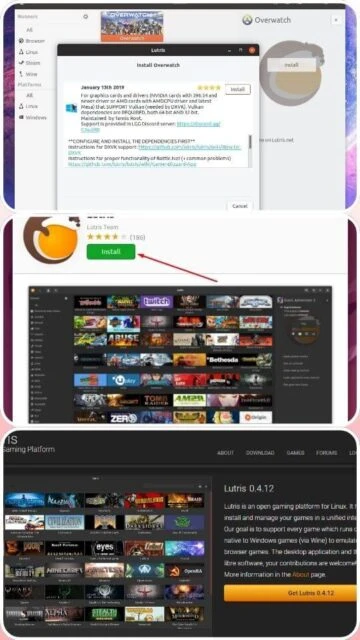
For Ubuntu/Linux Mint: Add the official PPA with ‘sudo add-apt-repository ppa:lutris-team/lutris’
Update your package manager with ‘sudo apt update’
Install Lutris using ‘sudo apt install lutris’
Alternatively, install via Flatpak: ‘flatpak install flathub net.lutris.Lutris’
Launch Lutris from your applications menu
Install Wine and necessary drivers for Windows game compatibility
Configure your game runners and integrate with Steam, GOG, and Epic Games accounts
Download game installers or point to existing game directories
Platform Availability
Platform
Support
Features
Ubuntu/Debian
Full Support
Native packages, automatic updates
Fedora/RHEL
Full Support
DNF packages, SELinux compatibility
Arch Linux
Full Support
AUR available, latest versions
Steam Deck
Full Support
Discover store installation, desktop mode ready
Elementary OS
Full Support
Curated experience, pantheon integration
Integration Ecosystem
Steam – Direct library sync and automatic game detection with Proton support
GOG – Native installer integration with automatic dependency management
Epic Games Store – Account linking for cloud save synchronization
Itch.io – Browse and download indie games directly from Lutris
Battle.net – Support for Blizzard games with account integration
Wine/Proton – Multiple compatibility layers for Windows games
Emulators – ScummVM, Dolphin, PCSX2, RetroArch runners included
Lutris vs Alternatives
Feature
Lutris
PlayOnLinux
Steam
Multi-Store Support
Yes
Limited
Steam only
Emulator Support
Extensive
Basic
None
Open Source
Yes
Yes
No
Price
Free
Free
Free
Windows Games
Excellent
Good
Excellent
Installation Wizards
Advanced
Good
None
Keyboard Shortcuts
Ctrl + H – Toggle sidebar visibility
Ctrl + F – Open search and filter games
Ctrl + P – Access preferences and settings
Ctrl + G – Add game manually to collection
Alt + Enter – Toggle fullscreen gaming mode
F1 – Open help and documentation
Ctrl + Q – Quit Lutris application
Performance Tips
Install latest graphics drivers for your GPU to enable Vulkan and DirectX support
Configure DXVK and VKD3D versions based on your GPU compatibility for optimal DirectX performance
Use GE-Proton builds for better game compatibility compared to vanilla Proton
Allocate adequate virtual memory and disable Wine virtual desktop if not needed
Enable FSR or DLSS in compatible games to improve frame rates significantly
Use Gamescope for enhanced performance on lower-end hardware
Disable Esync and Fsync if experiencing crashes and enable MangoHUD for monitoring
User reviews and ratings for Lutris
See what users think about Lutris. Read honest reviews and ratings from real users.
4.3
★★★★★
4 reviews
Best Gaming Solution for Linux
by LinuxGamer2025
★★★★★
2025-11-30
Lutris transformed my Linux gaming experience. The integration with multiple game stores is seamless, and the community installers are incredibly helpful. Performance is excellent with proper configuration.
Impressive Platform with Learning Curve
by TechEnthusiast
★★★★★
2025-10-20
Lutris is powerful and flexible but requires technical knowledge to set up correctly. The interface improvements in version 0.5.18 are wonderful. Highly recommended for experienced Linux users.
Game Changer for Linux Gamers
by OpenSourceFan
★★★★★
2025-09-18
Finally can play most of my game library on Linux. Lutris handles everything from installation to configuration. Some games need tweaking but the community support is fantastic.
Great Tool but Not Perfect
by RetroGamer88
★★★★★
2025-08-12
Lutris works well for popular games. Some older titles still cause issues. The dark theme update is beautiful. Would love better automatic configuration for edge cases.
Write a Review
Lutris Screenshots & Photos
Browse through screenshots and photos of Lutris to see how it looks and works.
Lutris Videos
Watch videos to see how this software works and learn about its features.

 43
43