

With the increasing cyber threats, USB protection programs have become essential to prevent the transfer of viruses and malware through portable storage devices. These tools provide multiple solutions including encryption, protection against unauthorized access, and prevention of automatic attacks. Here we review the top 10 programs specialized in securing USB devices.
What are the best 10 USB protection programs?
USB protection programs are security solutions designed to address threats transmitted via portable storage devices. These programs offer various features such as encryption, antivirus protection, and disabling auto-run. Here is a list of the top 10 programs in this field:
- USB Disk Security
- USB-AV Antivirus
- Smadav
- USBFix
- Panda USB Vaccine
- NTFS Drive Protection
- USB Secure
- Rohos Mini Drive
- USB Safeguard
- Kakasoft USB Security
USB Disk Program (USB Disk)
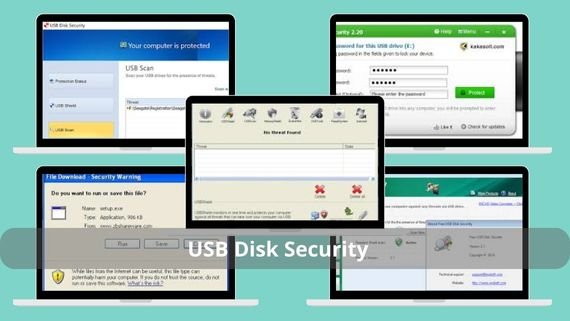 USB Disk Security is an integrated security solution that provides instant protection against viruses and malware transmitted via USB devices. It is distinguished by its unique operating mechanism that does not rely on constant updates, making it effective even against new threats. Features of USB Disk Security include:
- 100% comprehensive protection against emerging USB threats
- Instant virus detection when any storage device is connected
- Prevention of automatic execution of malicious executable files
- Simple user interface suitable for all levels
- No internet connection required to operate efficiently
- Full support for all file systems on USB devices
- Advanced protection against AutoRun and AutoPlay attacks
- Very low system resource consumption
- Ability to perform quick and deep scans of flash drives
- Compatible with all Windows versions
Steps to Install USB Disk Security
To start installing the program, follow these steps carefully to ensure correct installation and benefit from all protection features:
- ⬇️ Download USB Disk Security Antivirus to protect USB from viruses and threats quickly 🔐🛡️
- After the download is complete, double-click the installation file usbds.exe to start the installation process.
- From the dropdown menu, select your preferred installation language (English or Arabic), then click “OK”.
- Read the license agreement carefully, and if you agree, click “I Agree” to continue.
- Select the folder where you want to install the program or leave the default setting (C:Program FilesUSB Disk Security), then click “Next”.
- Click “Install” to begin installation.
- After installation is complete, click “Finish” to exit.
- When running the program for the first time, enter the license key if you are using the paid version.
- After installation, the program will automatically start protecting your device from any USB threats.
USB-AV Antivirus Program (USB-AV Antivirus)
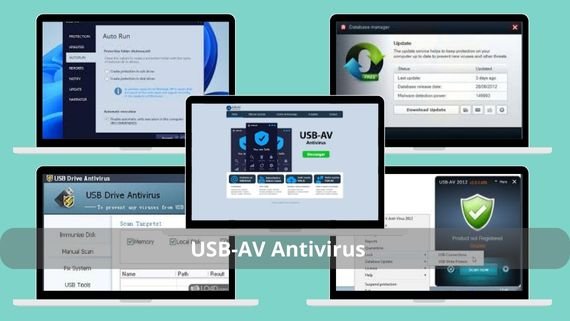 USB-AV Antivirus is a program specialized in protecting against threats transmitted via USB devices, with a special focus on fast response and instant detection. It features a quarantine system for suspicious files and prevents execution before scanning. Specifications of USB-AV Antivirus include:
- Active protection against all types of viruses and malware
- Threat detection in less than one second upon device connection
- Automatic quarantine system for suspicious files
- Daily updates to the virus database
- Simplified user interface with clear notifications
- Support for scheduled scanning of USB devices
- Compatible with Windows 7/8/10/11
- Low consumption of system memory and processor
- Ability to restore quarantined files
- Fully free version for personal use
Steps to Install USB-AV Antivirus
To ensure proper installation and benefit from instant USB protection, follow these steps:
- ⬇️ Download USB AV Antivirus to protect USB from viruses and threats effectively 🔐🛡️
- Double-click the installation file usbav_free.exe to start the process.
- Click “Next” on the welcome screen to continue.
- Read the license agreement carefully, then select “I Agree” to accept the terms.
- Select the installation folder (default is C:Program FilesUSB-AV Antivirus).
- Choose the additional components you want to install while keeping default settings, then click “Next”.
- Click “Install”.
- After completion, click “Finish” to close the installer.
- When prompted, click “Yes” to update the database immediately after installation to ensure the latest protection.
Smadav Program (Smadav)
 Smadav is a well-known Indonesian security solution that works as an additional layer of protection for Windows systems, with a special focus on protecting USB devices from local and international viruses. It is distinguished by its ability to detect threats that other antivirus programs may miss. Specifications of Smadav include:
- Dual protection for the device and connected USB devices
- Extensive database of local Asian viruses
- Automatic scanning of any USB device when connected
- Advanced cleaning tools to remove stubborn viruses
- Weekly updates to keep up with new threats
- Simple user interface with advanced options for professionals
- Full support for Windows 7 to 11
- Custom options for protecting removable drives
- Ability to permanently disable AutoRun
- Free version and paid version with additional features
Steps to Install Smadav
To obtain effective protection against local and international viruses, follow these steps to properly install Smadav:
- ⬇️ Download Smadav Antivirus to protect your device and USB from viruses effectively 🛡️💽
- Click the installation file Smadav202X.exe (where X is the version number) to start the process.
- From the language selection screen, choose “English” or “Indonesian” then click “OK”.
- Click “Next” on the welcome screen to continue.
- Click “I Agree” to accept.
- Select the installation folder (default is C:Program FilesSmadav), then click “Next”.
- Choose whether you want to install the free or paid version, then click “Next”.
- Click “Install”.
- After completion, click “Finish” to close the installer.
- Open the program, then from the settings section, enable USB protection to ensure automatic protection when any USB device is connected.
USBFix Program (USBFix)
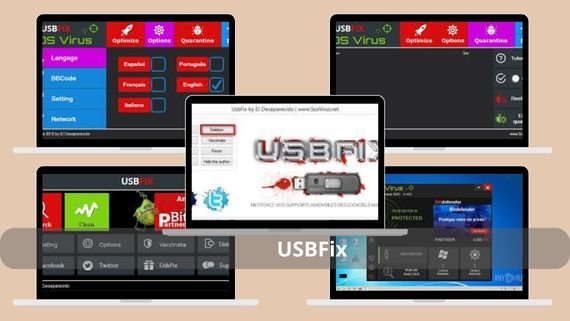 USBFix is a specialized tool for removing shortcut viruses and hidden files from USB devices, with the ability to recover infected data. It is distinguished by its effectiveness in dealing with specific types of common attacks on portable storage devices. Specifications of USBFix include:
- Comprehensive removal of shortcut viruses and hidden files
- Recovery of data hidden due to infection
- Deep scanning for all known virus types
- Creation of detailed reports after each scan
- Continuous updates to keep up with new viruses
- Easy user interface with clear instructions
- Compatible with Windows 7/8/10/11
- Additional repair tools for system issues
- Ability to operate in safe mode
- Completely free for personal use
Steps to Install USBFix
To remove viruses from USB devices and recover hidden data, follow these steps to properly install USBFix:
- ⬇️ Download USBFix to detect and remove malware from USB easily 🛡️💾
- Install the program using the installation file USBFix.exe to start the process.
- From the language selection screen, choose “Français” or “English” then click “OK”.
- Click “Suivant” on the welcome screen to continue.
- Click “J’accepte” to accept the terms.
- Select the installation folder (default is C:Program FilesUSBFix)
- Choose whether you want to create a desktop shortcut, then click “Suivant”.
- After completion, click “Terminer” to finish.
- Open the program, then click “Mise à jour” to update the database and ensure the latest protection against viruses.
Panda USB Vaccine Program (Panda USB Vaccine)
 Panda USB Vaccine is a simple and effective solution from the well-known Panda company, based on the principle of “vaccination” to prevent virus spread via the AutoRun feature. It is distinguished by being completely free and easy to use even for beginners. Specifications of Panda USB Vaccine include:
- Vaccination of USB devices against AutoRun attacks
- Permanent disabling of the AutoRun feature in Windows
- Very simple user interface with one protection button
- No complex settings required
- Completely free with no limitations
- Compatible with all Windows versions
- Very small size not exceeding 5 MB
- No system resource consumption
- Preventive protection against the most common virus types
- Multi-language support
Steps to Install Panda USB Vaccine
To obtain fast and effective protection against AutoRun attacks, follow these steps to install Panda USB Vaccine:
- ⬇️ Download Panda Dome Essential Antivirus to protect your device from viruses and threats effectively 🛡️💻
- From the results page, click the program link and download the executable file USBVaccine.exe.
- After downloading, double-click the file to start installation.
- From the language selection screen, choose “English” or “Español” then click “OK”.
- Click “Next” on the welcome screen to continue.
- Click “I Agree” to accept.
- Select the installation folder (default is C:Program FilesPanda USB Vaccine)
- Click “Install” to install the program.
- After completion, click “Finish” to close the installer.
- Open the program, insert the USB device into the USB port, then click “Vaccinate USB” to vaccinate the device against viruses.
NTFS Drive Protection Program (NTFS Drive Protection)
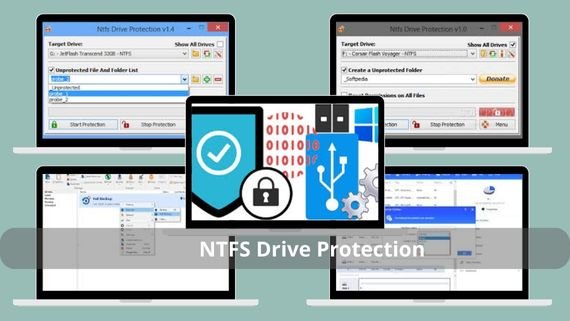 NTFS Drive Protection is a unique tool that allows protecting USB devices by enabling write protection, which prevents any malware from copying itself onto the device. It is distinguished by its small size and portability without installation. Specifications of NTFS Drive Protection include:
- Enable write protection with one click
- Complete prevention of any attempt to write files to USB
- Simple user interface with clear options
- Completely free with no ads
- Compatible with NTFS and FAT32 file systems
- Very small size (less than 1 MB)
- Portable and can be run directly from USB
- Leaves no trace on the system
- Multi-language support
- Ability to easily remove protection when needed
Steps to Install NTFS Drive Protection
To enable write protection on USB devices and prevent viruses from copying onto them, follow these steps:
- ⬇️ Download NTFS Drive Protection to protect NTFS partitions and prevent unauthorized access 🔐🛡️
- From the results page, click the program link and download the compressed file NTFS-Drive-Protection.zip.
- Extract the contents of the compressed file to a temporary folder using a program such as WinRAR or 7-Zip.
- Open the extracted folder, then double-click the executable file NTFS-Drive-Protection.exe to run the program.
- From the language selection screen, choose “English” or “Turkish” then click “OK”.
- Select the USB device from the list displayed in the main program interface.
- Click the “Enable Write Protection” button to activate write protection.
- In the confirmation window, click “Yes” to confirm enabling protection.
- Close the program, and the USB device will remain protected until you manually remove the protection.
USB Secure Program (USB Secure)
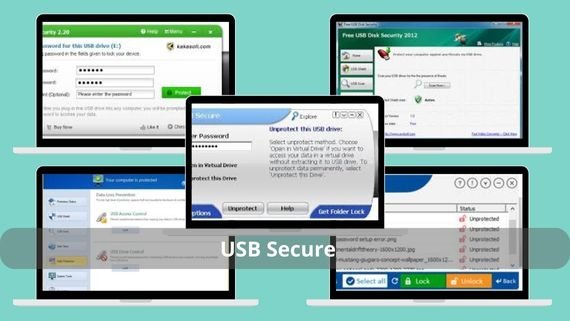 USB Secure is a solution specialized in protecting USB devices with a password, with the ability to encrypt sensitive files. It is distinguished by providing strong protection for personal data while maintaining ease of use. Key specifications of USB Secure include:
- Complete password protection for USB devices
- Intuitive user interface with clear instructions
- Advanced file encryption using AES 256-bit
- Supports all types of storage devices
- Compatible with Windows 7 to 11
- Protection against unauthorized access to files
- Works on all computers
- Includes secure password recovery options
- Free trial version for fifteen days
Step-by-Step Installation of USB Secure
To protect USB devices with a password and encrypt sensitive data, follow these steps to install USB Secure:
- ⬇️ Download USB Secure to protect USB data with a password easily 🔐💾
- Click the installation file usb-secure.exe to start the process.
- From the language selection screen, choose “English” or “Arabic” then click “OK”.
- Click “Next” on the welcome screen to continue.
- Click “I Agree” to accept the terms.
- Select the installation folder (default is C:Program FilesUSB Secure).
- Choose whether you want to create a shortcut, then click “Next”.
- After completion, click “Finish” to exit.
- Insert the USB device into the port.
- Open the program and follow the instructions to protect the device with a password.
Rohos Mini Drive Program (Rohos Mini Drive)
 Rohos Mini Drive is a free tool that allows creating an encrypted partition on USB devices to securely store sensitive files. It is distinguished by not requiring administrator privileges to operate, making it ideal for use on public computers. Key specifications of Rohos Mini Drive include:
- Create an encrypted partition up to 2 GB for free
- Strong encryption using AES-256 algorithms
- Simple user interface with easy steps
- No administrator privileges required
- Compatible with all Windows versions
- Portable and can be run directly from USB
- Ability to open the encrypted partition on any device
- Automatic protection upon device removal
- Ability to resize the encrypted partition
- Multi-language support
Steps to Install Rohos Mini Drive
To create an encrypted partition on USB devices and securely store sensitive files, follow these steps to install Rohos Mini Drive:
- ⬇️ Download Rohos Mini Drive to encrypt and protect USB data easily 🔐💽
- Install the program by running the file rohos-mini.exe to start the process.
- From the language selection screen, choose “English” or “Russian” then click “OK”.
- Click “Next” on the welcome screen to continue.
- Click “I Agree” to accept the terms.
- Select the installation folder (default is C:Program FilesRohos Mini Drive).
- Click “Install” to start installation and wait until it completes.
- After completion, click “Finish” to exit.
- Insert the USB device, then open the program and click “Encrypt USB” to create an encrypted partition on the device.
USB Safeguard Program (USB Safeguard)
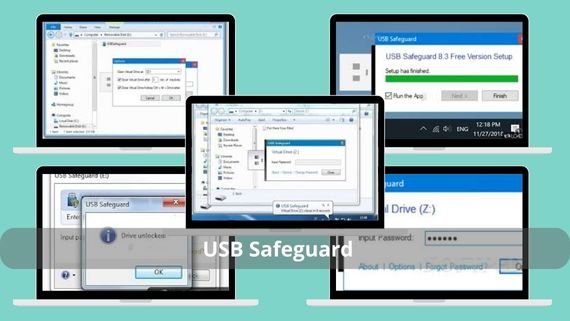 USB Safeguard is a free solution that provides password protection for personal files on USB devices, with strong encryption using AES 256-bit. It is distinguished by being portable and easy to use even for beginners. Key specifications of USB Safeguard include:
- Password protection for files
- Advanced encryption using AES 256-bit
- Simple user interface with clear instructions
- Completely free for personal use
- Compatible with Windows 7 to 11
- Ability to encrypt only selected folders
- Secure deletion of sensitive files
- Small size not exceeding 2 MB
- Multi-language support
Steps to Install USB Safeguard
To protect personal files on USB devices with a password and encryption, follow these steps to install USB Safeguard:
- ⬇️ Download USB Safeguard Portable to encrypt and protect USB files effectively 🔐💾
- After downloading, extract the contents of the compressed file USB-Safeguard.zip to a temporary folder.
- Click the executable file USBSafeguard.exe to run the program.
- From the language selection screen, choose “English” or “Italiano” then click “OK”.
- Insert the USB device and wait until it is recognized and appears in the interface.
- In the designated field, enter a strong password to protect the device.
- Re-enter the same password in the confirmation field to ensure accuracy.
- Click “Encrypt USB” to start encrypting the device and protecting it with a password.
- Wait until the encryption process completes, then close the program.
Kakasoft USB Security Program (Kakasoft USB Security)
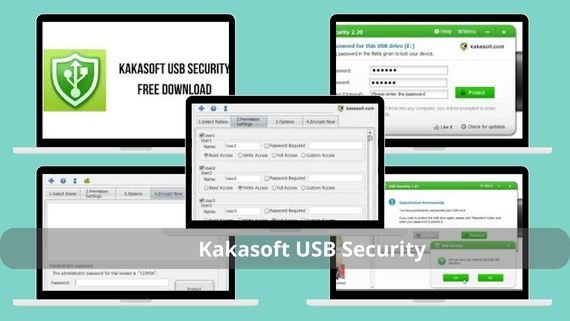 Kakasoft USB Security is a program specialized in protecting USB devices with a password and encrypting sensitive files. It is distinguished by offering an elegant user interface with advanced options for professionals. Key specifications of Kakasoft USB Security include:
- Comprehensive password protection for USB devices
- Attractive and easy-to-use user interface
- Support for all types of portable storage devices
- Compatible with Windows 7 to 11
- Ability to work on public computers
- Advanced password recovery options
- Protection against repeated hacking attempts
- Free trial version for 15 days
Steps to Install Kakasoft USB Security
To protect USB devices with a password and encrypt sensitive files using an elegant interface, follow these steps:
- ⬇️ Download Kakasoft USB Security to protect USB files with a password 💾🔒
- After downloading, double-click the installation file usb-security.exe to start the process.
- Click “Next” on the welcome screen to continue.
- Read the license agreement carefully, then click “I Agree” to accept the terms.
- Select the installation folder (default is C:Program FilesKakasoft USB Security) then click “Next”.
- After completion, click “Finish” to exit.
- Insert the USB device into the USB port, then open the program and follow the on-screen instructions to protect the device with a password.
Comparison of USB Protection Programs
Choosing the right USB protection program depends on the type of threats you face and the level of protection required. Some programs focus on antivirus protection, while others provide advanced encryption solutions. Here is a comprehensive comparison between the programs:
| Program Name | Features | Drawbacks |
|---|---|---|
| USB Disk Security | 100% virus protection, no updates required, very lightweight | Only the paid version provides all features |
| USB-AV Antivirus | Active protection, daily updates, quarantine system | Limited advanced features in the free version |
| Smadav | Local virus protection, advanced cleaning tools | Outdated interface, sometimes slow |
| USBFix | Specialized in shortcut viruses, recovers hidden files | Limited scope, focuses only on specific virus types |
| Panda USB Vaccine | Completely free, easy to use, blocks AutoRun | Limited features compared to other programs |
| NTFS Drive Protection | Write protection, portable, no resource usage | Works only with NTFS and FAT32 file systems |
| USB Secure | Password protection, AES 256 encryption, portable | Paid version required for full features |
| Rohos Mini Drive | Free encrypted partition, no admin rights required | Limited encrypted size (2 GB only) |
| USB Safeguard | Free, AES 256 encryption, portable | Limited size in the free version (4 GB) |
| Kakasoft USB Security | Elegant interface, advanced options, strong encryption | Paid version required for full features |
It confirms the importance of protecting USB devices against increasing cyber threats. The programs reviewed provide diverse solutions suitable for all needs and budgets, ranging from basic virus protection to advanced encryption of sensitive files.