
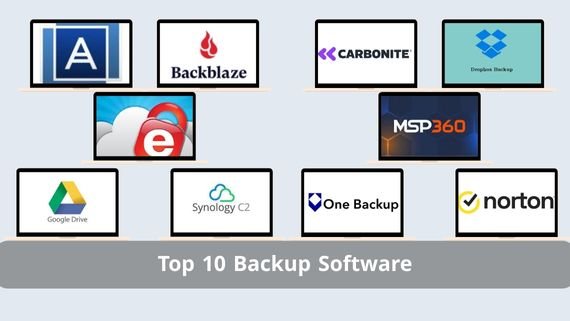
With our increasing reliance on digital devices, backup software has become an essential tool for safeguarding important data and files from loss or corruption. Rumman provides a clear look at the best backup programs that let you securely save data locally or via cloud storage, ensuring easy and reliable recovery.
What Is Backup Software?
Backup software is a specialized solution designed to create backup copies of important data and files on computers and servers. These programs protect data from loss or damage due to technical failures, cyberattacks, or accidental deletion. They offer multiple backup options, whether locally on external storage devices or in the cloud on remote servers. Below is a list of the top 10 backup programs:
- Acronis True Image (Acronis True Image)
- Backblaze (Backblaze)
- IDrive (IDrive)
- Google Drive (Google Drive)
- Dropbox Backup (Dropbox Backup)
- Carbonite (Carbonite)
- Norton Cloud Backup (Norton Cloud Backup)
- MSP360 (MSP360)
- SpiderOak One Backup (SpiderOak One Backup)
- Synology C2 Backup (Synology C2 Backup)
Acronis True Image Program (Acronis True Image)
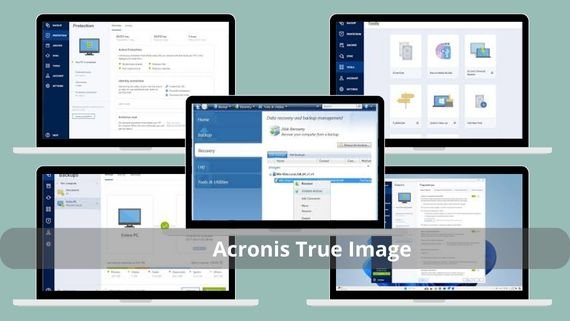
Acronis True Image is an integrated solution for backup and data protection, combining automatic backup, antivirus protection, and advanced encryption. It is among the most powerful programs in data protection and backup. Below are the main features of Acronis True Image:
- Automatic backup of files, folders, and the entire system
- Advanced protection against cyber threats and malware
- Data encryption with advanced technologies to ensure confidentiality and privacy
- Ability to restore the entire system in case of failure
- Cloud backup support with synchronization
- User-friendly interface suitable for beginners and professionals
- Ability to schedule backups by time or specific events
- Differential backup support to save storage space
- Compatibility with different operating systems (Windows, Mac, Linux)
- Disk cloning and system migration to a new device
Steps to Install Acronis True Image
To start using Acronis True Image, you need to install the program on your device and configure it correctly to protect your data. These steps will guide you through the installation and initial setup:
- Download Acronis True Image and protect your data quickly and securely 💾🛡️
- Click the “Try Now” or “Buy Now” button depending on whether you want to try the trial version or purchase directly.
- Select the version suitable for your operating system (Windows, Mac, or Linux).
- Download the installer and run it.
- After installation, open the program and create a new Acronis account or sign in if you already have one.
- Enter the license key if you purchased the program.
- Configure the initial backup settings according to your needs.
- Select folders and files for backup.
- Schedule your first backup.
Backblaze Program (Backblaze)
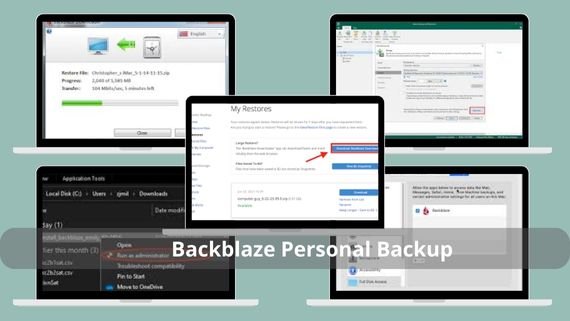
Backblaze is an excellent choice for those looking for a simple and effective cloud backup service, offering unlimited storage space to back up all your files. It is known for its ease of use and low cost compared with similar services. Below are the main features of Backblaze:
- Unlimited cloud storage for files and data
- Fast and easy file recovery from anywhere in the world
- Simple, user-friendly interface that requires no technical expertise
- Automatic backup of all files once the program is installed
- Access to files through mobile apps
- Data encryption during transfer and storage for security
- Ability to recover files for up to 30 days
- Low subscription cost compared with similar services
Steps to Install Backblaze
Backblaze offers a smooth installation experience, enabling you to start protecting your files quickly. Follow these steps to install and set up the program on your device:
- Download Backblaze Personal Backup Unlimited Cloud and save your files in the cloud without limits 🌩️💾✨
- Click the “Start Free Trial” or “Buy Now” button as desired.
- Create a new account by entering your email and password.
- Select the plan that suits your needs (Personal or Business).
- Download the appropriate file.
- Run the installer and follow the on-screen instructions.
- Open the program and sign in with your account details.
- Select any folders you want to exclude from backup (if any).
- Let the program run in the background to automatically back up your files.
IDrive Program (IDrive)
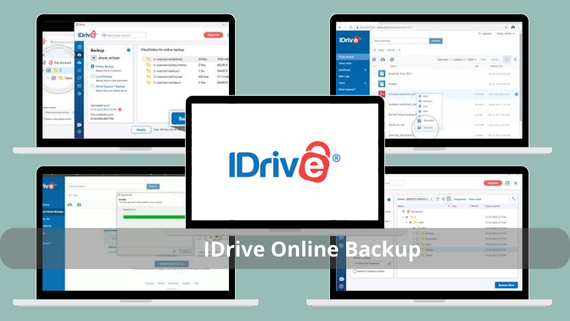
IDrive combines cloud and local backup, providing comprehensive protection and allowing you to restore files easily. It is an integrated solution suitable for both individuals and businesses. Below are the main features of IDrive:
- Local and cloud backup simultaneously for dual protection
- Easy data recovery from any device or web browser
- Multi-device support to protect data across different devices
- Up to 10 GB of free storage for new users
- Ability to share files and folders with other users
- Supports server and database backup
- 256-bit AES encryption for maximum security
- Scheduling automatic backups as needed
- Differential and incremental backups to save space
- Multi-language, user-friendly interface
Steps to Install IDrive
IDrive provides an integrated backup solution that combines local and cloud storage. To install the program and start protecting your data, follow these steps:
- Download IDrive Online Backup Multi-Device and protect your files across your devices with secure cloud backup ☁️💾✨
- Click “Sign Up” to create a new account or “Log In” if you already have one.
- Select the plan that meets your needs (Personal, Business, or Team).
- Enter personal information and payment details if you selected a paid plan.
- Download the installer.
- Select files and folders.
- Schedule backup jobs or start an immediate backup.
Google Drive Program (Google Drive)
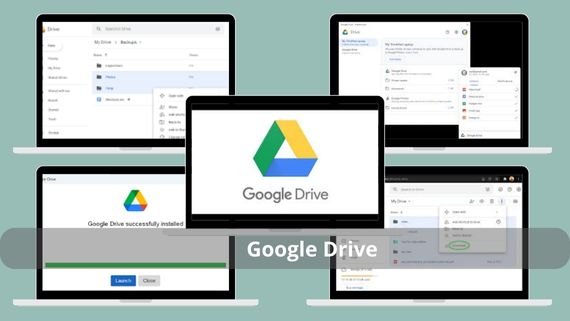
Google Drive needs no introduction, as it is one of the most well-known free cloud storage services, offering 15 GB of free storage, with paid plans for more space. It integrates with other Google services. Below are the main features of Google Drive:
- Up to 15 GB of free storage for new users
- Automatic file synchronization across all connected devices
- Easy sharing of files and folders with other users
- Collaborative editing of documents, spreadsheets, and presentations
- Advanced file search using artificial intelligence technologies
- Ability to restore deleted files from the trash
- Automatic photo backup from mobile devices
- Integration with other Google services such as Gmail and Google Docs
- Simple, user-friendly interface
Steps to Install Google Drive
Google Drive allows you to access your files from any device and automatically synchronize them. Follow these steps to install the program and start using Google’s cloud storage service:
- Download Google Drive Desktop and back up your files to the cloud with ease ☁️💾✨
- Click “Download Drive for desktop” to download the program.
- After downloading, run the file and follow the on-screen instructions.
- When prompted, sign in to your Google account.
- Read and accept the Terms of Service to continue.
- Select the folder you want to synchronize with Google Drive.
- Choose the storage space you want to use (free or paid).
- Select the files and folders you want to back up to Google Drive.
- Wait for the initial synchronization to complete.
- You can now access your files from any internet-connected device via your Google account.
Dropbox Backup Program (Dropbox Backup)
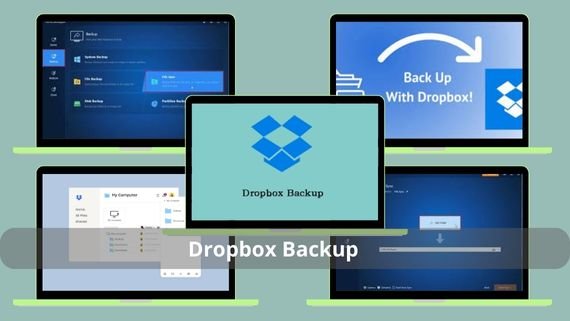
Dropbox Backup is an excellent option for individuals and small businesses that need easy file sharing and data backup. It is known for high reliability and ease of use. Below are the main features of Dropbox Backup:
- Easy file sharing with other users
- Advanced storage options to suit the needs of businesses and individuals
- Ability to recover deleted files for up to 30 days
- Automatic backup of predefined folders
- Synchronization across all devices connected to the account
- Collaborative editing of documents and files
- Simple, user-friendly interface
- Backup support for large files without limits
Steps to Install Dropbox Backup
Dropbox Backup provides an easy and reliable way to save your files and share them with others. Follow these steps to install the program and start using Dropbox’s backup service:
- Download Dropbox Backup and securely save your files in the cloud and restore them easily ☁️💾✨
- Click “Download Dropbox” to download the program.
- Select the version suitable for your operating system (Windows, Mac, or Linux).
- Download the installer and run it.
- Follow the on-screen instructions to complete installation.
- Open the program and create a new Dropbox account.
- Select the plan that meets your needs (Basic, Plus, Professional, or Business).
- Select the folders you want to back up to Dropbox.
- Configure synchronization settings according to your needs.
Carbonite Program (Carbonite)
Carbonite provides comprehensive cloud backup solutions at reasonable prices, making it a good choice for businesses and individuals looking to protect their data. It is characterized by simplicity and high reliability. Below are the main features of Carbonite:
- Flexible plans to suit different individual and business needs
- Automatic file backup without user intervention
- Easy data recovery support
- Backup support for external and connected files
- Access to files from anywhere via the internet
- Support for server and database backup
- Ability to recover deleted files for a limited period
- 24/7 technical support
Steps to Install Carbonite
Carbonite offers a simple and effective cloud backup solution. To install the program, follow these steps:
- Download Carbonite Safe and protect your files with secure, easy backup 💾🛡️✨
- Click “Try Free” or “Buy Now” as desired.
- Select the plan that meets your needs (Personal, Home, or Business).
- Create a new account.
- Enter your personal data and payment information if you selected a paid plan.
- Download the appropriate installer.
- Open the program and sign in.
- Wait for the first backup to finish (this may take some time depending on file size).
Norton Cloud Backup Program (Norton Cloud Backup)
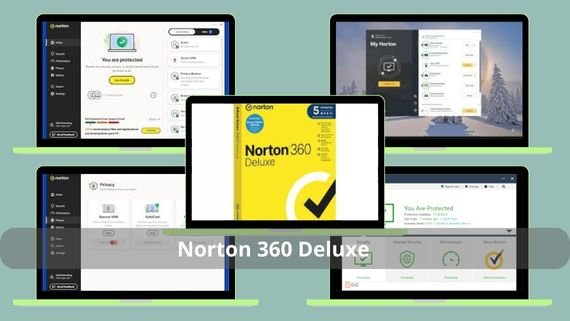
Norton Cloud Backup provides robust data protection features, including backup and cybersecurity against viruses and online threats. It integrates with Norton’s comprehensive security suite. Below are the main features of Norton Cloud Backup:
- Protection against viruses and malware
- Easy data recovery in case of loss or damage
- Simple, user-friendly interface
- Automatic backup of important files
- Scheduling backups as needed
- Data encryption for privacy and security
- Backup support for external files
- Ability to recover deleted files
- Integration with the full Norton security suite
Steps to Install Norton Cloud Backup
Norton Cloud Backup provides comprehensive data protection integrated with the Norton security suite. To install the program, follow these steps:
- Ensure you have an active subscription to Norton 360 or the full Norton security suite.
- Download Norton 360 Deluxe Family Security and protect your devices and family with complete security 🛡️💻✨
- Sign in to your Norton account.
- Click “Cloud Backup” or “Device Security”.
- Download the Norton Cloud Backup installer.
- After installation, open the program and sign in with your Norton account details.
- Schedule your first backup or start an immediate one.
MSP360 Program (MSP360)
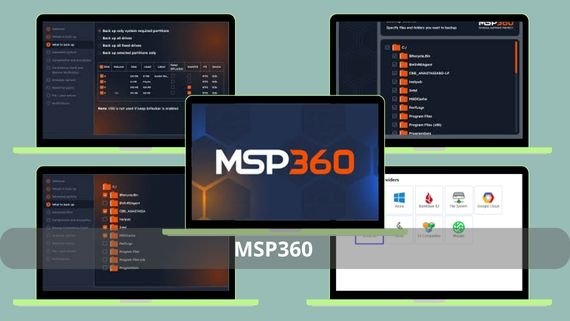
MSP360 offers great flexibility in managing cloud backups and is an excellent choice for large companies thanks to its adaptability and support for multiple storage options. It is known for its ability to meet different business needs. Below are the main features of MSP360:
- High flexibility in backup and storage options
- Multi-storage support (local, cloud, hybrid)
- Suitable for large and medium-sized companies
- Centralized backup management capability
- Support for server and database backup
- Advanced user interface suitable for professionals
- Scheduling automatic backups
- Differential and incremental backup support
- Integration with various cloud storage services
- Specialized technical support for businesses
Steps to Install MSP360
MSP360 provides a flexible backup solution that suits the needs of large and medium-sized companies. Follow these steps to install the program:
- Download MSP360 Backup Cloud Solution and protect your data with reliable cloud backup ☁️💾✨
- Click “Download” or “Try Free” as desired.
- Select the version that meets your needs (Managed Backup, Backup for Windows, or Backup for Mac).
- Create a new account by entering your email and password.
- Enter personal information and payment details.
- Download the installer suitable for your operating system.
- Open the program and sign in with your account details.
- Select the files and folders you want to back up.
SpiderOak One Backup Program (SpiderOak One Backup)
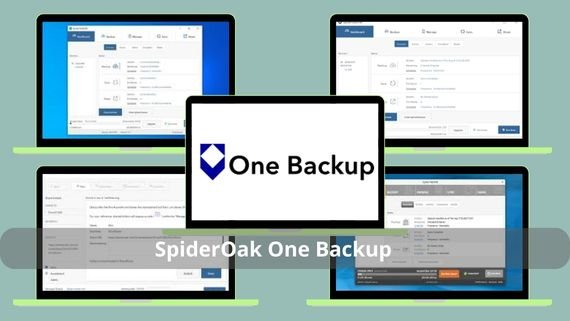
SpiderOak One is an excellent option for those concerned about privacy who seek strong data protection thanks to end-to-end encryption. It focuses on maximum privacy and data security. Below are the main features of SpiderOak One Backup:
- Strong data encryption with a “zero-knowledge” approach
- High privacy, as the company cannot access your data
- Automatic backup of selected files and folders
- Synchronization across different devices
- Differential backup support to save space
- Simple, user-friendly interface
- Ability to recover deleted files for a limited period
- Backup support for large files
- Compatibility with multiple operating systems
- No personal information required for registration
Steps to Install SpiderOak One Backup
SpiderOak One Backup provides maximum data protection with a focus on privacy. Follow these steps to install the program:
- Download SpiderOak ONE Encrypted Backup and protect your data with strong encrypted backup 🔒💾✨
- On the home page, click “Download” or “Try Free” to start the installation.
- Select the version suitable for your operating system (Windows, Mac, or Linux).
- Download the installer and run it.
- After installation, open the program and create a new account (no personal information will be required).
- Create a strong password to protect your account (remember, this password cannot be recovered if lost).
- Select the folders you want to back up to SpiderOak.
Synology C2 Backup Program (Synology C2 Backup)
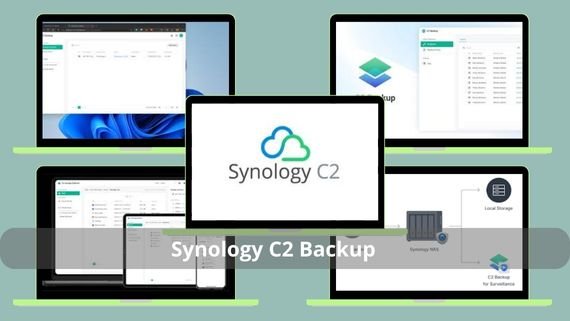
Synology C2 Backup features an easy-to-use interface and offers a reliable cloud solution, making it a great choice for Synology device users. It integrates with Synology NAS devices. Below are the main features of Synology C2 Backup:
- Compatibility with Synology NAS devices
- Reliable and secure data backup
- Multiple storage options to suit different needs
- User-friendly interface
- Scheduling automatic backups
- Easy data recovery
- Data encryption during transfer and storage
- Backup support for large files
- Ability to monitor backup status from anywhere
- Specialized support from Synology
Steps to Install Synology C2 Backup
Synology C2 Backup provides a reliable cloud solution for Synology NAS users. Follow these steps to install the program and start protecting your data:
- Ensure you have a Synology NAS device connected to the internet.
- Download Synology C2 Backup Cloud and protect your data with secure cloud backup ☁️💾✨
- Sign in to your Synology account or create a new one.
- Select the C2 Backup plan that meets your needs.
- Log in to the management interface of your Synology NAS device.
- Go to Package Center and search for “C2 Backup”.
- Install the C2 Backup package on your NAS device.
- After installation, open the package and sign in with your Synology account.
- Configure backup settings according to your needs.
- Select the files you want to back up to C2 Backup.
Choosing the Best Backup Program
When choosing the best backup program, you should consider several important factors that match your specific needs. The optimal choice depends on the amount of data you want to back up, the type of files, your budget, and your technical expertise. The comparison table below will help you make the right decision:
| Program Name | Advantages | Disadvantages |
|---|---|---|
|
|
|
|
|
|
|
|
|
|
|
|
|
|
|
|
|
|
|
|
|
|
|
|
|
|
|
|
|
|
|
|
|
|
|
|
|
|
|






Backing up data is an essential step that cannot be overlooked in today’s digital age. With many excellent programs on the market, you can choose a program that suits your specific needs and provides the necessary protection for your important data. Always remember that prevention is better than cure, and regular backups ensure that you do not lose your valuable information in emergencies or hardware failures. Choose the program that suits you and start protecting your data today to ensure business continuity and the safety of your personal files.