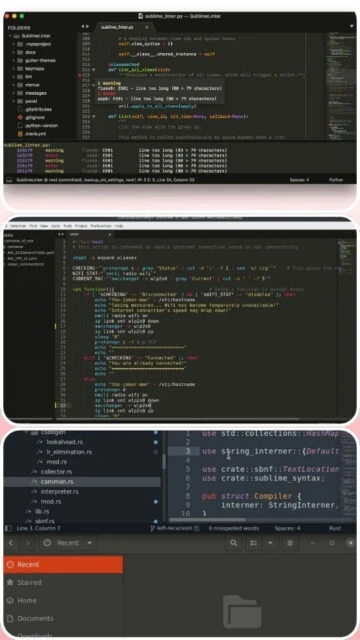
Sublime Text 4 represents the pinnacle of lightweight code editors, delivering exceptional performance and advanced features without unnecessary bloat. As a premium text editor favored by developers worldwide, it stands out for its minimalist interface, lightning-fast responsiveness, and sophisticated plugin ecosystem. Build 4200 introduces GPU rendering, improved syntax highlighting, and native TypeScript/JSX support. This guide explores how Sublime Text maximizes coding productivity through elegant design and powerful extensibility that rivals full-featured IDEs while maintaining superior performance on any system.
How to Install Sublime Text 4
Installing Sublime Text 4 is straightforward, with official installers available for Windows, macOS, and Linux. The entire process takes minutes, and users can immediately begin coding or customizing the editor to their preferences.
- Download Official Installer – Visit https://www.sublimetext.com/download and select the appropriate version for your operating system (Windows installer, macOS universal binary, or Linux tarball).
- Run Installation Wizard – Execute the downloaded file and follow the installation prompts. On Windows, accept the license terms and choose your installation directory. On macOS, drag Sublime Text into the Applications folder.
- Configure Editor Preferences – Launch Sublime Text and access Preferences to customize themes, fonts, and key bindings. Install Package Control from https://packagecontrol.io for easy plugin installation.
- Activate License Key – Enter your license key under Help > Enter License. Sublime Text functions indefinitely in evaluation mode but displays occasional purchase reminders.
Who Should Use Sublime Text 4
Sublime Text serves multiple user categories seeking a balance between power and simplicity, from individual developers to professional teams requiring lightweight yet capable development tools.
- Web Developers – Perfect for HTML, CSS, JavaScript, and modern frameworks with native TypeScript/JSX support and extensive plugin ecosystem for web technologies.
- Systems Programmers – Excellent for C, C++, Python, and shell scripting with customizable build systems and remote file editing capabilities.
- Writers and Markup Authors – Ideal for Markdown, LaTeX, and documentation with distraction-free mode and powerful find-replace functionality.
- NOT ideal for – Large enterprise teams requiring integrated debugging (use full IDEs like Visual Studio), beginners needing guided learning, or developers requiring built-in database management tools.
Sublime Text 4 Platform Compatibility
Sublime Text maintains excellent cross-platform support with nearly identical functionality across Windows, macOS, and Linux systems. The application uses native rendering capabilities on each platform while preserving consistent user experience.
| Platform |
Min. Version |
Unique Features |
Limitations |
| Windows |
Windows 7 or later (64-bit recommended) |
IME preview, multi-select support, custom title bars, context menu integration |
32-bit support discontinued |
| macOS |
macOS 10.12 or later |
Universal 2 binary (Intel and Apple Silicon), native touchpad gestures, Cmd key bindings |
64-bit only, limited trackpad customization |
| Linux |
Ubuntu 16.04+, RHEL/CentOS 7+ |
Wayland support, native file dialogs for KDE, touch screen support, both x86_64 and ARM64 builds |
Requires GLIBC 2.12 or later |
| Web |
Not available |
Desktop application only |
No web version available |
Sublime Text 4 Integrations & Plugins
Sublime Text’s plugin ecosystem extends functionality dramatically through Package Control, offering thousands of community-maintained plugins. Strategic integrations with version control systems, linters, and language servers transform the editor into a specialized development environment without resource overhead.
- Git Integration – GitGutter displays inline Git diff markers; Sublime Merge provides powerful Git client with three-way merge. Git status performance improved 60% in build 4200.
- LSP (Language Server Protocol) – Enable intelligent code completion, diagnostics, and refactoring for any LSP-compatible language including Python, JavaScript, Rust, Go, and C++.
- Linting and Formatting – Pylint, ESLint, Prettier, Black, and ClangFormat plugins provide real-time code quality feedback and automatic formatting on save.
- Build System Integration – Custom build systems support npm, pip, Maven, CMake, and Docker with interactive input boxes (new in build 4200) for parameterized builds.
Best Alternatives to Sublime Text 4
While Sublime Text excels as a lightweight code editor, specific development scenarios may benefit from alternative tools. Understanding each alternative’s strengths helps developers make informed choices for their particular workflows.
- Visual Studio Code – Best for integrated development environments with built-in debugging, terminal, and Git GUI; features extensive marketplace with 100,000+ extensions but higher resource consumption.
- JetBrains CLion – Best for C/C++ native development, offering advanced debugger, CMake integration, and intelligent refactoring; requires subscription but includes professional-grade language analysis.
- Neovim – Best for terminal-first developers seeking keyboard-centric workflow without GUI overhead; lightweight and highly configurable but steep learning curve.
- Atom – Best for developers wanting open-source foundation with community packages; similar architecture to VS Code but slower performance and discontinued official support.
Sublime Text 4 vs Top Competitors
Comparing Sublime Text against leading development tools reveals distinct positioning. Each competitor excels in specific domains, making selection dependent on project requirements, development style, and resource constraints.
| Feature |
Sublime Text 4 |
Visual Studio Code |
JetBrains CLion |
| Pricing |
$99 lifetime (3-year renewal), unlimited free trial |
Free, open-source |
$99-229/year subscription (student discount available) |
| Key Strength |
Performance, minimalist design, startup speed |
Integrated debugging, built-in terminal, marketplace |
C/C++ language intelligence, advanced debugger, CMake support |
| Target Users |
Performance-focused developers, polyglots, writers |
Full-stack developers, teams, enterprise users |
C/C++ specialists, embedded systems, game developers |
| Unique Feature |
GPU-accelerated rendering, distraction-free mode, goto anything |
Remote development containers, dev environments |
Constexpr debugger, refactoring for C++, DAP protocol support |
| Learning Curve |
Moderate |
Shallow |
Steep |
Sublime Text 4 Keyboard Shortcuts
Mastering keyboard shortcuts dramatically accelerates coding workflow in Sublime Text. Strategic use of built-in shortcuts and multi-cursor editing reduces reliance on mouse interaction, enabling developers to maintain focus and flow state.
| Action |
Windows |
macOS |
| Quick File Navigation |
Ctrl+P |
Cmd+P |
| Command Palette |
Ctrl+Shift+P |
Cmd+Shift+P |
| Select Word or Add Next Occurrence |
Ctrl+D |
Cmd+D |
| Multi-line Comment |
Ctrl+Shift+/ |
Cmd+Option+/ |
| Duplicate Line |
Ctrl+Shift+D |
Cmd+Shift+D |
| Join Lines |
Ctrl+J |
Cmd+J |
| Find and Replace |
Ctrl+H |
Cmd+Option+F |
| Go to Line |
Ctrl+G |
Cmd+G |
Sublime Text 4 Performance Optimization
Optimizing Sublime Text configuration ensures maximum performance even with large projects or resource-constrained systems. Strategic configuration adjustments minimize memory usage while preserving functionality.
- Reduce Indexing Scope – Configure file_exclude and folder_exclude patterns to prevent indexing of node_modules, .git, and build directories, reducing startup time by 50-70% on large projects.
- GPU Acceleration – Enable hardware rendering in Preferences for fluid UI at 8K resolution with reduced power consumption; particularly beneficial on high-DPI displays.
- Plugin Audit – Regularly review installed plugins via Package Control and disable unused ones; each active plugin increases startup time and memory footprint.
- Cache Management – Clear index cache via View > Show Console and running sublime.clear_indexed_files() if indexing becomes sluggish with very large codebases.
- Font Rendering – Set appropriate dpi_scale value in user preferences for high-resolution displays; default value may cause rendering lag on 4K+ monitors.
Sublime Text 4 Accessibility Features
While Sublime Text provides basic accessibility, screen reader support remains limited compared to modern IDEs. The application prioritizes keyboard navigation and customizable visual presentation for users with diverse needs.
- Screen Reader – Limited NVDA/JAWS support; community reports indicate Sublime Text accessibility lags behind competitive editors, with incomplete UI announcements and inadequate label support.
- Visual – Extensive customization with 15+ built-in color schemes, adjustable font sizes (including new default_font_size setting), high-contrast modes, and selectable UI themes for visual accessibility.
- Motor – Complete keyboard-only navigation with no mouse requirement; supports custom key bindings and macro recording for accessibility across all features.
- Languages – Interface available in English with plugin support enabling other UI languages; excellent support for editing files in any language including RTL text (Arabic, Hebrew) with improved handling in build 4200.
Sublime Text 4 Support & Documentation
Comprehensive official documentation and vibrant community forums provide extensive resources for troubleshooting, feature discovery, and best practices. Official documentation covers all built-in features with detailed examples.
- Official Documentation – Detailed guides covering installation, configuration, Python API development, and feature documentation at https://www.sublimetext.com/docs; regularly updated with new feature releases.
- Community Forum – Active forum at https://forum.sublimetext.com with thousands of discussions covering plugin development, configuration, and troubleshooting; developers maintain high participation rate.
- Video Tutorials – Limited official YouTube content; community creators provide comprehensive setup and workflow tutorials; Package Control documentation includes many third-party guides.
- Contact Support – Commercial licensing inquiries through https://www.sublimetext.com/buy; bug reports and feature suggestions accepted via GitHub issue tracker; direct support limited for free tier.