Visual Studio Code (VS Code) dominates the modern development landscape as the most popular code editor globally. This comprehensive guide covers installation, configuration, platform compatibility, extensions, alternatives, competitive positioning, productivity shortcuts, performance optimization, accessibility support, and available resources for developers of all experience levels.
How to Install Visual Studio Code
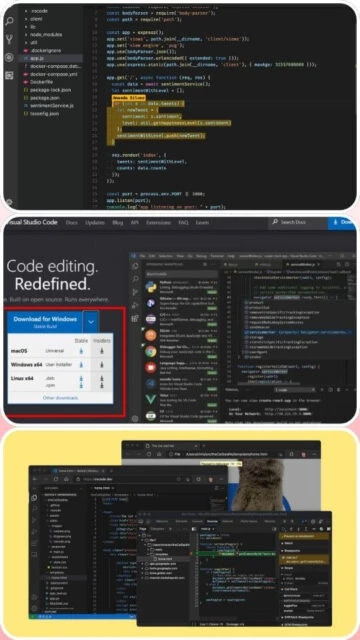
Installing Visual Studio Code takes minutes with downloads available for Windows, macOS, and Linux platforms. The lightweight installer (approximately 110 MB) ensures quick setup. Users can immediately open projects and begin coding without configuration, though optional extensions enhance functionality dramatically based on specific development requirements.
- Download from Official Website – Visit code.visualstudio.com and select the installer for your operating system (Windows, macOS ARM/Intel, or Linux distributions).
- Run Installation Package – Execute the installer and follow the setup wizard. VS Code installs to Program Files (Windows) or Applications (macOS) with quick installation completing in seconds.
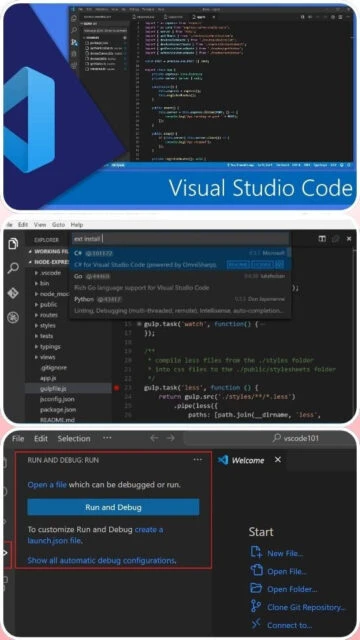
- Launch VS Code – Open VS Code and you’ll encounter the Welcome tab. The interface immediately displays recommended extensions based on your system and development stack.
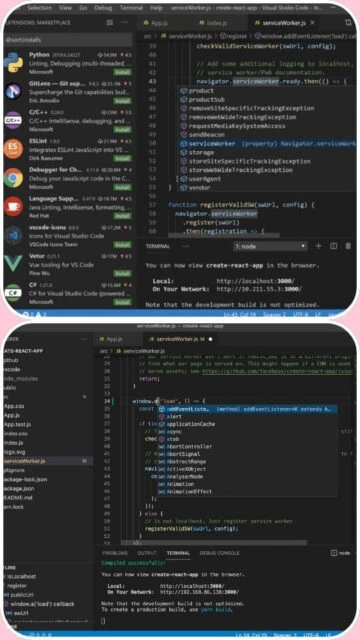
- Install Extensions for Your Language – Click Extensions icon in sidebar and search for your programming language. Install language packs (Python, JavaScript, C++, etc.) and essential tools (Prettier, ESLint, Debuggers).
Who Should Use Visual Studio Code
VS Code serves developers across all skill levels and programming disciplines. Beginners appreciate the simple interface and helpful error messages. Full-stack developers leverage extensive extension ecosystem. Data scientists use Python extensions for analysis. DevOps engineers manage infrastructure as code. Students learn programming fundamentals. Enterprise teams maintain large codebases.
- Web Developers – Build modern web applications with integrated debugging, Git integration, and Live Server extensions for real-time preview.
- Python Developers – Execute data science, machine learning, and backend development with JupyterLab integration and comprehensive debugging support.
- Full-Stack Engineers – Work across frontend JavaScript, backend Node.js, databases, and DevOps tools within unified editor environment.
- NOT ideal for – Large enterprise applications requiring industrial IDE features, low-level systems programming with specialized tooling, or users requiring commercial support guarantees.
Visual Studio Code Platform Compatibility
VS Code maintains excellent cross-platform support, running natively on Windows, macOS, and Linux. The editor supports both Intel and Apple Silicon processors with native optimization. Web-based access through code.visualstudio.com enables browser usage. Mobile device editors provide remote development capabilities through remote extensions.
| Platform |
Min. Version |
Unique Features |
Limitations |
| Windows |
Windows 8.1 or newer |
Full native support, system integration, fastest performance |
None |
| macOS |
macOS 10.11 (El Capitan) or newer |
Native Apple Silicon optimization, Touch Bar support |
Older Macs require older VS Code versions |
| Linux |
glibc 2.29 or newer (64-bit) |
Full open-source development environment, server deployment |
Depends on distribution package availability |
| Web Browser |
Modern browsers (Chrome/Firefox/Safari/Edge) |
Access from any device, cloud-based development, no installation |
Limited local file system access |
Visual Studio Code Integrations & Extensions
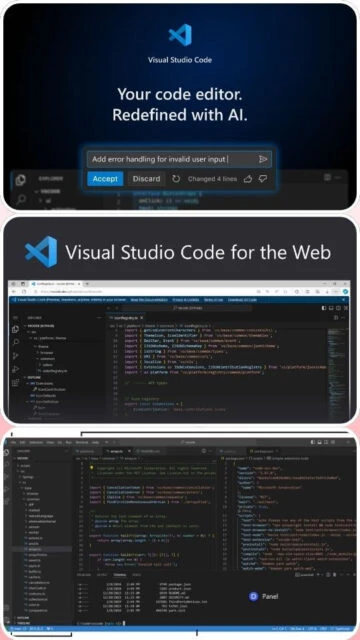
VS Code’s extension ecosystem dramatically extends functionality. Official extensions from Microsoft and community developers provide language support, debuggers, linters, and workflow automation. Remote SSH enables development on distant machines. GitHub Copilot provides AI-powered code suggestions. Dev Containers enable reproducible development environments.
- GitHub Copilot – AI-powered code completion generating entire functions from comments, supporting 15+ programming languages with natural language understanding.
- Remote Development – SSH, container, and WSL extensions enable development on remote servers, Docker containers, or Windows Subsystem for Linux environments.
- Language Support – Official language extensions for Python, JavaScript, C++, C#, Java, Go, Rust, and 50+ additional languages with IntelliSense and debugging.
- Integrated Debugger – Built-in debugging supports Node.js, Python, and browser JavaScript with breakpoints, watch expressions, and call stack inspection.
Best Alternatives to Visual Studio Code
While VS Code dominates, specific use cases benefit from alternatives. JetBrains IDEs excel in enterprise development. Sublime Text emphasizes simplicity. Vim/Neovim suit terminal-centric developers. Emacs provides extreme customization. Xcode serves Apple ecosystem exclusively. Each alternative offers distinct advantages.
- IntelliJ IDEA (JetBrains) – Best for professional Java development, comprehensive refactoring tools and built-in version control management.
- Sublime Text 4 – Best for lightweight editing, fastest startup time, minimal memory footprint for resource-constrained systems.
- Vim/Neovim – Best for terminal-centric developers, keyboard-driven workflow, minimal system resource consumption on remote servers.
- Xcode – Best for Apple ecosystem development (macOS, iOS, watchOS), integrated Interface Builder and device simulators.
Visual Studio Code vs Top Competitors
VS Code represents exceptional value proposition combining free licensing with professional-grade capabilities. Market dominance reflects strong feature set and massive extension ecosystem. Competitors offer specialized advantages for specific development domains or organizational requirements. The choice depends on project requirements, team size, and development specialization.
| Feature |
VS Code |
IntelliJ IDEA |
Sublime Text |
| Pricing |
Free open-source |
Free (Community), $12-15/mo (Pro) |
$99 one-time purchase |
| Key Strength |
Lightweight and extensible |
Professional Java development |
Minimal memory footprint |
| Target Users |
Web developers, all skill levels |
Enterprise Java teams |
Performance-focused developers |
| Unique Feature |
Largest extension ecosystem |
Intelligent code refactoring |
Distraction-free interface |
| Learning Curve |
Easy |
Moderate |
Easy |
Visual Studio Code Keyboard Shortcuts
Mastering VS Code keyboard shortcuts dramatically accelerates development workflow. Essential shortcuts for file operations, code navigation, and debugging enable rapid development. Customizable keybindings accommodate different editor preferences and muscle memory patterns from other editors.
| Action |
Windows |
macOS |
| Command Palette |
Ctrl+Shift+P |
Cmd+Shift+P |
| Open File |
Ctrl+O |
Cmd+O |
| Find Text |
Ctrl+F |
Cmd+F |
| Go to Definition |
F12 |
F12 |
Visual Studio Code Performance Optimization
VS Code maintains excellent performance even with numerous extensions installed. Strategic extension management and caching strategies prevent slowdown. Source control indexing and file watching can be optimized for large monorepos. Developer settings enable granular performance tuning for specific development patterns.
- Disable Unnecessary Extensions – Use Profiles feature to activate extensions only when needed, reducing memory consumption and startup time significantly.
- Configure File Watching – Exclude node_modules, dist, and build directories from file watching in settings.json to prevent excessive filesystem monitoring.
- Limit Search Scope – Configure specific folders for search indexing to avoid scanning large directories and slow network paths.
- Enable GPU Acceleration – Enable WebGL acceleration in settings for improved rendering performance on modern systems with compatible graphics cards.
- Optimize Language Server Performance – Adjust language server settings and memory limits for resource-constrained development environments.
Visual Studio Code Accessibility Features
VS Code prioritizes accessibility with built-in screen reader support and keyboard navigation. The interface supports high contrast themes and adjustable font sizes. Aria labels enable assistive technology usage. Focus mode eliminates interface distractions.
- Screen Reader Support – Compatible with NVDA on Windows, JAWS, and VoiceOver on macOS for complete audio interface navigation.
- Visual Accessibility – High contrast themes, adjustable font sizes from 8pt to 72pt, colorblind-friendly color schemes, and adjustable cursor width.
- Keyboard Navigation – Full keyboard access to all features, customizable hotkeys, and modal operation confirmations without mouse dependency.
- UI Languages – 10+ interface languages with right-to-left support for Arabic and Hebrew users.
Visual Studio Code Support & Documentation
Extensive documentation and community support resources assist developers at all levels. Official documentation covers every VS Code feature and extension development. Active community forums solve problems rapidly. Video tutorials demonstrate advanced techniques.
- Official Documentation – Complete online documentation covering editor features, extension development API, settings configuration, and keyboard shortcuts.
- Community Resources – Subreddit r/vscode and Stack Overflow contain thousands discussing techniques, troubleshooting, and sharing extension recommendations.
- Video Tutorials – Official VS Code YouTube channel and countless community creators provide step-by-step tutorials for web development frameworks.
- Extension Marketplace – 60,000+ extensions available through VS Code Marketplace with community ratings and detailed documentation for each extension.

 58
58