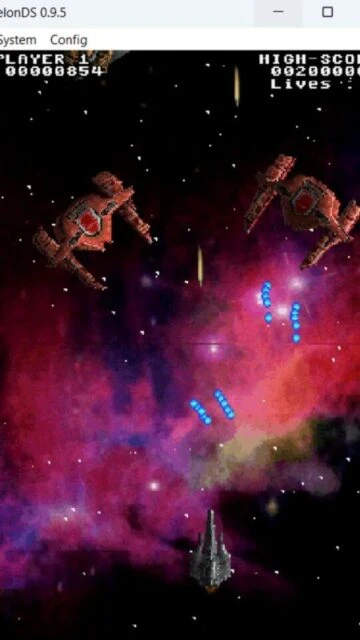
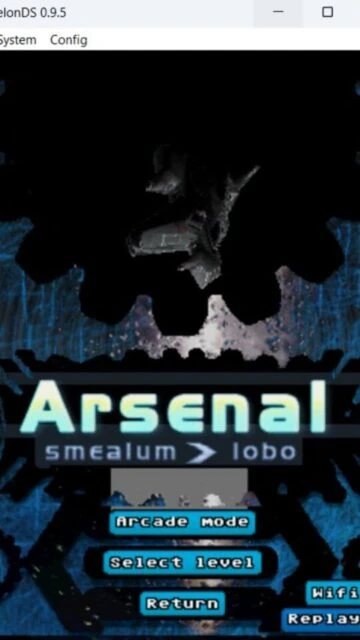
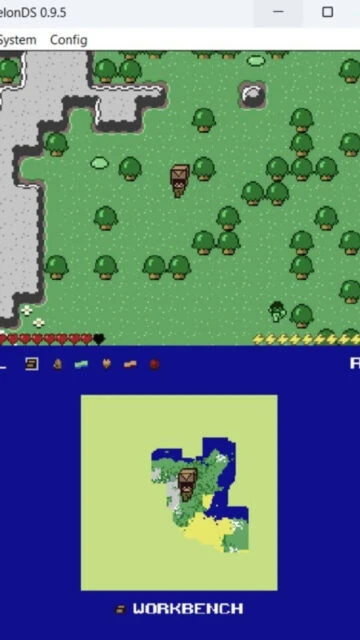
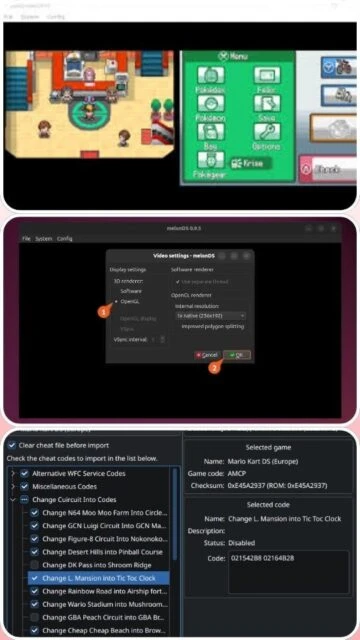
melonDS has earned a strong reputation among Nintendo DS emulators by prioritizing accuracy, low overhead, and modern features like DSi support and netplay. Its open-source nature encourages active development and community contributions. This guide covers melonDS installation, the users who benefit most, platform-specific behavior, useful integrations, alternatives, competitive positioning, shortcuts, performance tuning, accessibility considerations, and how to leverage documentation and updates effectively.
How to Install melonDS
Installing melonDS is intentionally straightforward, relying on portable archives for each supported system. Users simply extract the files, configure paths for BIOS or firmware when needed, and set up controls before loading games.
- Download Official Build – Visit the melonDS website Downloads page and choose the latest release for your platform, such as the Windows x64 zip, macOS build, or Linux package, then save it to a convenient folder.
- Extract Application Files – Use your preferred archive tool to unpack the downloaded file into its own directory, avoiding protected locations so melonDS can freely write configuration files and save data.
- Configure BIOS and Settings – Launch melonDS, browse to DS or DSi BIOS and firmware files if required, then adjust display, audio, and input options to match your preferred controller or keyboard layout.
- First Launch and Game Setup – Open a ROM from the File menu, verify that audio, video, and controls respond correctly, then optionally enable features like upscaling or netplay for enhanced sessions.
Who Should Use melonDS
melonDS suits players and enthusiasts who want accurate Nintendo DS emulation with modest hardware requirements, plus developers and preservationists needing dependable behavior for testing and research.
- Retro Handheld Fans – Users who want to replay classic DS and DSi titles with sharper visuals and customizable layouts.
- Developers and Homebrew Creators – Programmers testing DS homebrew and exploring hardware behavior using debugging-friendly emulation.
- Archivists and Preservationists – People documenting or verifying DS game behavior in a controlled, reproducible environment.
- NOT ideal for – Players demanding built-in game libraries, storefront integration, or console-like frontends out of the box.
melonDS Platform Compatibility
melonDS offers native builds for major desktop platforms, while some community ports and cores expand support further. Performance is generally strong thanks to efficient CPU emulation and lightweight rendering.
| Platform |
Min. Version |
Unique Features |
Limitations |
| Windows |
Windows 7 64-bit |
Native builds with good performance and straightforward controller configuration |
Requires external BIOS or firmware for some features and higher compatibility |
| macOS |
macOS 11 |
Universal builds targeting Intel and Apple Silicon with native execution |
Gatekeeper settings may require manual approval of downloaded binaries |
| Linux |
Modern 64-bit distro |
Packages and AppImage builds integrate well with common desktop environments |
Some distributions rely on community-maintained packages and may lag slightly |
| Web |
Modern HTML5 browser |
No official emulator-in-browser release; some tools share saves or configuration snippets |
Full-speed DS emulation is not provided directly through the browser interface |
melonDS Integrations & Plugins
Although melonDS remains relatively lightweight, it still benefits from pairing with frontends, shader tools, and controller utilities that extend its usability and simplify library management.
- RetroArch Core – Integrates melonDS into a multi-system frontend, enabling unified overlays, shaders, and input profiles.
- Frontend Launchers – Use LaunchBox or similar tools to catalogue DS libraries and launch melonDS with per-game settings.
- Controller Mapping Tools – External software like Steam Input tailors gamepad behavior and adds extra layers of customization.
- Save Sync Services – Cloud-sync tools keep configuration and save files consistent across multiple computers.
Best Alternatives to melonDS
Alternative emulators may appeal to users prioritizing speed over accuracy, broader frontend integration, or simplified options, especially for older systems and multi-console environments.
- DeSmuME – Best for quick DS emulation setups, with a long history and straightforward interface.
- NO$GBA – Best for debugging and low-level testing, featuring detailed technical information and logging.
- RetroArch with Other Cores – Best for multi-system users who prefer a unified experience and common overlays.
- DraStic (Android) – Best for mobile players wanting DS emulation on handheld devices with flexible scaling options.
melonDS vs Top Competitors
Compared with other DS emulators, melonDS emphasizes accuracy and DSi support while maintaining low overhead, making it attractive to both everyday players and technically minded users.
| Feature |
melonDS |
DeSmuME |
NO$GBA |
| Pricing |
Free open-source project |
Free with open-source builds |
Free with optional paid debugger versions |
| Key Strength |
High accuracy and DSi mode support |
Stable, straightforward DS emulation |
Deep debugging and low-level insights |
| Target Users |
Accuracy-focused players and homebrew developers |
Casual users seeking simple setups |
Developers and reverse engineers |
| Unique Feature |
Netplay and local multiplayer emulation features |
Longstanding compatibility with many titles |
Extensive technical logging and tools |
| Learning Curve |
Moderate for BIOS and DSi configuration |
Easy for basic use |
Steep for non-technical players |
melonDS Keyboard Shortcuts
Using melonDS with keyboard shortcuts speeds up common actions like pausing, resetting, or switching screens, which is especially helpful for testers and players using multiple instances.
| Action |
Windows |
macOS |
| Toggle Fullscreen |
Ctrl+Enter |
Cmd+Enter |
| Pause Emulation |
Ctrl+P |
Cmd+P |
| Reset Emulator |
Ctrl+Shift+R |
Cmd+Shift+R |
| Open Settings |
Ctrl+Alt+S |
Cmd+Option+S |
melonDS Performance Optimization
Performance tuning in melonDS revolves around balancing internal resolution, filters, and audio synchronization so that even modest systems can maintain stable framerates during demanding scenes.
- Reduce Internal Resolution – Use native or slightly higher scaling if your GPU struggles, improving framerate and consistency.
- Disable Heavy Filters – Avoid stacked filters and shaders when using integrated graphics or older hardware to cut overhead.
- Use Fast Storage – Keep games and configuration files on a responsive drive to reduce stutter when accessing save data.
- Adjust Audio Sync – Tweak audio latency and synchronization options if crackling appears during busy scenes.
- Limit Background Processes – Close unneeded applications that compete for CPU time, especially on lower-end laptops.
melonDS Accessibility Features
Accessibility in melonDS relies largely on the host operating system and flexible input mapping, letting users combine assistive technologies with customized controls for a more comfortable experience.
- Screen Reader – Standard window controls and menus cooperate reasonably with popular desktop screen readers.
- Visual – Adjustable window size and upscaled rendering can make small DS screens more legible.
- Motor – Remappable controls support gamepads, keyboards, and alternative input devices depending on user preference.
- Languages – Interface uses English while game language follows ROM and firmware content where supported.
melonDS Support & Documentation
melonDS combines official documentation, a concise website, and community-run resources that help users configure BIOS, troubleshoot games, and follow ongoing development progress.
- Official Documentation – Provides explanations for core settings, BIOS requirements, and special features like DSi mode.
- Community Forum – Users share configuration tips, game compatibility notes, and support for different platforms.
- Video Tutorials – Many creators publish walkthroughs for setup, BIOS configuration, and performance tweaks.
- Contact Support – Bug reports and feature suggestions can be filed through the project’s official channels or repositories.