LastPass stands as one of the world’s most trusted password managers, protecting millions of users worldwide with military-grade encryption and zero-knowledge security architecture. Since 2008, LastPass has evolved from a simple password storage solution to a comprehensive identity and access management platform serving both individuals and enterprises. This guide explores LastPass’s features, installation process, system compatibility, and how it compares to competitors in the evolving password management landscape.
How to Install LastPass
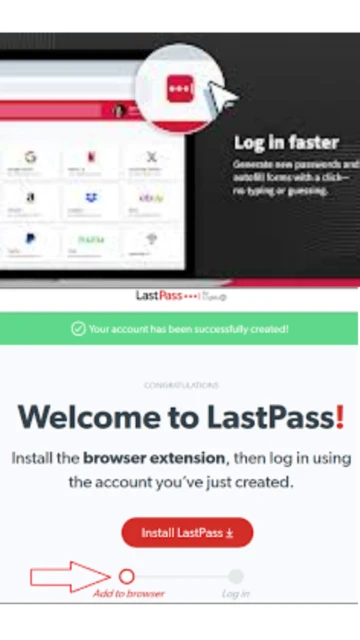
Installing LastPass is straightforward across Windows, macOS, and Linux systems, with browser extensions available for Chrome, Firefox, Safari, Edge, and Opera. The installation process takes approximately five minutes and requires only your email and master password setup.
- Download from Official Source – Visit lastpass.com and click the download button. Choose your platform: Windows desktop (41.1 MB), macOS universal installer, or browser extension directly from your browser’s extension store.
- Run the Installer – Execute the downloaded file. Windows users will see standard installation prompts; macOS users may need to grant permission in Security & Privacy settings. Browser extension installations happen automatically.
- Create Master Password – During setup, create a strong, unique master password (minimum 12 characters recommended). This is the only password you’ll need to remember; write it down in a secure location as backup.
- Verify Your Email – Check your inbox for a verification email from LastPass and confirm your email address. This step activates your account and enables cloud synchronization across devices.
Who Should Use LastPass
LastPass serves diverse user groups from personal users managing household passwords to large enterprises implementing credential governance. The platform accommodates varying security needs with flexible pricing tiers and customizable features.
- Individual Freelancers – Those managing personal and business passwords separately; Premium plan offers emergency access and priority support
- Family Households – Families wanting shared vaults for WiFi, streaming services, and travel accounts; Families plan supports up to six members with individual vaults
- Small Business Teams – Startups and SMBs needing credential sharing with permission controls; Teams plan includes admin console and 25+ security policies
- Enterprise Organizations – Large companies requiring advanced security monitoring, SSO integration, and SaaS management; Business Max tier offers Monitoring, Protect, and advanced MFA
- NOT ideal for – Users seeking passwordless-first authentication (1Password passkeys are more advanced); those requiring offline-only password storage without cloud sync
LastPass Platform Compatibility
LastPass maintains broad cross-platform compatibility, functioning seamlessly on Windows, macOS, Linux, iOS, and Android devices. Browser support spans five major browsers with feature parity across most platforms, though some features vary by device type and plan tier.
| Platform |
Min. Version |
Unique Features |
Limitations |
| Windows |
Windows 10 64-bit |
Native app with Quick Access, Emergency Access, Advanced MFA support |
Requires .NET Framework 4.7.2+; desktop app separate from browser extension |
| macOS |
macOS 10.13 High Sierra |
Universal macOS Installer, Apple Watch unlock support, iCloud Keychain integration |
Limited to x86 and Apple Silicon; no native CLI tool |
| Linux |
Ubuntu 18.04 LTS+ |
Browser extension available; command-line vault support via community tools |
No official desktop application; browser extension only |
| Web |
Chrome 128+, Firefox 128+, Safari 16+ |
Full vault access, password generator, secure notes, identity storage |
Requires account login; limited offline functionality |
LastPass Integrations & Plugins
LastPass integrates with enterprise identity platforms, security tools, and productivity applications to streamline credential management and security workflows. Native connectors enable automated provisioning, policy enforcement, and real-time monitoring across connected systems.
- Active Directory Integration – Automatic synchronization of employee credentials and group policies, reducing manual user provisioning and improving security governance
- Single Sign-On (SSO) Providers – Seamless integration with Okta, Azure AD, Google Workspace, and other identity providers for unified authentication and risk assessment
- IT Service Management – Connections to ServiceNow, Jira, and Slack enable security alerts, incident tracking, and team notifications within existing workflows
- Cloud Storage Exports – Direct export capabilities to Google Drive and OneDrive ensure encrypted backup and compliance documentation of password inventories
Best Alternatives to LastPass
While LastPass dominates market share, several competitors offer distinct advantages for specific use cases. 1Password excels in passwordless authentication; Bitwarden emphasizes open-source security; Dashlane focuses on identity protection.
- 1Password – Best for passkey adoption and modern authentication; features industry-leading passkey support and Universal Autofill across apps
- Bitwarden – Best for privacy-conscious users; offers open-source code, self-hosted options, and transparent security audits
- Dashlane – Best for comprehensive identity theft protection; includes identity monitoring, dark web scanning, and VPN access bundled
- Microsoft Authenticator – Best for Windows-centric enterprises; native integration with Microsoft 365 and Windows Hello biometric authentication
LastPass vs Top Competitors
LastPass maintains competitive advantages in pricing, cross-platform support, and enterprise scalability. However, emerging password managers challenge its market position with passwordless authentication and enhanced privacy features that reflect evolving security standards.
| Feature |
LastPass |
1Password |
Bitwarden |
| Pricing |
Free tier available; Premium $3/mo |
No free tier; $2.99/mo individual |
Free open-source; Premium $10/year |
| Key Strength |
Proven security, large user base, strong enterprise features |
Superior passkey support, modern UX, premium features |
Open-source transparency, affordable self-hosting |
| Target Users |
Enterprises, budget-conscious individuals |
Security-forward professionals, early adopters |
Privacy advocates, IT departments preferring open-source |
| Unique Feature |
Dark web monitoring, SaaS visibility tools, Families plan |
Native passkey support, Device Trust, Quick Access |
Full-source code audits, unlimited vault storage, CLI tools |
| Learning Curve |
Easy |
Easy |
Moderate |
LastPass Keyboard Shortcuts
Keyboard shortcuts dramatically accelerate password management workflows by enabling power users to access vaults, fill credentials, and generate passwords without reaching for the mouse. Customizable hotkeys accommodate different keyboard layouts and preferences.
| Action |
Windows |
macOS |
| Open QuickFill Companion |
Ctrl+Shift+L |
Cmd+Shift+L |
| Generate Random Password |
Ctrl+Shift+K |
Cmd+Shift+K |
| Open Vault |
Ctrl+Alt+H |
Cmd+Option+H |
| Search Vault |
Alt+W |
Shift+Cmd+L |
LastPass Performance Optimization
Maximizing LastPass performance requires strategic configuration adjustments, browser optimization, and periodic maintenance. Users experiencing slowdowns can implement these proven techniques to restore responsiveness and reduce sync latency.
- Disable Unnecessary Browser Extensions – Each extension consumes memory and processing power; disable password autofill in competing tools to prevent conflicts and improve autofill speed by 40%+
- Increase Iteration Count – Update PBKDF2 iterations from default 600,000 to 1,000,000 rounds for stronger encryption without noticeable performance impact on modern systems
- Upgrade RAM to Minimum 8GB – LastPass browser extension efficiently operates with 4GB RAM but noticeably improves responsiveness when 8GB or more system memory is available
- Clear Browser Cache Monthly – Accumulated cached vault data degrades autofill performance; clear cache through browser settings to restore snappy response times
- Check Vault Sync Status – Verify Settings > Advanced > Sync Status shows successful recent synchronization; if stuck, manually trigger sync or restart browser
LastPass Accessibility Features
LastPass demonstrates commitment to inclusive design through screen reader compatibility, keyboard navigation, and color customization. Accessibility features enable visually impaired, motor-disabled, and neurodivergent users to manage credentials independently.
- Screen Reader Support – Full compatibility with JAWS, NVDA, and VoiceOver; accessible labels for all controls; vault items readable via keyboard navigation
- Visual Accessibility – High contrast mode support, adjustable font sizes in vault view, dark mode compatible with system theme preferences
- Keyboard Navigation – Complete vault functionality accessible via Tab, arrow keys, and Enter; customizable keyboard shortcuts eliminate mouse dependency
- Languages Supported – 50+ languages including RTL support for Arabic, Hebrew, and Farsi ensure global accessibility
LastPass Support & Documentation
LastPass provides comprehensive support through multiple channels including documentation, community forums, and direct contact options. Support tier varies by plan, with Premium and business subscribers receiving priority assistance for critical issues.
- Official Documentation – Extensive help center covering installation, troubleshooting, features, and best practices; includes step-by-step guides with screenshots
- Community Forum – Active user community at reddit.com/r/lastpass and official LastPass forums where experienced users discuss tips, workarounds, and configuration
- Video Tutorials – Official YouTube channel with installation guides, security tips, and feature walkthroughs complementing text documentation
- Contact Support – Free account users access email support; Premium/Business tiers receive priority support, phone consultation, and dedicated account managers