Dolphin stands as the industry-leading GameCube and Wii emulator, delivering exceptional compatibility and cutting-edge graphical enhancements that far exceed original hardware capabilities. Released as open-source in 2008, Dolphin has evolved into a sophisticated platform supporting multiple graphics backends including Vulkan, Direct3D 12, and OpenGL, with continuous development bringing new features quarterly. This guide explores Dolphin’s comprehensive installation process, platform-specific optimizations, and advanced configurations that enable gamers to experience classic titles in stunning 4K+ resolutions with custom shader effects, texture replacement packs, and accurate audio emulation through DSP-LLE technology.
How to Install Dolphin Emulator
Installing Dolphin is straightforward across Windows, macOS, and Linux, with portable and installer versions available. The setup process typically requires downloading from the official repository, extracting files to your preferred location, and configuring controller mappings before your first game launch. Most users complete installation within five minutes, though additional time may be needed for graphics driver optimization.
- Download Official Build – Visit dolphin-emu.org and select build 2509 (latest stable version, 17.84 MB) for your operating system; portable versions require no installation
- Extract and Run Setup – On Windows, extract the 7Z archive or run the installer; macOS users drag Dolphin.app to Applications folder; Linux users compile or use package managers
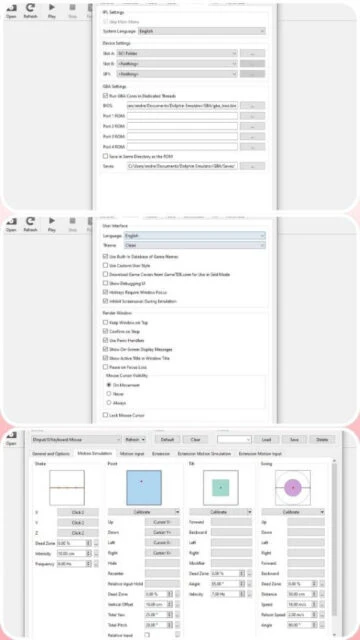
- Configure Graphics Backend – Launch Dolphin, navigate to Graphics settings, and select Vulkan (fastest) or Direct3D 12 for Windows; Linux/macOS default to OpenGL
- Map Controller Input – Go to Controller settings, connect your GamePad, and use the new Map & Calibrate feature to automatically detect and configure all input devices
Who Should Use Dolphin Emulator
Dolphin appeals to diverse gaming enthusiasts seeking to preserve and enhance library access. Retro gamers appreciate access to 1500+ GameCube and Wii titles, competitive players leverage save states and frame-perfect input for speedrunning and tool-assisted speedruns, while content creators utilize advanced recording capabilities and graphics customization for video production. Hardware modders and homebrew developers benefit from debugging tools and LLE emulation modes.
- Retro Gaming Enthusiasts – Access to extensive GameCube and Wii library with enhanced graphics comparable to native 4K gaming
- Speedrunners and TAS Communities – Frame-advance, save state management, and controller input replay features support competitive optimization
- Content Creators – High-resolution rendering, custom shaders, and built-in recording functionality streamline video production workflow
- NOT ideal for – Users with older PC hardware (pre-2010 CPUs), those seeking PlayStation emulation, or individuals unwilling to manage ROM dumps
Dolphin Emulator Platform Compatibility
Dolphin maintains broad platform support spanning desktop operating systems and mobile platforms, each with specific feature sets and performance characteristics. Desktop versions receive priority updates with cutting-edge graphics innovations, while mobile builds prioritize stability and battery efficiency. Cross-platform save state compatibility enables seamless gaming transitions between devices.
| Platform |
Min. Version |
Unique Features |
Limitations |
| Windows |
Windows 10 1903+ |
Vulkan/D3D12 backends, Bluetooth Passthrough for original Wii Remotes, dual-core CPU compatibility workarounds, ethernet adapter support |
Requires SSE2 CPU support; RTL8761 dongles need firmware auto-loading |
| macOS |
macOS 11 Big Sur+ |
Universal binary support (Apple Silicon ARM64 and Intel x64), native Metal renderer option, seamless iCloud save synchronization |
Lower performance than Windows equivalents; limited Bluetooth adapter support |
| Linux |
Any modern distro |
Vulkan and OpenGL backends, Wayland compositor support, package manager installation available, source code compilation for optimization |
Audio driver compatibility varies; requires manual graphics driver updates on Nvidia/AMD systems |
| Android |
Android 5.0 Lollipop+ |
Touch screen controls with customizable overlays, gyro aiming support, save cloud backup, portrait/landscape mode switching |
Performance heavily dependent on device hardware; requires 64-bit architecture (ARMv8 or x86-64) |
Dolphin Emulator Integrations & Plugins
Dolphin’s ecosystem includes robust integration support for enhancing visual fidelity and expanding compatibility. Texture replacement packs allow community artists to create high-resolution graphics packs, custom shader frameworks enable post-processing effects, and plugin architecture supports cheat code systems. Controller mapping supports diverse input peripherals from arcade sticks to motion controllers.
- Gecko Codes and Cheats – Enables in-game modifications including infinite health, money multipliers, and gameplay alterations; seamlessly integrated into game properties editor
- Texture Replacement Packs – Community-created HD graphics packages dramatically improve visual quality; cached performance prevents stuttering during loading
- Custom Shader Framework – Post-processing effects including bloom, color grading, and film grain enhance visual presentation with minimal performance impact
- Multiplayer Netplay – Direct peer-to-peer connectivity enables online multiplayer gaming with latency compensation and synchronized save states
Best Alternatives to Dolphin Emulator
While Dolphin dominates GameCube and Wii emulation, alternative platforms serve different gaming niches. RetroArch offers unified multi-system emulation, while specialized emulators focus on specific consoles. Standalone alternatives may provide superior performance on specific titles or offer unique feature implementations for niche use cases.
- RetroArch – Best for multi-system emulation with unified interface; includes Dolphin-based cores but with slightly lower performance than standalone
- Citra (Lime3DS) – Best for Nintendo 3DS games, features texture upscaling and modernized UI; incompatible with GameCube/Wii titles
- PCSX2 – Best for PlayStation 2 emulation requiring exclusive PS2 library; offers similar graphics enhancements but separate ecosystem management
- Yuzu/Ryujinx – Best for Nintendo Switch games with native performance; incompatible with GameCube/Wii generation titles
Dolphin Emulator vs Top Competitors
Dolphin’s competitive advantages stem from mature development, active contributor community, and cutting-edge graphics innovations. Comparative analysis reveals performance parity with specialized emulators while offering superior GameCube and Wii compatibility. Market position reflects dominance in its console generation with minimal viable competition.
| Feature |
Dolphin |
RetroArch |
PCSX2 |
| Pricing |
Freeware (GPL v2+) |
Freeware (GPL v3) |
Freeware (GPL v2) |
| Key Strength |
GameCube/Wii exclusivity with Vulkan optimization and 60+ fps consistent performance |
Multi-system support with unified interface and simplified ROM management |
PlayStation 2 exclusive library with comprehensive compatibility database |
| Target Users |
GameCube/Wii enthusiasts seeking maximum visual fidelity and accuracy |
Retro gaming collectors wanting single-app multi-system access |
PS2 library completionists requiring broader console coverage |
| Unique Feature |
Bluetooth Passthrough for original Wii Remotes and advanced motion controller support |
Shader presets library with community contributions and unified configuration |
Graphics debugger for rendering troubleshooting and custom resolution scaling |
| Learning Curve |
Moderate |
Easy |
Steep |
Dolphin Emulator Keyboard Shortcuts
Mastering keyboard shortcuts significantly accelerates gameplay and menu navigation, enabling power users to manage save states, toggle graphics modes, and execute debugging commands without mouse interaction. Custom hotkey configuration permits personalization for specific gameplay preferences and speedrunning workflows, accommodating diverse player skill levels.
| Action |
Windows |
macOS |
| Open/Load Game |
Ctrl+O |
Cmd+O |
| Toggle Fullscreen |
Alt+Enter |
Cmd+Option+F |
| Pause/Resume Emulation |
F10 |
F10 |
| Stop Emulation |
Esc |
Esc |
| Save State Slot 1 |
Shift+F1 |
Shift+F1 |
| Load State Slot 1 |
F1 |
F1 |
| Take Screenshot |
F9 |
F9 |
| Toggle Speed Limit |
Tab |
Tab |
Dolphin Emulator Performance Optimization
Optimizing Dolphin performance requires systematic adjustment of graphics settings, CPU clock management, and shader compilation. Advanced users leverage DSP-LLE for accurate audio at performance cost, implement HD texture pack caching to reduce stuttering, and configure multithreaded resource managers that maximize hardware utilization across modern multi-core processors.
- Enable Vulkan Backend – Switch from OpenGL to Vulkan in graphics settings for 15-30% performance improvement on Windows; offers superior driver stability and reduced CPU overhead
- Set Internal Resolution Carefully – Match internal resolution to native monitor resolution to prevent scaling artifacts; 2x resolution (~1440p) offers visual improvement with minimal performance cost on modern GPUs
- Disable Per-Pixel Lighting Selectively – Advanced pixel shader disables dramatic performance gains in demanding titles; enable only for visual-critical sections using game-specific properties
- Clear Shader Cache Periodically – Accumulated shader compilation creates memory bloat; clearing cache from Data folder reduces stuttering during first-time graphics loads
- Configure Dual-Core and DSP Settings – Disable dual-core CPU emulation if experiencing stability issues; enables single-threaded workarounds for older processors
Dolphin Emulator Accessibility Features
Dolphin incorporates accessibility considerations through keyboard-only navigation, controller remapping flexibility, and language localization. While not explicitly featuring screen reader integration, community configuration guides enable adaptive controller setup. Developers prioritize input accessibility for disabled gamers through diverse input method support.
- Screen Reader – Keyboard-only full menu navigation enables screen reader compatibility through standard OS accessibility features; NVDA and JAWS compatible with menu-first navigation mode
- Visual – Customizable UI scaling supports high DPI displays; supports colorblind modes through shader post-processing; adjustable font sizes in configuration menu
- Motor – Full keyboard rebinding enables single-hand gameplay and adaptive controller configuration; support for complex input profiles through Button Operator system
- Languages – Supports 47 languages including RTL Arabic and Hebrew; per-game language selection independent of system settings
Dolphin Emulator Support & Documentation
Dolphin benefits from comprehensive documentation, active community forums, and developer responsiveness. Official wiki covers technical specifications, troubleshooting procedures, and advanced configuration. Video tutorial ecosystem spans YouTube channels with millions of combined subscribers dedicated to optimization guides and gameplay captures.
- Official Documentation – Wiki at dolphin-emu.org/docs covers emulation theory, compatibility database, controller setup, and advanced debugging; regularly updated with new feature documentation
- Community Forum – Active subforum at forums.dolphin-emu.org with thousands of registered users discussing compatibility, optimization, and sharing texture packs
- Video Tutorials – Official YouTube channel provides quarterly progress reports; community creators maintain comprehensive installation, optimization, and troubleshooting guides
- Contact Support – GitHub issue tracker enables direct developer communication; Discord server provides real-time support from core team and volunteers