

Streaming programs are applications that let users watch digital content such as movies, series, and TV shows directly online without downloading. Some of these programs rely on paid subscriptions, while others provide free ad-supported content, with large libraries that include old and new titles, plus support for live streaming TV channels. These programs work across different devices such as computers, smartphones, and smart TVs, to deliver a flexible and smooth viewing experience.
What are the top 10 free streaming programs?
Free streaming programs are software solutions designed to watch TV content, movies, and series without a paid subscription, relying on an advertising model to fund them. These programs offer huge libraries of old and new content, with the ability to live stream channels. Below is a list of the top 10 free streaming programs:
- Pluto TV
- TiviMate
- IPTV Smarters Pro
- Live NetTV
- VLC Media Player
- Tubi
- Stirr
- Plex
- Kanopy
- Hoopla
Pluto TV
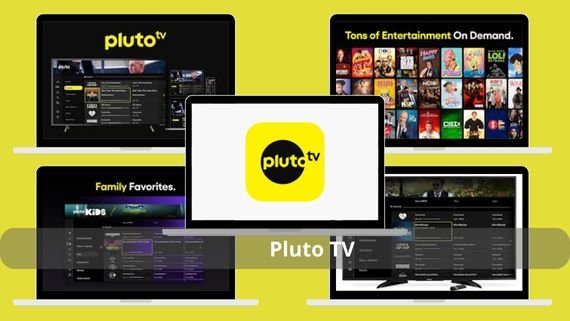 Pluto TV is a free streaming program that combines the traditional TV experience with the flexibility of modern streaming. It provides free access to hundreds of channels and thousands of titles at no cost, with an intuitive interface suitable for all users. Key features of Pluto TV:
- More than 250 live TV channels across all categories (movies, sports, news, kids, music)
- A huge library with more than 1000 movies and series available On-Demand
- A simple user interface similar to TV receiver devices, with easy navigation between categories
- Completely free content supported by short, non-intrusive ads (2-3 minutes per hour)
- Full compatibility with all platforms (Windows, macOS, Linux, Smart TVs, Amazon Fire TV, Roku)
- Ability to create a profile to personalize recommendations and save viewing progress
- High streaming quality up to 1080p with HDCP support
- Support for live streaming sports channels (such as NFL) and news channels (such as CBSN)
- Daily updates for new content, with exclusive titles added periodically
- No account required for instant watching (registration is optional for extra features)
Pluto TV installation steps
To install Pluto TV and watch movies and channels for free easily, follow step by step:
- ⬇️ Start by downloading Pluto TV on your device to watch TV and movies directly.
- Follow the on-screen instructions:
- Accept the license agreement
- Choose the installation folder that suits you
- Wait for the installation to complete, then click “Finish”.
- Open the program from the desktop icon or the Start menu.
- Browse the main menu and choose the category you want to watch: movies, series, or live channels.
- Use the search bar to find any content or channel quickly and easily.
- Start watching immediately without needing to create an account.
- (Optional) Create a free account to save viewing progress and personalize recommendations.
- (Optional) Add your favorite channels to the “My Channels” list for quick access anytime.
TiviMate
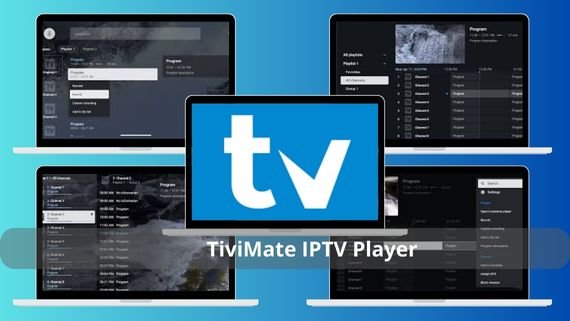 TiviMate is a professional program for watching TV channels via the IPTV protocol, combining high performance with an interface designed specifically for the TV experience. It stands out for its ability to organize content professionally with advanced feature support. TiviMate specifications:
- A professional user interface designed specifically for watching live TV channels, with a receiver-like design
- Full support for IPTV playlist formats (M3U, Xtream Codes, and Magic Player)
- Ability to organize channels into custom categories (favorites, by country, by genre, by quality)
- Ability to record live programs and watch them later, with scheduled recording support
- Support for multi-screen viewing (Picture-in-Picture), with the ability to watch two channels at the same time
- Ideal compatibility with computers and different operating systems, with remote control support
- Advanced customization options for appearance (colors, fonts, backgrounds) and functions (stream quality, audio, subtitles)
- A free version with basic features and a paid version (TiviMate Premium) that adds advanced features such as removing ads
TiviMate installation steps
- ⬇️ Download TiviMate IPTV Player to enjoy live channels in high quality 📺🔥.
- After the download finishes, double-click the installer file.
- Follow the on-screen instructions to install the program, including accepting the terms of use and choosing the appropriate installation location.
- When installation is complete, click “Finish” to open the program.
- Open the program and start setting up channels.
- Select “Add Playlist” from the main menu to add a new IPTV playlist.
- Enter the playlist link in M3U format or the Xtream Codes details (username, password, server URL).
- Wait for the channels to load from the added list, it may take several minutes depending on the list size and internet speed.
- Use the “Manage Channels” tool to organize channels into custom categories based on content type or your personal preferences.
- (Optional) Upgrade to the paid version to remove ads and access extra features such as channel recording or multiple playlists.
IPTV Smarters Pro
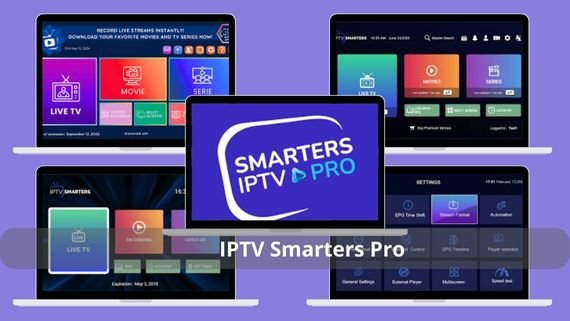 IPTV Smarters Pro is an all-in-one program for watching all types of TV content via the IPTV protocol. It stands out for handling different content types smoothly on computers. IPTV specifications:
- A modern, easy-to-use interface suitable for all levels, with an advanced design
- Full support for all IPTV playlist formats (M3U, Xtream Codes API, Magic Player)
- Ability to watch live channels, on-demand movies and series, and TV programs
- Ability to download content and watch it later offline, with scheduled download support
- Support for multi-screen streaming and automatic stream quality control based on internet speed
- Full compatibility with all operating systems (Windows, macOS, Linux) with browser support
- Advanced customization options for the interface (colors, fonts) and streaming settings (video quality, audio, subtitles)
- High-quality streaming support up to 4K HDR, with the ability to adjust advanced playback settings
- A free version with basic features and a paid version (IPTV Smarters Pro) that adds advanced features such as user management
IPTV Smarters Pro installation steps
To install and use IPTV Smarters Pro on a Windows device and watch IPTV channels easily, follow these practical steps:
- ⬇️ Download IPTV Smarters Pro (Windows) to watch channels, movies, and series on your device 📺💻.
- Follow the on-screen instructions, including accepting the license agreement and choosing the installation folder.
- Choose a login method:
- Login with Xtream Codes API to enter server details, or
- Load Your Playlist or File/URL to add an M3U playlist link.
- Enter the server details (username, password, server URL) or the M3U playlist link.
- Wait for the content to load from the server, depending on the playlist size and internet speed.
- Use the “Manage Content” tool to organize content into categories such as live channels, movies, and series.
- Start watching directly, and use the Electronic Program Guide (EPG) to see the broadcast schedule for each channel.
- (Optional) Download your favorite content to watch later offline.
Live NetTV
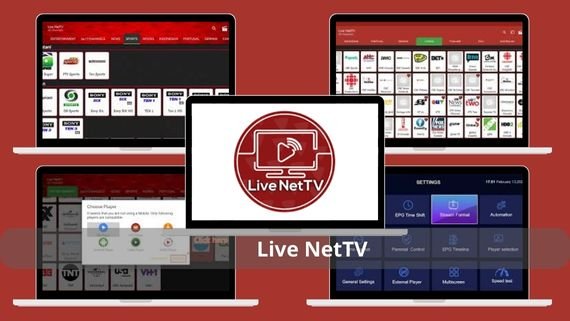 Live NetTV is a free program that provides access to hundreds of live TV channels from around the world. It is known for its wide channel library across various categories and continuous updates that ensure constantly fresh content. Live NetTV specifications:
- More than 800 live TV channels from different countries worldwide (America, Britain, India, Arab countries)
- Completely free content with no subscriptions or hidden fees, with non-intrusive ads support
- A simple user interface with easy navigation and good category organization (sports, movies, news, kids, documentaries)
- Support for diverse categories covering all interests (horror, comedy, romance, music, cartoons)
- Ability to request missing channels through the support team, with continuous updates to fix broken links
- Weekly updates to add new channels and fix broken links to ensure an uninterrupted viewing experience
- Ability to use external players such as VLC and MX Player for better-quality playback
- No account required for instant watching, with immediate access to all content
Live NetTV installation steps
To install and use Live NetTV APK on Android devices and watch live channels easily, follow this practical guide step by step:
- ⬇️ Download Live NetTV APK to watch live TV channels on Android 📺🔥.
- After downloading the file, double-click to start the installation process.
- Follow the on-screen instructions.
- Open the program from the apps list on your device.
- Choose the category you want to watch, such as Sports, Entertainment, News, Kids, and others.
- Browse the channel list and select the channel you want to watch.
- If the program asks, choose your preferred video player such as VLC or MX Player.
- Start watching directly without needing to create an account.
- (Optional) Report any channel that does not work using the “Request Channel” button to help fix it.
- (Optional) Update the program regularly to get new channels and updated content.
VLC Media Player
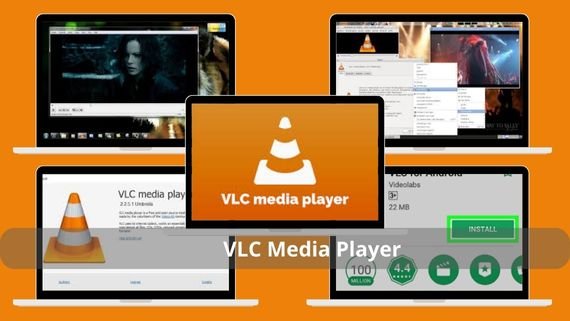 VLC Media Player is a free, open-source program designed to play multimedia and stream content online. It is considered one of the most reliable programs in the streaming world thanks to its ability to handle different content sources and file formats. VLC Media Player offers a wide set of features that makes it a top choice for free streaming fans:
- Full support for almost all video and audio formats without needing extra codecs
- Ability to stream content directly from URL addresses and stream files (M3U, RTSP, HTTP, RTP)
- Support for streaming from local networks (DLNA, UPnP) and sharing content between devices
- A simple, customizable user interface with speaker and subtitle support
- Ability to record live streams and save content on the device
- Advanced video control tools (filters, speed adjustment, screenshots)
- High-quality streaming support up to 4K and HDR
- Open-source and completely free with no ads
- Continuous updates to improve performance and add new features
VLC Media Player installation steps
To install and use VLC Media Player on your computer and play all video and audio files easily, follow these practical steps:
- ⬇️ Download VLC Media Player to play all types of audio and video files 🎧🎥.
- After the download is complete, double-click the installer file to start the process.
- Select your preferred installation language from the dropdown list, then click “OK”.
- Read the license agreement carefully, then click “OK” to continue.
- Select the default installation folder (C:Program FilesVideoLANVLC) or choose another folder as you prefer.
- Select the components you want to install (it is recommended to keep the default settings).
- Choose to create a shortcut on the desktop and the Start menu, then click “Install”.
- Wait for the installation to complete, then click “Finish”.
- (Optional) Update the program to the latest version through the “Help” section > “Check for Updates” to ensure you get new features and performance improvements.
Tubi 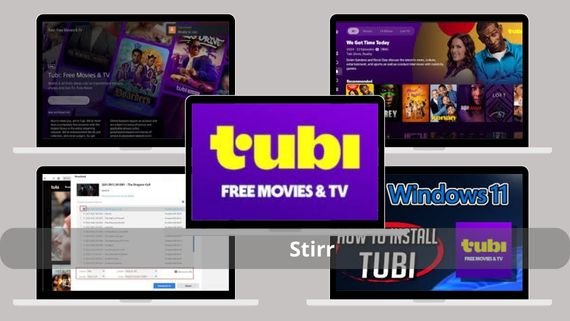 Tubi is a free streaming service with a huge library of old and new movies and series. It stands out for its variety and continuous updates at no cost, making it an excellent option for movie lovers. Tubi specifications:
- A huge library with more than 20,000 movies and series from various global studios
- Completely free content with non-intrusive ads support (4-6 minutes per hour of content)
- A simple user interface with personalized recommendations based on your interests and viewing history
- Support for diverse categories covering all tastes (action, comedy, horror, documentaries, drama, etc.)
- Weekly updates adding new content regularly to ensure an always-fresh viewing experience
- Ability to watch content without creating an account (optional), with instant access to all content
- Uninterrupted streaming support with short, non-intrusive ads
Tubi installation steps
To install Tubi, follow these steps:
- ⬇️ Download Tubi to watch movies and series for free 🎬📺
- Follow the displayed instructions (accept the license agreement, choose the installation folder)
- Select “Sign Up” to create a new account or “Watch Free” to watch without an account
- Add your favorite content to the “My List” list to watch later
Stirr
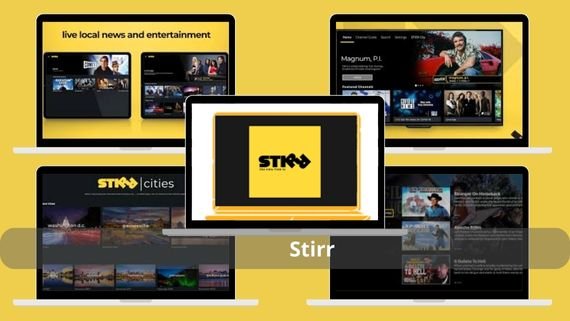 Stirr is a free streaming service from Sinclair Broadcast Group that offers more than 100 live TV channels and on-demand content. It is known for its focus on local content and news with full free access. Stirr specifications:
- More than 100 live TV channels, including local channels and news from different US states
- Free on-demand content of movies, series, and TV programs
- A simple user interface with good organization of channels by region and category
- Support for local and national news with channels specialized in news and talk shows
- Completely free content with short, non-intrusive ads support
- Ability to customize channels by geographic location, with tailored local content
- High-quality streaming support up to 1080p, with the ability to adjust quality based on internet speed
- Continuous updates for new content, with new programs and movies added regularly
- No account required for instant watching (optional), with instant access to all content
Stirr installation steps
- ⬇️ Download STIRR to watch live channels and free streaming 🎥📺
- During the installation process, then click “Finish”
- Select “Allow” to let the program access your geographic location to show local content
- (Optional) Create an account using your email or a Google/Facebook account
- Select the section you want to watch (Live TV, On Demand, Movies, TV Shows)
- Use the search bar to find specific channels or programs
- Start watching directly with support for short ads
- (Optional) Customize favorite channels for quick access
Plex
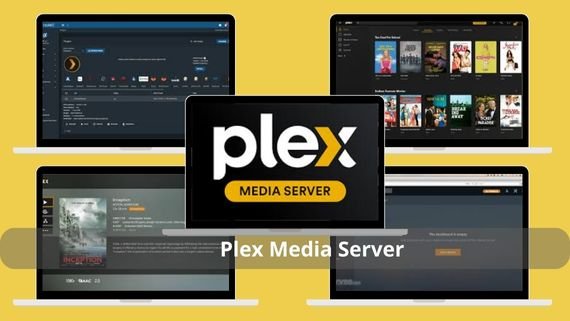 Plex is a multi-media management program that lets you stream your own content in addition to free live content. It stands out for organizing media libraries and offering extra free content. Plex advantages:
- Comprehensive management of personal media libraries (movies, series, music, photos) with automatic organization
- Free live content from Plex with thousands of movies, series, and TV channels
- An attractive, easy-to-use interface with a modern design suitable for all ages
- Support for streaming over the local network and the internet, with the ability to share with friends and family
- Ad-supported free content, with the ability to access personal media libraries without ads
- Ability to add external IPTV channels with EPG support
- Continuous updates to free content, with new titles added regularly
- A free version with basic features and a paid version (Plex Pass) that adds advanced features
Plex installation steps
- ⬇️ Download Plex Media Server to organize and play your media on all your devices easily 🎬📁
- Follow the on-screen instructions (accept the license agreement, choose the installation folder)
- Create a free Plex account using your email or a Google/Facebook account
- Add your media libraries (movies, series, music) through the program settings
- Wait for the program to scan and organize your libraries automatically
- Explore the available free content through the “Movies & TV” or “Live TV” section
- Start watching personal or free content directly
- (Optional) Upgrade to Plex Pass to get extra features such as remote streaming
Kanopy
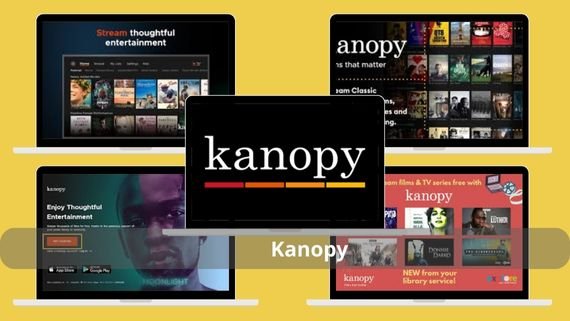 Kanopy is a free streaming service provided by libraries and universities to their users, focusing on educational content and high-quality independent films. It stands out for its unique library of artistic and documentary films. Kanopy specifications:
- A huge library of high-quality independent films, art films, and documentaries
- Educational and cultural content with a focus on award-winning films and film festivals
- Full free access through a library or university card (no subscription payment required)
- A simple, easy-to-use interface with good organization of content by categories
- High-quality streaming support up to 1080p
- Ability to adjust quality based on internet speed
- Monthly updates adding new films and exclusive educational content
- Ability to access course-related content not available on other platforms
Kanopy installation steps
- ⬇️ Download Kanopy to watch documentaries and cinema films for free 🎥🍿
- Select “Find Your Library” to search for your library or university
- Enter your library or university card details to access free content
- Create an account using your email and library card
- Use the search bar to find specific films or documentaries
- Select the category you want from the main menu (movies, documentaries, educational)
- Start watching directly without ads
- (Optional) Add favorite films to the “Watchlist” list
Hoopla
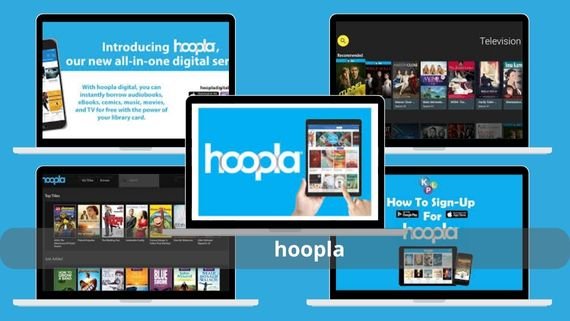 Hoopla is a digital platform provided by public libraries to their users, offering free access to movies, series, audiobooks, and music. It stands out for its diverse library and easy access through libraries. Hoopla specifications:
- A huge library that includes movies, series, audiobooks, music, and eBooks
- Full free access through a public library card (no subscription payment required)
- Diverse content suitable for all ages and interests (family movies, documentaries, educational books)
- A simple, easy-to-use interface with a design suitable for all users
- Compatibility with all operating systems (Windows, macOS, Linux) and major browsers
- Ability to download content for offline viewing
- Weekly updates adding new content regularly
- A flexible borrowing system, with the ability to borrow a limited number of titles monthly
Hoopla installation steps
To install and use Hoopla Digital and access a huge library of books, music, and movies easily, follow these practical steps:
- ⬇️ Download Hoopla Digital to access movies, audiobooks, and music easily 🎧📚🎬.
- After downloading the installer file, double-click to start the process.
- Follow the on-screen instructions, including accepting the license agreement and choosing the installation folder.
- Open the program from the desktop or the Start menu.
- Click “Get Started” to begin setting up your account.
- Search for your public library using the ZIP code or city name.
- Enter your public library card details to access free content.
- Create an account using your email and library card.
- Use the search bar to find the movies, series, or audiobooks you want.
- Select the category you want from the main menu: movies, audiobooks, music.
- Start watching or listening directly without ads.
- (Optional) Download content to watch or listen offline.
Comparison of free streaming programs
Choosing the best free streaming program depends on the type of content you are looking for and the device you use. Some programs focus on live channels, while others offer huge libraries of movies and series. Here is a comprehensive comparison between the programs:
| Program name | Features | Drawbacks |
|---|---|---|
|
|
|
|
|
|
|
|
|
|
|
|
|
|
|
|
|
|
|
|
|
|
|
|
|
|
|
|
|
|
|
|
|
|
|
|
|
|
|
|










Free streaming programs offer an excellent alternative to paid services, as they provide diverse content including movies, series, and TV channels at no cost. These programs rely on an advertising model to fund them, making them available to everyone. When choosing the right program, focus on the type of content you are looking for, streaming quality, and compatibility with your devices.