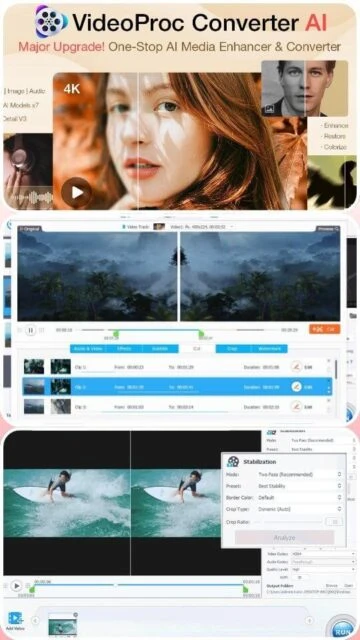
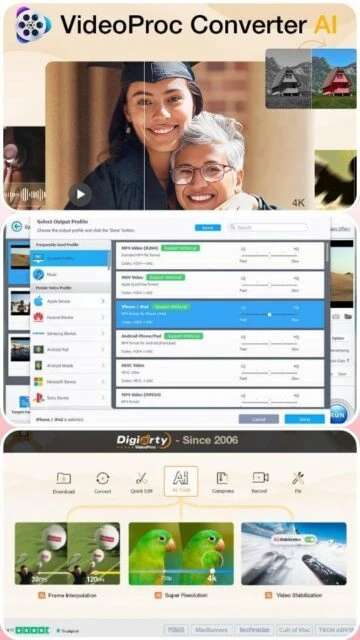
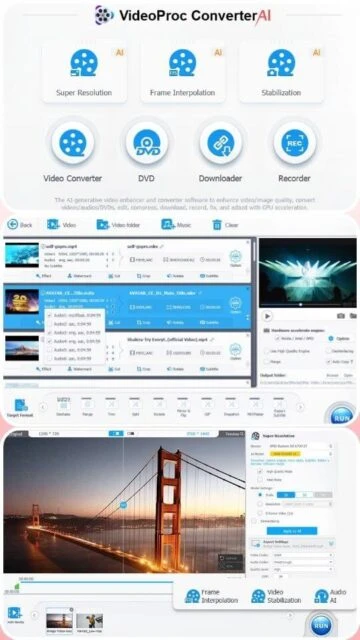
VideoProc Converter AI, developed by Digiarty Software since 2006, is an industry-leading multimedia processing suite combining artificial intelligence with advanced hardware acceleration. The software processes over 370 input formats and 420 output formats, supporting 4K, 8K, and HDR content from GoPro, DJI, and professional cameras. With 10+ AI models including Super Resolution, Frame Interpolation, Face Restoration, and Noise Suppression, users can achieve professional-quality enhancements locally without cloud uploads. Level-3 GPU acceleration through NVIDIA CUDA, AMD GPUs, and Intel Quick Sync delivers conversion speeds up to 47x faster than CPU-only processing. The platform includes video downloader for 1000+ sites, screen recording with PiP mode, subtitle management, and comprehensive editing tools for trimming, merging, effects, and watermarking.
System Requirements
Operating System:Windows 7/8/8.1/10/11 (64-bit) or macOS 10.13+
Processor:1.0 GHz Intel or AMD dual-core processor
RAM:4 GB (16 GB recommended for AI features)
Disk Space:200 MB free disk space
Additional Requirements:NVIDIA/AMD/Intel GPU with Vulkan/OpenCL support for hardware acceleration; Internet connection for video downloading
Features Of VideoProc Converter AI
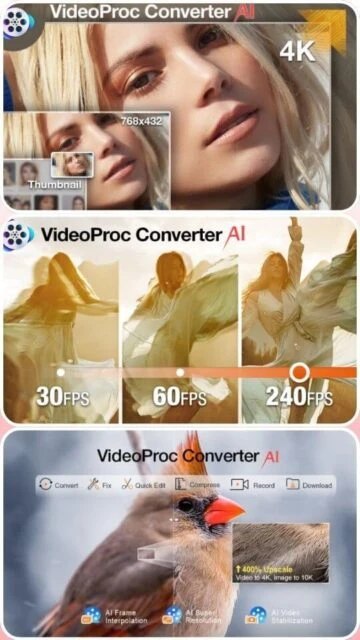
AI Super Resolution v3: Upscale videos by 400% with 40-80% speed boost using advanced deep learning models
Frame Interpolation: Convert 30/60FPS footage to 120/240/480FPS+ with smooth AI-generated intermediate frames
Video Stabilization: Eliminate camera shake and jitter from GoPro, drone, and action camera footage with precise control
Audio AI Vocal Remover: Extract vocals or instrumentals from music and video audio tracks without quality degradation
Video/Image Denoising: Remove grain, compression artifacts, and background noise for cleaner output
Face Restoration: Enhance facial details in photos and video frames with AI-powered clarity enhancement
Image Colorization: Automatically add natural colors to black-and-white and faded historical photographs
DVD Backup & Conversion: Convert DVDs to MP4, HEVC, MKV at 1:1 ratio with full title support
Video Downloader: Access 1000+ mainstream and 2000+ niche websites with batch download and playlist support
Screen Recording: Capture Windows/Mac desktop in HD/4K with system audio, webcam, and PiP modes
Pros & Cons
Pros
Exceptional processing speed with Level-3 GPU acceleration reduces conversion time dramatically
Advanced AI models deliver professional-quality video enhancement without steep learning curve
Comprehensive format support handles virtually any media type from any device source
Local file processing ensures complete privacy with no cloud upload requirements
30-day money-back guarantee provides risk-free trial period for evaluation
Responsive customer support team provides priority assistance for license and technical issues
Free updates continuously add new AI models and codec support at no additional cost
Intuitive interface suitable for beginners while offering professional-grade tools for advanced users
Cons
Higher system requirements needed for optimal AI feature performance compared to basic converters
Limited Linux, iOS, and Android platform support restricts usage on mobile devices
Newest AI models require capable GPUs; older systems may experience slower processing
Steep learning curve for advanced features like custom encoding and stabilization parameters
File size limitations on free trial restrict testing to files under 5 minutes duration
Batch processing can consume significant system resources and slow multitasking
Changelog
Version 8.5 (October 31, 2025):
- Added NVIDIA RTX 50-series GPU support with optimized CUDA acceleration
- Introduced multi-link video downloader for simultaneous downloads
- Enhanced compatibility with latest video platform algorithms
- Improved UI responsiveness and file browser navigation
Version 8.4 (August 15, 2025):
- Added Real Smooth v2 AI model for enhanced video clarity and brightness
- Integrated Zyxt upscaling model for refined video detail enhancement
- Improved Frame Interpolation speed by 35% with new algorithms
- Fixed subtitle handling for complex SRT and ASS formats
Version 8.3 (May 10, 2025):
- Released Gen Detail v2 super resolution model with improved quality
- Added Anime-specific AI upscaling mode for animated content
- Enhanced audio processing with noise suppression improvements
- Expanded platform compatibility for Intel Arc graphics
Frequently Asked Questions
Can VideoProc convert 4K and 8K videos efficiently?
Yes, VideoProc is specifically optimized for 4K and 8K content with Level-3 GPU acceleration. It handles GoPro 5.3K footage, DJI HDR 10-bit, and camera log videos efficiently. Conversion speeds reach up to 47x faster than real-time depending on your GPU.
Is an internet connection required for VideoProc?
Internet is optional for core conversion and editing features. However, you'll need internet for video downloading from 1000+ sites, checking for software updates, and license activation. All processing happens locally without cloud uploads.
What's the difference between 1-year subscription and lifetime license?
1-year subscription ($39.95) covers 3 PCs with free updates for 12 months. Lifetime license ($65.95) grants permanent access to 1 PC or ($65.95 family) to 3-5 PCs with all future updates forever. No recurring charges with lifetime.
Can VideoProc handle subtitles in videos?
Yes, VideoProc supports subtitle management including enabling/disabling tracks, extracting subtitles, adding external SRT/ASS files, and searching for missing subtitles online. You can hardcode or softcode subtitles into videos.
What GPU hardware does VideoProc require for AI features?
NVIDIA GPUs (GTX 960+), AMD Radeon (R9 390+), Intel HD Graphics (4000+), or Apple Silicon M1/M2/M3 chips fully support AI acceleration. Basic conversion works on any system; AI requires compatible GPU with Vulkan/OpenCL drivers.
Does VideoProc work on Mac computers with M1/M2/M3 chips?
Yes, VideoProc fully optimizes for Apple Silicon with native CoreML acceleration. M1/M2/M3 Pro/Max/Ultra chips get hardware-accelerated AI processing, matching or exceeding discrete GPU performance for video upscaling and enhancement.
How much disk space do converted videos typically use?
Output file size depends on resolution, codec, and bitrate settings. VideoProc's compression tool can reduce file sizes by over 90% while maintaining quality. A typical 1-hour 4K video converts to 2-5 GB depending on selected format.
VideoProc Converter AI is an all-in-one multimedia solution combining artificial intelligence with GPU acceleration for video conversion, enhancement, and processing. This guide covers installation, platform support, integration options, comparisons with alternatives, keyboard shortcuts, and performance optimization techniques.
Installation & Setup
Visit the official VideoProc website and click the download button for your operating system (Windows or macOS)
Launch the installer executable file and follow the setup wizard prompts
Accept the license agreement and select your preferred installation directory
Choose to create desktop shortcuts and start menu items as desired
Complete the installation and launch VideoProc Converter AI from your applications
For AI features, ensure your GPU drivers are updated with Vulkan and OpenCL support
Register your license key if you purchased a paid version for full feature activation
Platform Availability
Platform
Support Status
Features Available
Windows 10/11 (64-bit)
Full Support
All AI features, GPU acceleration, screen recording, video downloader
Windows 7/8 (64-bit)
Supported
Core conversion, basic editing, limited AI features
macOS 10.15+
Full Support
All features including CoreML acceleration on M1/M2/M3 chips
Apple Silicon (M1-M3)
Optimized
Native support with CoreML AI acceleration
Integration Ecosystem
YouTube – Download videos, playlists, and entire channels in various formats and resolutions
DaVinci Resolve – Export edited videos in formats compatible with professional video editing workflows
Adobe Creative Suite – Convert video formats for seamless import into Premiere Pro and After Effects
Windows Media Player – Transcode videos to WMV, ASF, and MOV formats for legacy system compatibility
VLC Player – Export content in formats optimized for VLC playback on all devices
GoPro/DJI – Native support for action camera and drone footage with automatic optimization
Instagram/TikTok – Pre-configured export profiles with optimal resolution and aspect ratio settings
Ctrl+O – Open/import media file or folder for batch processing
Ctrl+S – Save project or export current settings configuration
Ctrl+Z – Undo last action in editing timeline
Ctrl+Y – Redo previously undone editing operation
Delete – Remove selected file from conversion queue
Space – Play/pause video preview in player window
Ctrl+A – Select all files in current project list
F1 – Open help documentation and support resources
Performance Tips
Enable Level-3 Hardware Acceleration in settings to utilize your GPU and reduce CPU usage to 2-5%
Update your graphics drivers (NVIDIA/AMD/Intel) with latest Vulkan and OpenCL support for optimal performance
Close unnecessary background applications and disable antivirus scanning during bulk conversions
Use batch processing mode to convert multiple files simultaneously and maximize GPU utilization
For 4K/8K video processing, ensure minimum 4GB RAM with 16GB recommended for AI features
Pre-select output format and resolution before importing to minimize processing time and file size
Utilize the fast-mode settings for AI Super Resolution and Frame Interpolation when speed matters more than maximum quality
User reviews and ratings for VideoProc Converter AI
See what users think about VideoProc Converter AI. Read honest reviews and ratings from real users.
4.1
★★★★★
4 reviews
Exceptional AI Enhancement for 4K Videos
by Michael Patterson
★★★★★
2025-11-28
VideoProc's Super Resolution feature transformed my old drone footage into stunning 4K. The speed with GPU acceleration is incredible, converting in minutes instead of hours. Customer support was helpful when setting up GPU drivers.
Powerful Tool with Steep Learning Curve
by Sarah Chen
★★★★★
2025-10-15
All features work as advertised, and conversion quality is excellent. However, understanding advanced settings like frame rate interpolation and stabilization requires tutorial viewing. Great for professionals, overwhelming for beginners.
Outstanding Support, Minor Performance Issues
by David Kumar
★★★★★
2025-09-22
VideoProc resolved my key registration issue within hours. Processing speed is fantastic with RTX GPU. The only downside is that AI features sometimes take longer than expected on complex videos, but quality never disappoints.
Best Video Converter for Content Creators
by Emma Rodriguez
★★★★★
2025-08-30
As a YouTube creator, VideoProc saves me hours daily. The downloader pulls videos instantly, AI upscaling creates sharp thumbnails, and frame interpolation makes slow-motion perfect. Lifetime license was worthwhile investment.
Write a Review
VideoProc Converter AI Screenshots & Photos
Browse through screenshots and photos of VideoProc Converter AI to see how it looks and works.
VideoProc Converter AI Videos
Watch videos to see how this software works and learn about its features.