Nmap 7.98 is the gold standard for network security professionals seeking comprehensive host discovery, port scanning, and OS fingerprinting capabilities. As an open-source utility, it provides penetration testers, security researchers, and system administrators with powerful reconnaissance tools at no cost. This guide explores Nmap’s installation, configuration, target audiences, platform support, integrations, alternatives, competitive advantages, keyboard shortcuts, performance optimization, accessibility features, and support resources.
How to Install Nmap
Nmap installation is straightforward across Windows, macOS, and Linux platforms. Download the appropriate installer from nmap.org, execute the setup wizard, and follow on-screen prompts. Windows users must install Npcap for packet capture functionality. Linux users can leverage package managers like apt or yum for rapid deployment.
- Download from Official Source – Visit nmap.org/download and select your operating system (Windows 7+ 64-bit, macOS 10.9+, or Linux distribution)
- Run the Installer – Execute the downloaded installer file and accept the Nmap license agreement for your platform
- Install Npcap (Windows Only) – When prompted, install Npcap driver for raw packet capture and transmission capabilities
- Verify Installation – Open terminal or command prompt and run ‘nmap –version’ to confirm successful installation
Who Should Use Nmap
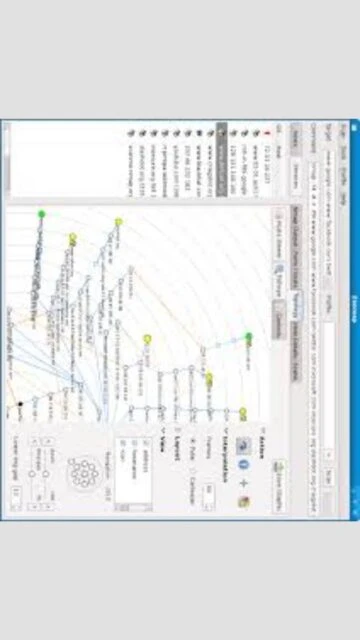
Nmap serves diverse security and networking professionals across enterprises, educational institutions, and independent practitioners. Its flexibility accommodates both command-line power users and GUI-based beginners through Zenmap integration.
- Penetration Testers – Essential tool for authorized security assessments, vulnerability discovery, and network mapping during engagements
- System Administrators – Network inventory management, service availability monitoring, and security posture verification across infrastructure
- Security Researchers – Advanced scripting capabilities and protocol support enable custom vulnerability research and threat analysis
- NOT ideal for – Non-technical users without command-line experience, those seeking graphic user interface without learning curve, or users requiring point-and-click automation
Nmap Platform Compatibility
Nmap demonstrates exceptional cross-platform compatibility, running efficiently on Windows, macOS, Linux, and various Unix derivatives. Platform-specific implementations leverage native capabilities while maintaining feature parity across operating systems.
| Platform |
Min. Version |
Unique Features |
Limitations |
| Windows |
Windows 7 SP1 or later (64-bit) |
Npcap integration for raw sockets, Zenmap GUI, WMI OS detection |
Requires administrator privileges, Npcap installation mandatory |
| macOS |
macOS 10.9 Mavericks or later (Intel/Apple Silicon) |
Native Zenmap interface, system integration, dark mode support |
Apple Silicon support requires native compilation in some versions |
| Linux |
Ubuntu 18.04+ / Debian 9+ |
Pre-installed on Kali Linux and security distributions, LSB compliance |
Requires libpcap library, sudo privileges for raw packet operations |
| Web |
Browser-based access via Docker/containers |
Docker image available, headless scanning capabilities |
Limited GUI functionality, requires containerization knowledge |
Nmap Integrations & Plugins
Nmap’s NSE (Nmap Scripting Engine) ecosystem enables seamless integration with security frameworks, vulnerability databases, and automated workflows. Custom scripts extend functionality for specialized reconnaissance and vulnerability detection scenarios.
- Metasploit Framework – Direct integration enables rapid vulnerability exploitation following Nmap reconnaissance findings
- Nessus Vulnerability Scanner – Complementary scanning workflows combining Nmap discovery with Nessus depth analysis
- OpenVAS Integration – Open-source vulnerability management integration for comprehensive security assessment pipelines
- SIEM Platforms – Export XML output to Splunk, ELK, and ArcSight for centralized security monitoring and analysis
Best Alternatives to Nmap
While Nmap dominates network reconnaissance, alternatives offer specialized capabilities for specific scanning requirements. Selection depends on budget constraints, scanning depth requirements, and integration ecosystem preferences.
- Nessus Professional – Best for automated vulnerability assessment and compliance scanning, offers advanced reporting and vulnerability correlation
- Masscan – Best for rapid large-scale internet scanning, optimized for banners and service detection at internet scale
- Shodan CLI – Best for internet-wide host discovery without active scanning, leverages existing scan database for passive reconnaissance
- Angry IP Scanner – Best for simplistic network discovery and ping-based host enumeration, user-friendly GUI without command-line requirements
Nmap vs Top Competitors
Nmap’s competitive advantages stem from its open-source nature, scripting flexibility, and zero-cost deployment. Competitor analysis reveals distinct positioning across automation, reporting, and enterprise integration dimensions.
| Feature |
Nmap |
Nessus Professional |
Rapid7 Nexpose |
| Pricing |
Free, open-source |
$2,400-$5,000 annually |
$30,000+ annually |
| Key Strength |
Scripting flexibility and community scripts |
Automated vulnerability scanning and compliance |
Enterprise vulnerability management at scale |
| Target Users |
Security professionals and penetration testers |
Organizations requiring compliance reporting |
Enterprise security teams with large portfolios |
| Unique Feature |
NSE scripting engine with thousands of scripts |
Cloud-based vulnerability database and API |
Integrated remediation tracking and automation |
| Learning Curve |
Steep for command-line, moderate for Zenmap GUI |
Moderate with intuitive web interface |
Moderate to steep with complex configurations |
Nmap Keyboard Shortcuts
Keyboard shortcuts in Zenmap GUI significantly accelerate scanning operations. Command-line users can optimize workflow through bash aliases and shell function definitions for frequently-used scan profiles.
| Action |
Windows/Linux |
macOS |
| New scan window |
Ctrl+N |
Cmd+N |
| Save scan results |
Ctrl+S |
Cmd+S |
| Open scan file |
Ctrl+O |
Cmd+O |
| Execute current scan |
Ctrl+Return |
Cmd+Return |
Nmap Performance Optimization
Maximizing Nmap performance requires understanding network conditions, target responsiveness, and system resource allocation. Strategic timing adjustments, parallelization settings, and host discovery configuration yield significant throughput improvements.
- Parallel Probe Tuning – Increase –max-parallelism from default 100 to 500-1000 for faster scans against responsive networks without overwhelming targets
- Aggressive Timing Template – Use ‘-T4’ timing template for LAN environments or ‘-T5’ for extremely responsive systems, balancing speed against accuracy
- Disable Reverse DNS Resolution – Append ‘-n’ flag to skip DNS lookups, eliminating significant delays when hostname resolution is unnecessary
- Host Discovery Optimization – Replace default ICMP probes with ‘-Pn’ to skip discovery on heavily filtered networks, or use ‘-PS’ for TCP SYN probing
- Service Enumeration Targeting – Use ‘–top-ports 100’ to scan only common ports rather than all 65,535, reducing scan duration dramatically
Nmap Accessibility Features
Nmap commits to accessibility through command-line simplicity, scriptable output formats, and Zenmap GUI implementation. Text-based output ensures compatibility with screen readers and text-to-speech solutions for users with visual impairments.
- Screen Reader Support – Command-line output is fully compatible with JAWS, NVDA, and other screen readers through text-only console output
- Visual Customization – Zenmap supports theme selection including high-contrast modes for users with low vision or color blindness accommodations
- Keyboard Navigation – Full keyboard-only operation possible through command-line interface without mouse requirements
- Languages Supported – Available in 15+ languages including RTL support for Arabic and Hebrew through community translations
Nmap Support & Documentation
Comprehensive documentation, active community forums, and official resources ensure rapid problem resolution. Multiple support channels accommodate different learning styles and technical proficiency levels.
- Official Documentation – Nmap official book freely available online with 200+ pages covering all features, scripting, and usage patterns comprehensively
- Community Forum – Active nmap-dev mailing list and Stack Overflow community with responses from core developers and experienced practitioners
- Video Tutorials – Official Nmap YouTube channel and community channels provide visual learning for GUI usage and advanced techniques
- GitHub Repository – Direct access to source code, issue tracking, and pull request collaboration for custom development and bug reporting

 56
56