XRecorder distinguishes itself with a commitment to high-quality, watermark-free recording for everyone. Developed by the video editing experts at InShot, it brings sophisticated editing capabilities directly into the recording workflow.
The app allows users to capture smooth, clear screen videos and screenshots in the easiest way possible. With support for internal audio and a high frame rate, it ensures that your captured content looks professional and sounds authentic.
Features Of Screen Recorder - XRecorder
Capture screen with no watermark
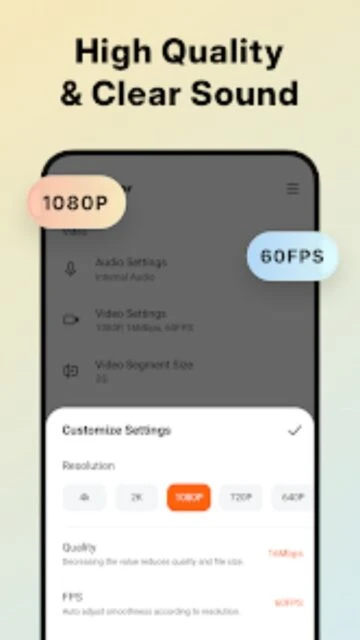
Support for 120FPS recording
Internal audio recording functionality
Facecam with customizable window
Floating ball for gesture control
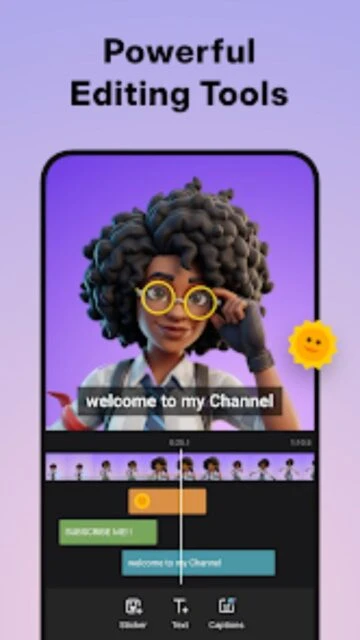
Powerful built-in video editor
One-tap screenshot capture
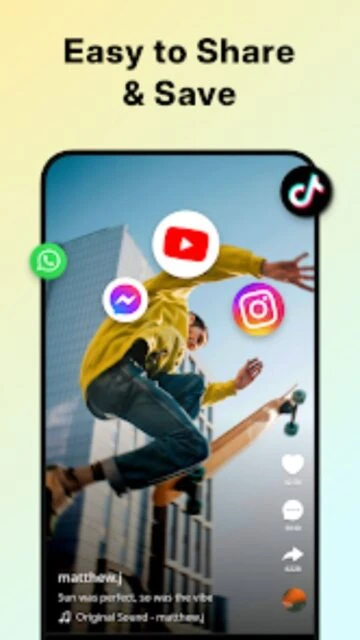
Direct share to YouTube and TikTok
Premium Features in the Paid Plan
1080p 120FPS recording support
Real-time voice changer effects
Custom floating ball icon
Trash recovery for deleted videos
Regional recording mode
Compress video without quality loss
Priority customer support channel
Ad-free usage experience
Free / Pro $5.99/yr
Free vs Premium Comparison
Feature
Free
Premium
Watermark
None
None
FPS Limit
60 FPS
120 FPS
Resolution
1080p
1080p
Voice Changer
Limited
Unlocked
Ads
Yes
No Ads
Trash
3 days
30 days
Frequently Asked Questions
Is XRecorder really free?
Yes, the core features including 1080p recording and no watermark are completely free.
Does it record video calls with audio?
Yes, it can record both sides of the audio on video calls if the speaker is on.
Where are videos saved?
Videos are saved to your phone's gallery and visible within the XRecorder library.
Can I hide the recording button?
Yes, in settings you can choose to hide the floating ball during recording.
How do I edit the video?
Use the built-in editor icon next to your recording to trim, crop, or add music.
XRecorder by InShot Inc. has rapidly become a favorite for its clean interface and user-friendly policies, such as no watermarks even on the free tier. It specializes in capturing smooth gameplay and high-definition tutorials without bogging down your device’s performance.
Why Choose XRecorder?
This app stands out by offering professional-grade features like 1080p recording and internal audio capture completely free. It is optimized to use minimal system resources, ensuring your games don’t lag while recording.
No Watermark: Clean recordings straight out of the box without paying.
Floating Ball: customizable widget for one-tap recording and screenshotting.
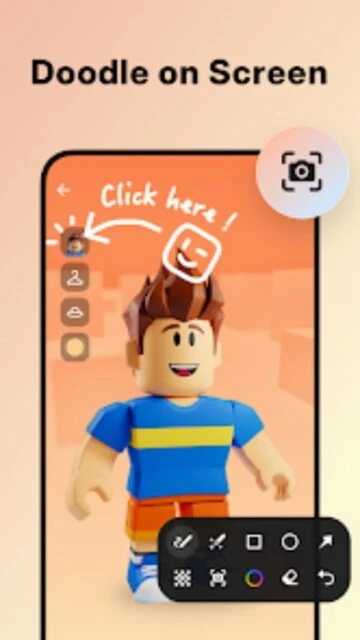
Brush Tool: Annotate directly on your screen to highlight key areas.
How It Works
After installation, grant the necessary overlay permissions. A floating icon will appear; tap it to reveal record, tools, and home buttons. While recording, you can pause/resume effortlessly, and once done, the video is instantly available for editing or sharing.
Who Should Use It?
Perfect for gamers who want lag-free recording and educators who need to draw on-screen to explain concepts. It is also excellent for saving non-downloadable video content from social media.
User reviews and ratings for Screen Recorder - XRecorder
See what users think about Screen Recorder - XRecorder. Read honest reviews and ratings from real users.
4.8
★★★★★
3 reviews
Best recorder I've used
by Alex Rivera
★★★★★
2025-11-12
Finally a recorder that doesn't force a watermark on you! The quality is amazing for a free app. Highly recommended.
Great features
by Emily Blunt
★★★★★
2025-10-30
Love the brush tool for my tutorials. Sometimes the floating ball disappears but restarting the app fixes it.
Smooth gameplay recording
by GamerPro99
★★★★★
2025-10-05
Records my COD Mobile matches without any lag. The audio sync is perfect.
Write a Review
Screen Recorder - XRecorder Screenshots & Photos
Browse through screenshots and photos of Screen Recorder - XRecorder to see how it looks and works.
Screen Recorder - XRecorder Videos
Watch videos to see how this app works and learn about its features.

 239
239