Xender is a dedicated peer-to-peer transfer utility focusing on phone-to-phone migration, bulk media sharing and offline file exchange. Unlike cloud storage, it builds direct local connections and emphasizes quick setup. This guide covers onboarding, ideal users, supported platforms, ecosystem integrations, alternatives, competitor comparison, privacy aspects, accessibility capabilities, expert tips, support options and the latest 2025 feature updates.
How to Get Started with Xender
Xender centers its onboarding around choosing between standard file sharing and the Phone Copy mode that migrates content from one Android device to another.
- Install from a trusted source – Download Xender from Google Play where available or the official distribution site, then confirm storage and nearby device permissions.
- Select Transfer or Phone Copy – For everyday sharing choose Transfer; for full device migration open the Phone Copy option from the main menu.
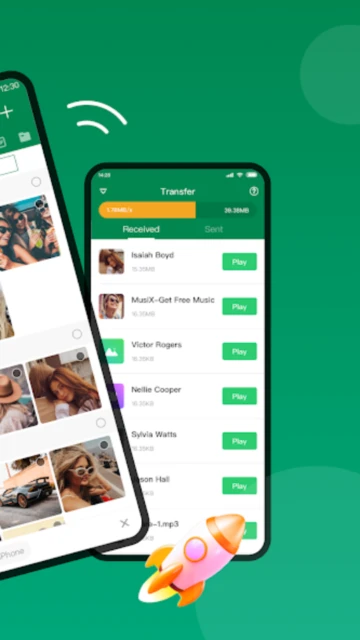
- Create or join a hotspot – On the sending phone, tap Create Group or Send to start a hotspot; on the receiving phone, tap Join Group or Receive to connect.
- Choose content and verify completion – Select photos, videos, music, apps or folders, monitor progress, then open the history tab to confirm every item finished successfully.
Who Should Use Xender
Xender is tailored for Android users who frequently hand files between devices and want a straightforward approach to cloning an old phone onto a new one.
- New phone owners – People upgrading devices who need to move personal media and selected apps without relying on manufacturer-specific tools.
- Friends and family sharers – Users exchanging holiday videos, music albums or photos when they meet offline.
- Field workers – Teams distributing training videos or documentation in locations with limited connectivity.
- NOT ideal for – Users requiring tight desktop integration or advanced cloud backup automation instead of manual sessions.
Xender Platform Compatibility
Xender focuses mainly on Android, with companion experiences for connecting to PCs or other platforms using browser-based or client-assisted sessions.
| Platform |
Min. Version |
Unique Features |
Limitations |
| Android |
Android 5.0+ |
Standard file transfer, Phone Copy, group sharing and basic file management |
Functionality may vary on heavily customized vendor ROMs |
| iOS |
iOS 11.0+ |
Media sharing to and from Android or web devices |
No transfer of iOS app packages or system data |
| Web |
Chromium/Firefox-based |
Connects via browser using QR or code for ad-hoc transfers |
Requires shared network; limited persistent pairing features |
| Desktop |
Windows 7+/macOS 10.10+ |
File exchange between phone and computer using local network |
Fewer updates than mobile client; no advanced media tools |
Xender Integrations & Ecosystem
Xender integrates primarily at the device and system level, complementing built-in file managers, media players and social apps rather than external SaaS platforms.
- Android share menu integration – Send files to Xender directly from gallery, file manager or browser download lists.
- Music and video player linkage – Open received media in your preferred playback apps immediately after transfer.
- Phone Copy migration workflow – Transfers apps, photos, audio and other files in a guided, multi-step wizard.
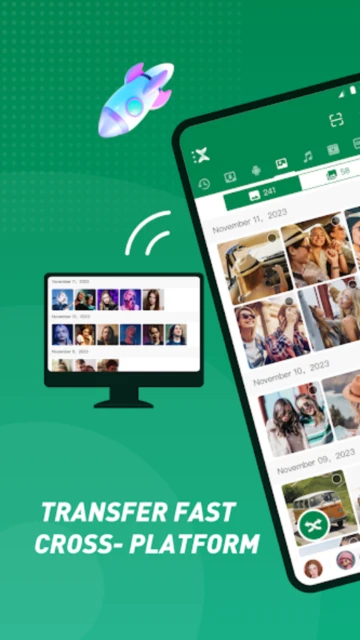
- PC connection bridges – Uses web or desktop tools to mirror device storage and export selected folders to computers.
Best Alternatives to Xender
Alternatives become relevant when you need iOS-specific tools, open-source options or deeper integration with cloud services for remote collaboration.
- SHAREit – Best for users who also want built-in media download tools and cross-platform PC clients.
- Google Nearby Share / Quick Share – Best for Android and Chromebook ecosystems looking for native integration.
- Send Anywhere – Best for remote transfers using secure codes and optional cloud relay storage.
- Zapya – Best for classroom or group scenarios requiring multi-user offline transfer sessions.
Xender vs Top Competitors
Xender competes mainly with SHAREit and Zapya in the offline transfer segment, differentiating itself through the Phone Copy flow and streamlined Android experience.
| Feature |
Xender |
SHAREit |
Zapya |
| Pricing |
Free, ad-supported |
Free with ads; ad-free premium option in some markets |
Free with optional in-app purchases |
| Key Strength |
Focused Phone Copy and direct phone-to-phone transfer |
Transfer plus media discovery and in-app playback tools |
Group transfer and offline content hubs |
| Target Users |
Android switchers and casual sharers |
Heavy media sharers and multi-platform users |
Study groups, classrooms and small teams |
| Unique Feature |
Guided migration wizard between old and new phones |
Game cache transfer support for selected titles |
QR-based group creation for multi-device sessions |
| Offline Mode |
Yes, Wi‑Fi hotspot-based sharing |
Yes, Wi‑Fi hotspot-based sharing |
Yes, local network or hotspot-based sharing |
Xender Privacy & Security Overview
Xender’s privacy considerations center around local Wi‑Fi hotspot traffic, permission management and analytics data used to monitor performance and reliability.
| Security Aspect |
Implementation |
User Control |
| Data Encryption |
Transfers routed through local hotspot sessions between devices |
Users can end sessions and clear transfer histories from the app |
| Authentication |
Device list selection, QR codes and confirmation dialogs when pairing |
Users explicitly approve incoming connections before transfer starts |
| Data Collection |
Usage analytics and device-level information for troubleshooting |
Permission prompts and OS-level privacy controls manage data sharing |
| Third-Party Sharing |
May work with analytics and advertising partners per privacy policy |
Ad and tracking preferences can be adjusted using system controls |
Xender Accessibility Features
Xender leverages native accessibility frameworks, so actual experience varies by device configuration and Android or iOS accessibility settings.
- Screen Reader – Primary navigation elements and buttons are accessible via TalkBack and VoiceOver.
- Visual – Supports system-wide font scaling and offers layouts that avoid dense text blocks.
- Motor – Large central buttons for sending, receiving and launching Phone Copy flows.
- Languages – Provides multi-language support for major regions, improving usability for non-English speakers.
Power User Tips for Xender
Advanced Xender users can streamline phone migrations and large transfers by carefully preparing devices and sequencing sessions.
- Pre-clean old device – Remove outdated downloads and duplicates before running Phone Copy to shorten migration time.
- Segment transfers by type – Send videos, then apps, then documents in separate sessions to simplify verification.
- Keep screens awake – Disable aggressive battery optimizations and increase screen timeout to prevent session interruptions.
- Use 5 GHz hotspots – On supported devices, 5 GHz improves throughput and stability for high-bitrate video collections.
- Check app compatibility – After copying apps, open those needing re-login or additional setup to avoid surprises later.
Xender Support & Community
Xender’s support relies on concise help resources and user communities discussing device-specific performance, connectivity quirks and migration experiences.
- Official Help Center – Online guides explain connection modes, Phone Copy and troubleshooting for pairing failures.
- Community Forum – User groups share workflows for moving content between specific phone brands and OS versions.
- Social Media – Announcements highlight new versions, compatibility fixes and temporary issues.
- Contact Support – Email and in-app feedback options allow sending logs and descriptions for complex problems.
Xender Latest Updates & Roadmap
Recent 2025 updates improved Phone Copy reliability on newer Android versions, refined dark mode, and optimized hotspot negotiation on mid-range hardware. Future plans emphasize smoother cross-version transfers, incremental migration for large libraries and better feedback when environmental factors, such as conflicting hotspots or VPNs, block connections.