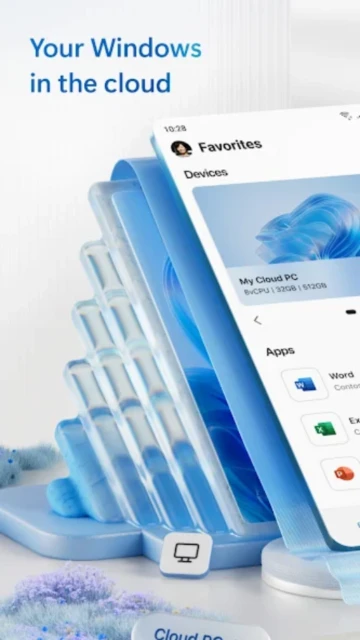
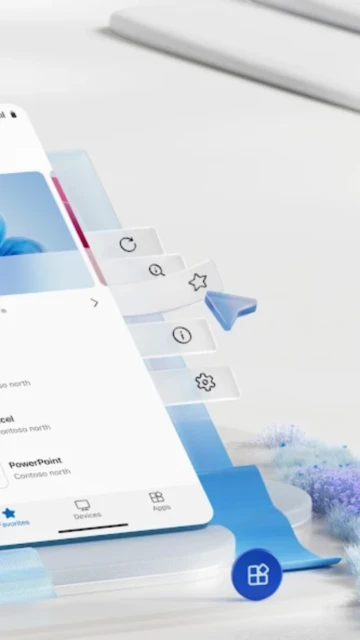
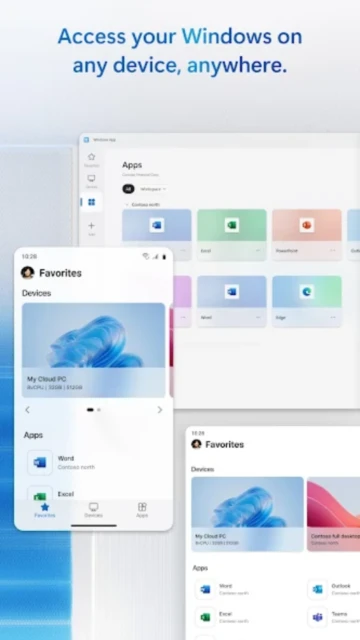
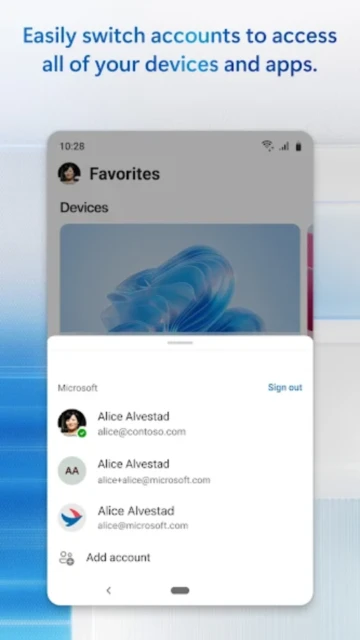
Windows App (previously Remote Desktop) is Microsoft’s modernized remote access client replacing legacy RDP apps for cloud-first enterprises. Available free on Android, iOS, macOS, Windows, and web browsers, Windows App consolidates access to Azure Virtual Desktop, Windows 365 Cloud PCs, Microsoft Dev Box, Remote Desktop Services, and traditional RDP-enabled computers into a single unified interface. Unlike consumer remote desktop solutions, Windows App is architected for enterprise cloud infrastructure: native Azure Entra ID (formerly Azure AD) single sign-on eliminates dual authentication, device redirection enables printing and USB peripherals, and customizable home screens organize workspace access. Microsoft discontinued legacy Remote Desktop app support May 27, 2025, forcing 50+ million enterprise users to migrate—creating significant adoption tailwinds for this platform.
How to Get Started with Windows App
Windows App setup depends on your subscription type. Azure Virtual Desktop or Windows 365 subscribers can log in immediately with Azure Entra ID credentials (no additional password). RDP users must specify computer IP address or DNS name manually. Onboarding completes in 2-3 minutes for cloud subscribers; RDP setup takes 5-10 minutes including network configuration if firewalls require port forwarding.
- Download Windows App for Your Device – Install from Google Play (Android 11+), App Store (iOS 14+), macOS App Store, Windows Store, or access web.wvd.microsoft.com browser portal
- Sign In with Microsoft Account or Azure Entra ID – Use work email for enterprise deployments; personal account for home PC RDP; single sign-on auto-discovers all Azure Virtual Desktop and Windows 365 workspaces
- For Azure/Windows 365 Users – Workspaces auto-populate after sign-in; click desktop or application to launch; first connection may prompt device compliance check (Windows Hello, PIN)
- For RDP to Personal PC – Enter PC name/IP address in “Add PC” field; confirm it appears in workspace; tap to connect; enter credentials if not using Azure AD integration
Who Should Use Windows App
Windows App is purpose-built for organizations using Microsoft cloud services: Azure Virtual Desktop for VDI scenarios, Windows 365 for Cloud PCs, or Microsoft Dev Box for developer sandboxes. Enterprises with significant Azure AD investments gain immediate value from native SSO eliminating password friction. Hybrid IT environments (mix of on-premises RDP and cloud desktops) consolidate multiple clients into Windows App’s unified interface. Home users with a single remote PC find Windows App free and sufficient; however, IT service providers requiring guest access codes and session recording gravitate toward RealVNC or TeamViewer.
- Azure Virtual Desktop Deployments – Organizations hosting 100+ user sessions in Azure benefit from Windows App’s multi-monitor support, Device Redirection, and Microsoft Teams optimization; native Azure AD SSO accelerates provisioning
- Windows 365 Cloud PC Users – Employees with cloud-assigned Windows PCs access via Windows App with automatic failover between physical and cloud PCs; customizable home screens show all available workspaces
- Hybrid Work Teams – Mix of office desktops and home PCs accessible through one interface; direct launch URLs enable managers to provision access via email links without IT ticket
- NOT Ideal For – MSPs requiring guest access codes without permanent accounts (RealVNC HelpDesk superior); small businesses in non-Microsoft ecosystems (Linux RDP, Citrix, Ceph); teams prioritizing unattended access on free tier (AnyViewer’s free tier included 10 devices)
Windows App Platform Compatibility
Windows App’s cross-platform strategy prioritizes cloud service access over legacy RDP compatibility. Web client (any modern browser) and mobile apps (Android 11+, iOS 14+) enable client-side flexibility; desktop clients (Windows 10+, macOS 11+) provide full peripheral support. Note: Microsoft ended Remote Desktop app support May 27, 2025—enterprises using old RDP client must migrate to Windows App.
| Platform |
Min. Version |
Unique Features |
Limitations |
| Android |
Android 11+ |
Full app support since launch 2025; multi-monitor detection, mouse/trackpad, Bluetooth peripherals, direct launch URLs for cloud desktop shortcuts |
Older Android 10 and below unsupported; no screen recording on Android (recording available on Windows/macOS desktop) |
| iOS/iPadOS |
iOS 14+ / iPadOS 14+ |
Floating keyboard support on iPadOS 26; improved display support for iPad Pro M5 and iPad Air M3; external keyboard/mouse via Bluetooth; trackpad control |
No iPad screen recording; limited USB device redirection compared to Windows/macOS; app window management constrained by iPadOS framework |
| macOS |
macOS 11+ |
Full peripheral redirection, multi-monitor support, printer support, scanner access, USB device passthrough, Teams optimization, native macOS keyboard shortcuts |
Dependent on native RDP protocol support (not all legacy RDP servers fully compatible with macOS implementation) |
| Windows |
Windows 10 (22H2) / Windows 11 |
Full RDP protocol support, all peripheral redirection, multi-monitor, printer/scanner/USB pass-through, audio redirection, Teams call optimization, clipboard sharing |
Windows 7/8.1 no longer supported as of May 27, 2025 (old Remote Desktop app deprecated) |
| Web Browser |
Edge 131+, Chrome 130+, Firefox 128+, Safari 18+ (macOS) |
Zero-install access from any device; responsive design for tablet/phone; session recording native browser support; ideal for BYOD environments |
Web client cloud-only (Azure Virtual Desktop, Windows 365); no direct RDP to local computers; no peripheral redirection (keyboard/mouse OK, USB/printer unavailable) |
Windows App Integrations & Ecosystem
Windows App is architected as the linchpin of Microsoft’s cloud infrastructure ecosystem. Native Entra ID integration enables passwordless sign-in via Windows Hello biometrics or FIDO2 security keys. Device redirection supports Microsoft cloud print infrastructure and OneDrive file browsing. Teams call optimization ensures meeting quality during hybrid work. Direct launch URL feature enables HR/IT to provision desktop access via email links, eliminating service ticket overhead for onboarding/offboarding. Unlike consumer apps, Windows App assumes organization owns the identity directory, eliminating external account creation friction.
- Azure Entra ID (Azure AD) Single Sign-On – Organizations auto-provisioned in Azure Entra ID appear in Windows App without password entry; Windows Hello, FIDO2, and certificate-based auth supported natively
- Direct Launch URLs – Share secure URLs enabling immediate Azure Virtual Desktop connection without requiring manual resource discovery; useful for one-time vendor access or temporary contractor onboarding
- Microsoft Teams Call Optimization – Calls over Azure Virtual Desktop connections receive audio/video priority; speakers/microphone redirection handles Teams meetings from cloud PC
- Device Redirection and Cloud Print – Local printers, USB drives, and scanners accessible from remote desktop; OneDrive folder integration for file browsing from cloud PC
Best Alternatives to Windows App
While Windows App dominates Azure-native deployments, competing solutions excel where Microsoft cloud infrastructure is absent or insufficient. RealVNC serves regulated industries requiring on-premise security; AnyViewer captures budget-conscious small teams; Citrix and Splashtop lead virtual desktop infrastructure (VDI) markets in non-Microsoft organizations. Feature overlap exists, but selection hinges on whether your primary infrastructure is Azure or third-party clouds/on-premise.
- RealVNC Connect – Best for enterprises requiring 150+ device management, session audit logging, and on-premise deployment; Premium tier $198+/year per connection; supports any RDP-enabled server regardless of cloud platform
- AnyViewer Remote Desktop – Best for cost-conscious teams and individual technicians; free tier includes 10 managed devices and unattended access; Professional $42.96/year scales affordably; works with any computer regardless of OS
- Citrix Virtual Apps and Desktops – Best for large VDI deployments with non-Microsoft infrastructure; scales to 1000+ users; proprietary protocol (ICA) optimized for poor-bandwidth networks; market leader in finance/healthcare
- Splashtop – Best for remote access with streaming optimization (2G network capable); G2 rating 4.7/5; $259/user/year; dominant in APAC hybrid work market; superior mobile experience on low-bandwidth connections
Windows App vs Top Competitors
Enterprise procurement decisions hinge on infrastructure commitment: Azure Virtual Desktop/Windows 365 users gain maximum value from Windows App’s native integration; non-Microsoft shops justify alternative selection. Cost analysis reveals Windows App is free for Microsoft subscribers (amortized across cloud rental), while standalone solutions charge per-user/per-device. Regulated industries (HIPAA, PCI-DSS) requiring audit trails and on-premise deployment may prefer RealVNC despite Microsoft ecosystem investment.
| Feature |
Windows App |
RealVNC Connect |
AnyViewer |
| Pricing |
Free (included with Azure/M365) |
Free (3 devices cloud) / $198/year Essentials |
Free (10 devices) / $42.96/year Professional |
| Key Strength |
Native Azure AD SSO, unified Azure Virtual Desktop/Windows 365 access, device redirection, Teams optimization |
Granular audit logging, 256-bit AES, RADIUS MFA, on-premise deployment, 150+ device scaling |
Free unattended access (10 devices), fastest file transfer (10MB/s), screen wall monitoring, ECC encryption |
| Target Users |
Azure Virtual Desktop orgs, Windows 365 Cloud PC users, Microsoft 365 enterprise teams |
Enterprise IT teams, MSPs, regulated industries (HIPAA/PCI-DSS), 20+ device environments |
Individual techs, small business, budget-first scenarios, non-Microsoft infrastructure |
| Unique Feature |
Direct launch URLs for email-provisioned access, customizable home screens, multi-workspace organization |
HelpDesk guest codes, session recording, MFA via RADIUS/Okta, API automation, on-premise deployment option |
Screen wall for 2-24 device monitoring, game mouse mode, multi-monitor detection, ECC encryption |
| Offline Mode |
Azure Virtual Desktop requires internet; local RDP works offline; no hybrid mode |
Enterprise plan supports direct peer-to-peer LAN without cloud relay; Essentials cloud-only |
Direct LAN connection available without cloud relay on same network |
Windows App Privacy & Security Overview
Windows App inherits Microsoft’s security architecture: Entra ID authentication means single sign-on and conditional access policies enforcing device compliance. RDP protocol uses 128-bit to 256-bit TLS encryption depending on server configuration. No data shared with third parties except when necessary for service delivery (Azure CDN, Teams cloud processing). Microsoft’s $20B annual security investment backs Windows App updates; SOC 2 Type II certification and regular penetration testing validate enterprise readiness. GDPR compliance with data deletion rights; HIPAA-eligible when deployed in healthcare context.
| Security Aspect |
Implementation |
User Control |
| Data Encryption |
RDP protocol minimum 128-bit TLS encryption; can enforce 256-bit server-side; Entra ID authentication uses TLS 1.2+ for credential exchange; zero plaintext password transmission |
Server admins enforce encryption level via Group Policy (Windows) or Azure Virtual Desktop settings; clients cannot downgrade encryption |
| Authentication |
Entra ID single sign-on, Windows Hello, FIDO2 security keys, certificate-based auth, conditional access policies (MFA, device compliance required); optional username/password for RDP legacy servers |
Org enforces auth method via Entra ID policies; users cannot bypass MFA; personal RDP connections use standard username/password |
| Data Collection |
Collects session metadata (user, device, timestamp); no session content recording server-side; clipboard data encrypted in transit; no third-party ad networks; Microsoft 365 data residency options available |
Session recording available server-side (Azure Virtual Desktop admin control); clipboard content sent encrypted over TLS; users cannot opt-out of security logging |
| Third-Party Sharing |
Policy prohibits third-party sharing except Microsoft partners (Azure infrastructure). Data residency in EU, UK, US available; GDPR compliance with data deletion rights |
Entra ID policies restrict data flow; on-premise deployment available to eliminate cloud data transit; users request deletion via Microsoft 365 admin portal (30-day processing) |
Windows App Accessibility Features
Windows App meets WCAG 2.1 Level AA accessibility standards across all platforms. Windows desktop client inherits Windows 11 Narrator support; iOS VoiceOver integration is full; Android TalkBack support is complete. Visual accommodations include high-contrast themes, text scaling, and color-blind friendly designs. Motor accessibility supports full keyboard navigation and voice control via Cortana/Google Assistant.
- Screen Reader – Windows Narrator fully integrated; iOS VoiceOver complete support; Android TalkBack documented gesture mapping; web client WCAG 2.1 AAA compliant for JAWS/NVDA screen readers
- Visual – High-contrast light/dark themes configurable; text scaling 100-200% supported; colorblind-friendly interface tested against CVD simulation software; customizable cursor appearance and size
- Motor – Full keyboard navigation alternative to mouse for all functions; voice command via Cortana (Windows) or Google Assistant (Android); external Bluetooth keyboards/switches supported; configurable gesture sensitivity
- Languages – 15+ languages including Arabic (RTL), Hebrew, Chinese, Japanese; localized help content for major markets; UI keyboard layouts matched to user’s language preference
Power User Tips for Windows App
Advanced Windows App configurations optimize cloud infrastructure integration and performance. Direct launch URLs automate provisioning; multi-monitor management preserves desktop layouts; device redirection configuration maximizes peripheral compatibility. Bandwidth allocation prevents session stalling during Teams calls or file transfers.
- Configure Direct Launch URLs for One-Click Access – Azure Virtual Desktop admin generates shareable URLs enabling non-IT users to access specific desktops/applications without browsing resource lists; paste in email for contractor onboarding; URL expires after use for security
- Enable Multi-Monitor Detection for Workspace Continuity – Windows App detects local monitors and preserves remote desktop window positions across sessions; if you dock a laptop to 3-monitor setup, cloud desktop auto-expands to fill all displays
- Configure Device Redirection for Printer/Scanner Access – Azure Virtual Desktop admin enables Device Redirection policy; local printers appear in remote desktop’s print dialog; USB drives mount as network shares; ideal for workers requiring dual-screen or heavy printing
- Optimize Teams Call Quality over Remote Connection – Windows App’s Teams optimization redirects audio/video to local client, bypassing remote gateway; test microphone/speakers locally before remote session; audio processed client-side prevents bandwidth spikes during calls
- Troubleshoot AVD Connection Failures – If “Failed to Connect” appears: verify Azure Entra ID sign-in succeeded (check account > workspaces populated); confirm Azure Virtual Desktop health status in portal; check network connectivity (ping 8.8.8.8); ensure Windows App latest version installed; contact IT admin if persistent
Windows App Support & Community
Microsoft provides multi-channel support for Windows App. Consumers accessing personal RDP computers receive web-based help center articles. Enterprise customers with Microsoft support contracts get priority phone/chat support. Azure Virtual Desktop deployments include Microsoft FastTrack deployment engineers. Average first-response time for critical issues is 1 hour for enterprise contracts; community forums handle common questions within 24 hours.
- Official Help Center – aka.ms/WindowsApp provides 100+ articles on setup, troubleshooting, and Azure Virtual Desktop integration; searchable knowledge base covers all platforms and scenarios
- Community Forum – Microsoft Q&A at q.microsoft.com tags WindowsApp for peer support; Azure Virtual Desktop subreddit r/Citrix_and_Xen for advanced discussions
- Social Media – Twitter @azurewindowsdesktop and @microsoft for product announcements; fastest channel for critical security announcements
- Contact Support – In-app Settings > Submit Feedback sends logs to Microsoft engineers; enterprise customers contact assigned support account manager; self-service troubleshooting tools available in Azure portal

 78
78