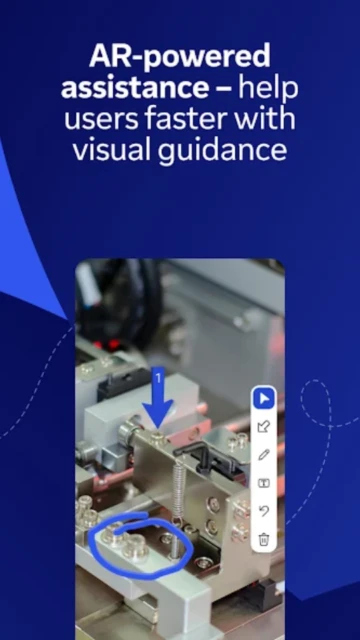
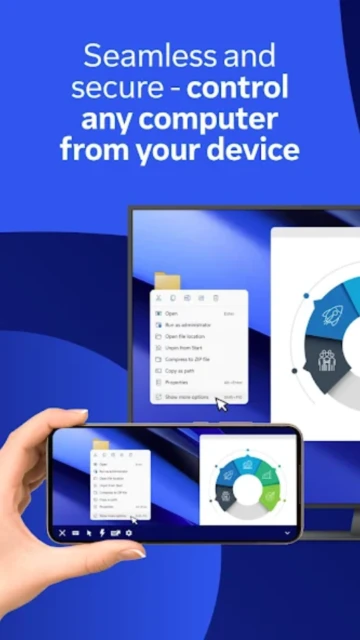
TeamViewer Remote Control stands as the global leader in remote access software, serving over 100 million users worldwide since 2005. This comprehensive remote desktop solution enables professionals, IT support teams, and home users to securely access Windows, macOS, Linux, and Android devices from smartphones and tablets. The platform’s strength lies in its combination of military-grade security protocols, intuitive touch-based controls, and advanced features like Assist AR for visual guidance in augmented reality environments—capabilities that set it apart from competitors in the productivity category.
How to Get Started with TeamViewer Remote Control
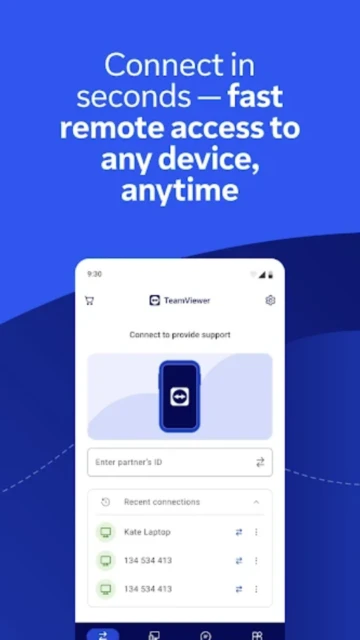
Setting up TeamViewer requires minimal configuration and follows a straightforward process. First, download the app on your mobile device and create a TeamViewer account using email authentication. Then install TeamViewer QuickSupport on the device you want to control—the receiving device. Both apps generate unique 9-digit TeamViewer IDs that facilitate secure connections without port forwarding. Once configured, enter the remote device’s ID or scan its QR code to establish encrypted sessions within seconds.
- Download and Install on Mobile – Install TeamViewer Remote Control on your iPhone, iPad, or Android device from official app stores
- Create TeamViewer Account – Sign up with email to enable cloud-based device synchronization and session history across devices
- Install QuickSupport on Target Device – Download TeamViewer QuickSupport on the computer or device you want to control remotely
- Enter Device ID and Connect – Launch both apps, enter the 9-digit ID from QuickSupport, and initiate your first secure remote session
Who Should Use TeamViewer Remote Control
TeamViewer serves distinct user groups with varying needs for remote access and device management. The app’s modular feature set addresses personal users, IT professionals, system administrators, and support teams across industries. Its flexibility supports both occasional home users and enterprise deployments with thousands of devices.
- Home Users and Families – Access personal computers while traveling, retrieve documents remotely, or troubleshoot family members’ devices without physical presence
- IT Support Professionals – Manage unattended devices like servers, digital signage, kiosks, and manage multi-device environments with organized device grouping
- Remote Workers – Control office desktops from home or while traveling; access multiple monitors and perform full desktop tasks on mobile devices
- NOT ideal for – Users seeking exclusively free commercial use without account flagging; those requiring real-time gaming with <10ms latency; developers prioritizing open-source alternatives
TeamViewer Remote Control Platform Compatibility
TeamViewer Remote Control runs across diverse operating systems with consistent feature parity. The mobile app maintains full compatibility with both iOS 15.4+ and Android 8.0+, while supporting access to Windows, macOS, Linux, ChromeOS, and even Android devices. Cloud synchronization ensures seamless switching between tablets, phones, and browsers for managing your device list.
| Platform |
Min. Version |
Unique Features |
Limitations |
| Android |
Android 8.0+ |
Full remote control, file transfer, voice chat, Assist AR, Android device control, wake-on-LAN |
Some gesture customization limited on devices with custom ROMs; camera permission required for QR scanning |
| iOS |
iOS 15.4+ |
Full remote control, file transfer, voice chat, Assist AR, Wake-on-LAN, multi-monitor view |
Apple’s iPad sandboxing may limit some advanced gestures; requires iOS 15.4+ for latest features |
| Web Browser |
Chrome 80+, Firefox 75+, Safari 13+ |
Quick support without installation, cloud-based device management, session history, no download required |
Web version has reduced gesture support compared to native apps; file transfer limited on some browsers |
| Windows/macOS/Linux Desktop |
Windows 7+, macOS 10.13+, Linux Ubuntu 16.04+ |
Unattended access, device management console, advanced permissions, profile management |
Requires separate installation of TeamViewer Host for truly unattended access on servers |
TeamViewer Remote Control Integrations & Ecosystem
TeamViewer’s integration ecosystem extends its remote access capabilities directly into enterprise communication platforms. Strategic partnerships with leading SaaS applications enable users to initiate support sessions without leaving their primary communication tools. These integrations streamline workflows for support teams and reduce friction when switching between applications during incident response.
- Slack Integration – Start remote control or Assist AR sessions directly within Slack channels without leaving the app; perfect for immediate troubleshooting and remote guidance
- Microsoft Teams – Launch remote access from Teams conversations; enables remote support specialists to connect with users while discussing issues in real-time
- Integration API for Enterprise – Custom integrations with ticketing systems like Jira Service Management, Zendesk, and Freshdesk for automated device access workflows
- Active Directory and SSO – Enterprise users can authenticate via existing corporate identity providers, simplifying account management and security compliance
Best Alternatives to TeamViewer Remote Control
The remote desktop market offers several compelling alternatives with different strength profiles. Each addresses specific use cases, from gaming-optimized performance to open-source transparency. Users seeking free commercial use, ultra-low latency, or alternative pricing models will find viable options to evaluate.
- DeskIn Remote Desktop – Best for designers and gamers, offers 4K 60FPS with 40ms latency and true 4:4:4 color display; free commercial use with unlimited file transfers at 12MB/s
- AnyDesk Remote Desktop – Best for performance-critical workflows, features proprietary DeskRT codec with dynamic compression and reliable unattended access; lower review ratings reflect connection stability concerns
- RealVNC Viewer – Best for enterprise and legacy system support, built on stable VNC protocol with robust authentication; stronger security focus than consumer-oriented competitors
- RustDesk – Best for privacy-conscious users, open-source alternative with no commercial use flags, self-hosted option available, though smaller feature set than TeamViewer
TeamViewer Remote Control vs Top Competitors
Comparing TeamViewer with direct competitors reveals distinct positioning. TeamViewer excels in ease-of-use and broad feature coverage but faces criticism for commercial use detection affecting personal users. DeskIn emerges as the performance leader for design work and gaming. AnyDesk prioritizes raw speed but faces reliability complaints. Understanding these differences guides selection based on specific requirements.
| Feature |
TeamViewer |
DeskIn |
AnyDesk |
| Pricing |
Free (with commercial use detection) / $619.99/year business |
Free for all use; Premium from $10.90/month |
Free / $6/month professional |
| Maximum Video Quality |
HD with compression algorithms |
4K 60FPS / 2K 144FPS with 4:4:4 true color |
4K with dynamic codec compression |
| Network Latency |
Variable, affected by compression |
≤40ms guaranteed with RTC technology |
Ultra-low with DeskRT codec, varies by connection |
| Free Commercial Use |
Not permitted (triggers account flags) |
Explicitly allowed for all users |
Limited trials, requires paid plan |
| File Transfer Speed |
Moderate, integration focused |
12MB/s with unlimited file sizes |
Varies with connection quality |
TeamViewer Remote Control Privacy & Security Overview
Security forms the foundation of TeamViewer’s architecture, employing multiple protective layers for both data transmission and session management. The platform uses industry-standard encryption protocols verified by third-party security audits. Users can configure granular permission controls, two-factor authentication, and access policies through both the mobile app and web management console.
| Security Aspect |
Implementation |
User Control |
| Data Encryption |
256-bit AES encryption for all sessions; TLS 1.2+ for cloud connections |
Users cannot modify encryption level; all connections encrypted by default |
| Authentication |
Email-password login, optional two-factor authentication via authenticator apps or SMS |
Users can enable/disable 2FA; configure trusted device settings in account preferences |
| Data Collection |
Session logs, connection metadata, optional crash diagnostics; no content recording by default |
Users can disable diagnostic data; control whether individual sessions are logged |
| Third-Party Sharing |
Data not shared with third parties; stored on TeamViewer’s German servers with EU data protection compliance |
Users can request data deletion via privacy settings; full GDPR compliance enabled |
TeamViewer Remote Control Accessibility Features
TeamViewer Remote Control implements standard accessibility features across iOS and Android platforms. The app respects native operating system accessibility settings and supports screen readers for account management. However, gesture-heavy remote control requires alternative input methods for users with motor impairments.
- Screen Reader Support – VoiceOver (iOS) and TalkBack (Android) compatible for account login and settings management; remote control interface has limited screen reader support due to touch gesture requirements
- Visual Accessibility – Supports system font scaling, high contrast modes on both platforms; night mode available in app settings; however, remote desktop content readability depends on source resolution
- Motor Accessibility – Touch gestures configurable via accessibility settings; voice chat provides audio alternative for communication during sessions; however, complex gesture interactions (multi-touch) not fully remappable
- Languages & Localization – Available in 28 languages including Spanish, French, German, Simplified/Traditional Chinese, Japanese; full right-to-left script support for Arabic, Hebrew, Persian
Power User Tips for TeamViewer Remote Control
Experienced users unlock advanced features through configuration and workflow optimization. These techniques address common pain points and maximize efficiency in support scenarios and remote work situations. Implementing these strategies reduces friction and enables faster problem resolution.
- Configure Device Bookmarks – Create searchable bookmarks for frequently accessed computers instead of memorizing 9-digit IDs; organize by department or purpose for large device inventories
- Use Session Recording for Compliance – Enable session recording within the app settings for IT support documentation; recordings store locally and help resolve disputes about support activities
- Enable Unattended Access on Servers – Set permanent access passwords on server machines to bypass the need for someone to approve connections; prevents session interruptions on headless systems
- Optimize Multi-Monitor Remote Work – Enable multi-monitor view in settings to see all remote screens at once; swipe between monitors on tablet for efficient navigation across large desktop environments
- Troubleshoot Commercial Use Flags – If flagged, submit a personal use declaration through TeamViewer support; document non-commercial usage patterns; use separate TeamViewer account for business use to avoid reoccurrence
TeamViewer Remote Control Support & Community
TeamViewer provides multi-channel support for users across all experience levels. The company maintains extensive documentation covering setup, troubleshooting, and advanced configurations. Community forums and social media channels enable peer-to-peer assistance and product feedback.
- Official Help Center – https://www.teamviewer.com/en/global/support/ with knowledge base covering commercial use detection, permission issues, and mobile-specific troubleshooting
- Community Forum – https://community.teamviewer.com/ where thousands of users discuss setup issues, feature requests, and share workflows; moderated by TeamViewer staff
- Social Media & Updates – @TeamViewer on Twitter/X; official YouTube channel with setup guides and product announcement videos
- Contact Support – Email [email protected] or phone +1-800-951-4573 for account-specific issues; business customers receive priority routing
TeamViewer Remote Control Latest Updates & Roadmap
TeamViewer released version 15.72.3 on November 25, 2025, introducing performance optimizations and the Tia intelligent agent system. The iOS mobile app reached version 15.72.2 with improved startup performance. Key 2025 improvements focused on UI responsiveness, faster device fetching, and expanded Slack integration capabilities. The roadmap indicates continued development of AI-assisted support features and enhanced multi-platform session management for enterprise users.