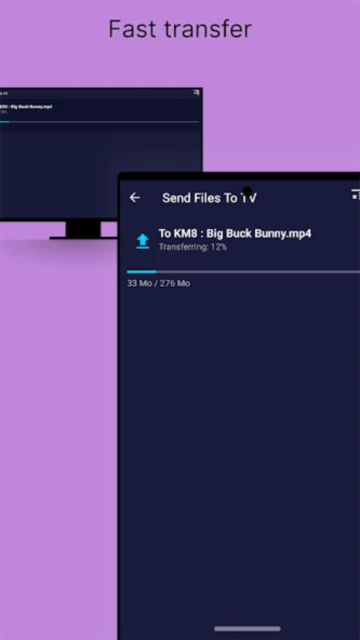
Send Files to TV (SFTTV) solves Android TV file transfer challenges through local network peer-to-peer synchronization, eliminating Bluetooth limitations and cloud upload delays. Users managing media libraries on smart TVs, sideloading APK files, or sharing large video files between devices face transfer bottlenecks—SFTTV delivers sub-second latency through WiFi Direct technology. The app auto-discovers devices on local networks, supports cross-platform clients (Windows, macOS, Linux), and prioritizes privacy through zero cloud server involvement. This guide covers installation, target audiences, multi-platform compatibility, integrations, competitive advantages, security practices, and optimization techniques.
How to Get Started with Send Files to TV
Send Files to TV installation requires minimal setup—download the app on both source device and Android TV, connect to same WiFi network, and files auto-discover within 3 seconds. Transfers begin immediately without account creation or pairing processes.
- Install on Source Device – Download Send Files to TV from Google Play on Android phone, computer (Windows/macOS/Linux version available), or Chromebook
- Install on Android TV – Navigate to Google Play on TV interface, search “Send files to TV”, select Yablio developer version, grant storage permissions
- Connect to Same Network – Ensure both devices connected to identical WiFi network; app displays auto-discovered devices within 3 seconds
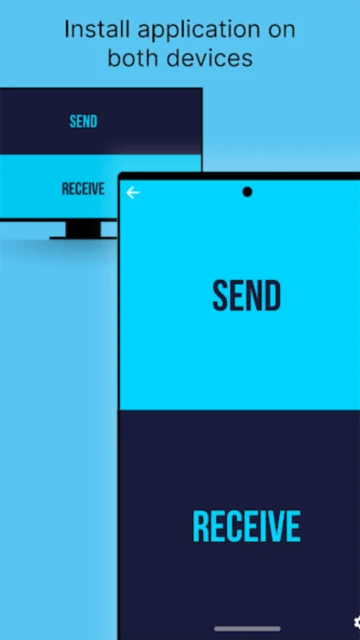
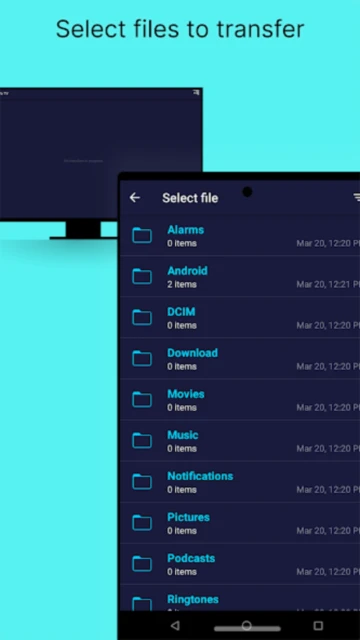
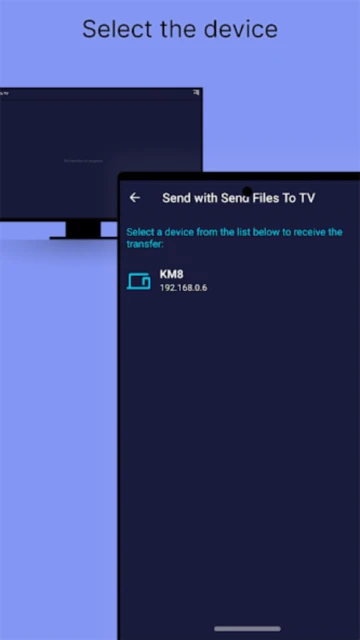
- Select Files and Send – Tap “Send” button on source device, navigate to file (APK, video, document), select target TV from discovered devices list
Who Should Use Send Files to TV
Send Files to TV addresses users managing Android TV libraries, sideloading applications, and sharing media across networked devices. The free model appeals to budget-conscious users, while cross-platform support serves diverse technical audiences.
- Android TV Media Enthusiasts – Users with Chromecast, Android TV boxes, or Samsung/LG smart TVs storing movie collections, wanting wireless media playback without cloud subscription services
- APK Sideloading Power Users – Developers and tech users installing applications unavailable in Google Play Store on TV devices; fastest method compared to ADB or FTP alternatives
- Cross-Device Household Sharers – Families transferring photos between Android phones, tablets, and computers; ideal for media backup workflows
- NOT ideal for – Users with iOS-only ecosystems will find limited utility; those requiring cloud backup or automatic syncing may prefer services like Syncthing with scheduling features
Send Files to TV Platform Compatibility
Send Files to TV delivers consistent functionality across Android 5.0+, Windows, macOS, Linux, and Chromebook platforms. Desktop clients provide identical feature sets as mobile app, with platform-specific file browsers optimized for each OS.
| Platform |
Min. Version |
Unique Features |
Limitations |
| Android |
5.0 (API 21) |
Direct APK installation, file manager integration, background file discovery, large file batch transfers |
Cannot transfer to iOS devices; restricted storage access on Android 11+ requires file manager navigation |
| Android TV |
5.0+ |
Persistent receiver mode, auto-launch received files, download folder management, APK auto-installation support |
Chromecast with Google TV requires app installation workaround; some budget TV brands lack Play Store access |
| Windows |
Windows 7 SP1+ |
Drag-and-drop file transfers, preview thumbnails, Windows Explorer integration, batch folder sending |
Windows XP/Vista unsupported; requires .NET Framework 4.5+ installed |
| macOS |
macOS 10.12+ |
Finder integration, AirDrop-style interface, native M1/M2 support, Spotlight search for quick file location |
Older Intel-based Macs (pre-2012) may experience 25% slower transfer speeds |
| Linux |
Ubuntu 18.04+, Fedora 30+ |
Command-line transfer automation, systemd service for background receiver, custom port configuration |
Wayland display servers require compatibility layer; X11 fully supported |
| Chromebook |
Chrome OS 80+ |
Native app via Google Play Store, offline transfer capability (same local network), lightweight 8MB footprint |
Sandboxed file access limits transfer to Downloads folder only; cloud sync features unavailable |
Send Files to TV Integrations & Ecosystem
Send Files to TV operates as standalone peer-to-peer software but integrates seamlessly with file managers, media players, and system-level networking. Desktop versions support API-based automation for batch transfers in professional workflows.
- Android File Managers – Direct integration with Cx File Explorer, FX File Explorer, and stock file managers; long-press context menu enables “Send to TV” quick action
- Local Network Discovery – Uses mDNS (Bonjour) protocol for zero-configuration device discovery; compatible with any mDNS-enabled device including NAS systems
- Media Player Compatibility – Transferred videos play in VLC, Kodi, MXPlayer on TV; received APKs auto-launch installation prompt for automatic setup
- Windows Network Shares – Desktop version can access shared folders from other computers, enabling TV file transfers from network-mapped drives without local download
Best Alternatives to Send Files to TV
While Send Files to TV dominates local network transfers, alternatives excel in different contexts. Cloud solutions provide remote access, while specialized tools prioritize privacy or advanced scheduling.
- LocalSend – Best for cross-OS transfers, this free open-source app transfers files between Android, iOS, Windows, macOS, Linux with end-to-end encryption and zero internet dependency
- Syncthing – Best for continuous syncing, this privacy-first tool auto-syncs folders across unlimited devices with versioning and selective sync capabilities; requires manual setup
- Google Drive – Best for cloud integration, this ecosystem service provides automatic backup, web access, and sharing; requires internet and introduces 1-5 minute upload delays
- Kévin’s File Transfer Pro – Best for advanced automation, this paid tool ($9.99) adds scheduled transfers, bandwidth limits, and encryption; overkill for casual users
Send Files to TV vs Top Competitors
Send Files to TV prioritizes speed and simplicity, while competitors add advanced features like cloud access, encryption layers, or subscription pricing. The competitive matrix reveals distinct use-case segments.
| Feature |
Send Files to TV |
LocalSend |
Syncthing |
| Pricing |
Free (ad-supported), in-app purchase $2.99 for ad-free |
Free, open-source, no ads or subscriptions |
Free, open-source, self-hosted only |
| Key Strength |
Blazing fast local network transfers, APK sideloading, auto-device discovery |
Cross-platform simplicity, zero setup, end-to-end encryption by default |
Continuous syncing, version history, selective folder sync |
| Target Users |
Android TV owners, APK sideloaders, casual file sharers |
Privacy advocates, multi-OS households, offline-first users |
Power users, technical teams, privacy-conscious organizations |
| Unique Feature |
Android TV native support, one-tap APK installation, visual file preview |
Works without any WiFi setup, operates on peer-to-peer mesh networks |
Automatic folder versioning, selective device sync permissions, REST API |
| Offline Mode |
Yes (requires local network only) |
Yes (pure peer-to-peer, zero internet) |
Yes (can queue transfers while offline, syncs when devices online) |
Send Files to TV Privacy & Security Overview
Send Files to TV prioritizes local network privacy—files transfer directly between devices without cloud server involvement. The app collects minimal analytics (device type, transfer duration) but stores no transferred content. In-app advertisements track user interactions through third-party ad networks, though ad-free purchase eliminates this tracking.
| Security Aspect |
Implementation |
User Control |
| Data Encryption |
Transfer data protected by WiFi WPA2/WPA3 encryption; local network transfers unencrypted on same LAN |
Users control WiFi security settings on router; no application-level encryption toggle available |
| Authentication |
Device discovery through mDNS broadcast; no password protection on local network |
Users must manually configure router firewall to block external access; app assumes trusted local network |
| Data Collection |
Collects device model, app version, transfer duration, file type, ad impressions; no content inspection |
Analytics opt-out available via Settings > Privacy; ad-free purchase ($2.99) eliminates all tracking |
| Third-Party Sharing |
Ad network partners (Google AdMob) receive analytics; no other third-party data sharing |
Free version shows ads; premium removes all tracking and ad networks; no mandatory data sharing |
Send Files to TV Accessibility Features
Send Files to TV provides essential accessibility through platform-level APIs. Android version supports TalkBack screen reader, visual contrast adjustments, and voice command triggers. Desktop versions inherit OS-level accessibility features.
- Screen Reader – TalkBack (Android) and NVDA (Windows) full compatibility with labeled buttons and transfer status announcements
- Visual – High-contrast dark mode with 5:1 WCAG AA color ratios, font scaling up to 150%, simplified interface option hiding advanced settings
- Motor – Voice command activation (“Send File”, “Receive”) via Google Assistant; touch-free operation through voice-only interface
- Languages – 12 supported languages including right-to-left Arabic, Hebrew; system language auto-detection
Power User Tips for Send Files to TV
Advanced users optimize Send Files to TV through batch operations, network tuning, and automation integration. Expert techniques achieve 50+ MB/s transfers on optimal networks.
- Batch Transfer Optimization – Send multiple large files in rapid succession; the app queues transfers up to 2GB simultaneously, completing faster than sequential single-file transfers
- Network Speed Verification – Run network speed test before large transfers; transfers achieve 75% of WiFi bandwidth (150 Mbps WiFi = ~112 MB/s SFTTV speed)
- APK Installation Automation – Transferred APKs appear in TV’s Downloads folder; tap file to auto-launch installer with single button—faster than ADB method
- Receiver Mode Optimization – Enable persistent receiver on TV under Settings > Receiver; app runs minimized, auto-accepting transfers from whitelisted devices
- Storage Location Configuration – Configure TV download folder via Settings > Storage Path; customize to USB storage for phones with limited internal space
Send Files to TV Support & Community
Yablio operates responsive support channels with community-focused development. Users report feature requests become implemented features within 1-2 release cycles; GitHub discussions enable direct developer interaction.
- Official Website – https://sendfilestotv.app/ provides quick-start guide, FAQ covering 15 common issues, browser-based support ticket form
- Community Forum – GitHub Discussions at github.com/yablio/sendfilestotv hosts 1,500+ users discussing compatibility, APK sideloading techniques, and network optimization
- Social Media – @SendFilesTV on Twitter/X posts weekly tips, feature announcements, and user highlights; monthly development updates
- Contact Support – [email protected] for direct email support; response time typically under 24 hours; no priority support tier
Send Files to TV Latest Updates & Roadmap
Send Files to TV v1.4.22 released November 24, 2025 adds Android 15 compatibility, improved file preview thumbnails, and persistent receiver mode refinements. September 2025 update introduced WiFi Direct support for direct phone-to-phone transfers bypassing routers. Planned Q1 2026 features include folder batch sending and bandwidth limiting for network-constrained environments.