RemotePC Viewer stands out in the crowded remote desktop market by prioritizing visual fidelity and speed over enterprise bloat. Unlike competitors that throttle frame rates on mobile, this app utilizes an advanced streaming engine capable of delivering 60 FPS at 4K resolution, making it uniquely viable for designers, video editors, and gamers who need to control powerful desktops from their phones. This guide explores how to leverage its low-latency architecture for seamless productivity on the go.
How to Get Started with RemotePC Viewer
The onboarding process focuses on security first, requiring a verified account before any connection can be established. Setup is quick but requires access to both the host machine and your mobile device simultaneously.
- Install Host Application – Download and configure the Always-On Remote Access agent on your Windows or Mac computer.
- Configure Personal Key – Set a private, alphanumeric key on the host machine; this acts as a second layer of encryption.
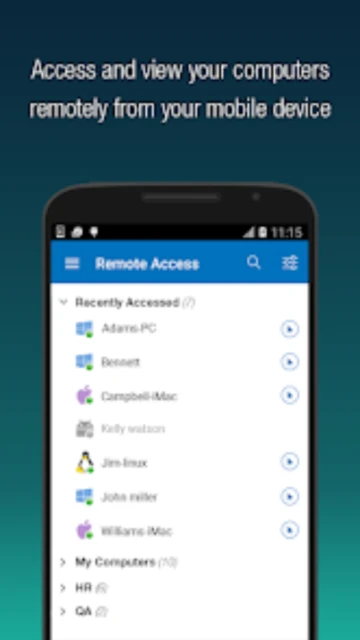
- Log In on Mobile – Open the Android app and sign in with your IDrive/RemotePC credentials to view your device list.
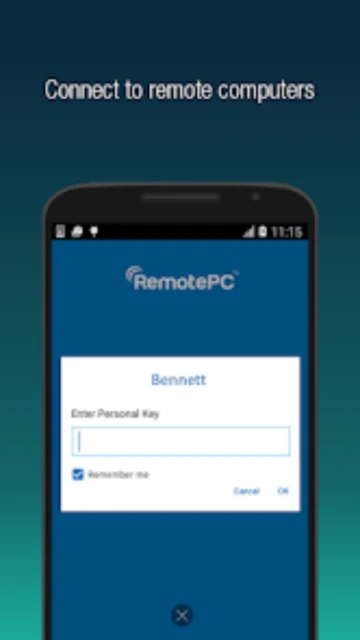
- Initiate First Session – Tap your online computer, enter the Personal Key, and select your preferred resolution scaling.
Who Should Use RemotePC Viewer
This app is engineered for users who refuse to compromise on visual performance when working remotely. It serves those who need pixel-perfect accuracy rather than just basic file access.
- Creative Professionals – Video editors and graphic designers needing color-accurate, high-framerate access to Adobe Creative Cloud.
- IT System Administrators – Techs managing multiple unattended servers who need reliable, encrypted access without end-user intervention.
- Remote Power Users – Individuals who want to access their powerful home desktop rig for resource-intensive tasks while traveling.
- NOT ideal for – One-time support sessions for non-tech-savvy relatives (requires host installation).
RemotePC Viewer Platform Compatibility
While the viewer focuses on Android, the ecosystem supports a wide range of host operating systems. The mobile app acts as a universal remote for your entire digital infrastructure.
| Platform |
Min. Version |
Unique Features |
Limitations |
| Android |
8.0+ |
Picture-in-Picture mode, 60 FPS streaming |
No drag-and-drop file transfer outside app |
| Windows (Host) |
Win 7 SP1+ |
Blank Host Screen, Remote Printing |
Requires admin rights for installation |
| macOS (Host) |
10.13+ |
Remote sound, Multi-monitor switching |
Privacy permission hurdles on install |
| Linux (Host) |
Various distros |
Headless Linux support, CLI access |
No remote printing support |
RemotePC Viewer Integrations & Ecosystem
RemotePC functions as a standalone powerhouse but integrates deeply with the broader IDrive ecosystem. This connectivity is vital for businesses already invested in IDrive’s backup solutions.
- IDrive Cloud Backup – Seamlessly access files backed up from your remote computers directly within the interface.
- Local Printers – The ‘Remote Printing’ integration allows you to print documents from the remote PC to a printer near your mobile device.
- External Keyboards – Full mapping support for physical Bluetooth keyboards, enabling functional coding or writing sessions.
- Voice Chat – Integrated VoIP capabilities allow for real-time communication if a user is present at the remote end.
Best Alternatives to RemotePC Viewer
If RemotePC’s focus on attended access and performance doesn’t fit your needs, several other robust options exist in the mobile remote desktop space.
- TeamViewer – Best for spontaneous support, offering a ‘QuickSupport’ module that requires no installation.
- AnyDesk – Best for low-bandwidth environments, utilizing a proprietary codec that works well on slow connections.
- Chrome Remote Desktop – Best for casual personal use, offering a completely free, browser-based solution with simpler setup.
- Microsoft Remote Desktop – Best for enterprise Windows environments, leveraging native RDP protocols for intranet access.
RemotePC Viewer vs Top Competitors
RemotePC competes aggressively on pricing and performance specs. While others charge per user, RemotePC often prices based on computer count, offering significant savings.
| Feature |
RemotePC Viewer |
TeamViewer |
LogMeIn Pro |
| Pricing Model |
Flat rate / Computer count |
Expensive Per User / Month |
High Premium Subscription |
| Key Strength |
4K @ 60 FPS Performance |
Enterprise-grade Support Tools |
Deep Ecosystem Management |
| Free Tier |
Limited basic access |
Personal use only (Strict) |
None (Trial only) |
| Unique Feature |
Always-ON Remote Sound |
Augmented Reality Support |
1TB File Storage Included |
| Offline Mode |
No (Internet Required) |
LAN-only mode available |
No |
RemotePC Viewer Privacy & Security Overview
Security is paramount when opening a tunnel to your personal computer. RemotePC employs a zero-trust architecture for its connection protocols.
| Security Aspect |
Implementation |
User Control |
| Data Encryption |
TLS v1.2 / AES-256 |
Always enforced, cannot disable |
| Authentication |
Personal Key (Secondary Password) |
Mandatory for every device |
| Data Collection |
Device logs, IP addresses |
Opt-out of analytics available |
| Screen Privacy |
Blank Host Screen |
Toggle on/off per session |
RemotePC Viewer Accessibility Features
The developers have included specific tools to assist users with different needs, ensuring the remote desktop experience is usable on smaller screens.
- Screen Reader – Fully compatible with Android TalkBack for navigating the device list and menus.
- Visual – Resolution scaling and ‘Better Quality’ mode help users with visual impairments see fine details.
- Motor – ‘Touch Mode’ vs ‘Mouse Mode’ allows users to choose between direct tapping or trackpad-style cursor control.
- Languages – Localized in English, Spanish, French, German, Italian, and Japanese.
Power User Tips for RemotePC Viewer
To truly master RemotePC Viewer, users should move beyond the default settings. These optimizations can transform your phone into a legitimate workstation replacement.
- Enable Lock on Session End – Automatically lock the remote Windows PC when you close the app to prevent unauthorized physical access.
- Use Performance Mode – Switch to ‘Performance’ over ‘Quality’ if you are on cellular data to reduce lag significantly.
- Gesture Mastery – Learn the three-finger tap to bring up the keyboard and two-finger scroll for rapid document navigation.
- Whiteboard Collaboration – Use the in-session whiteboard to draw on the screen during a presentation or collaborative review.
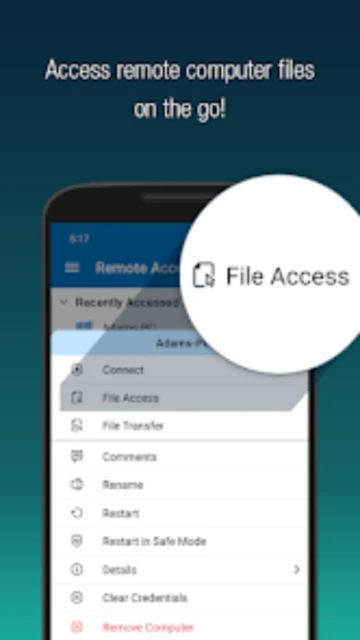
- Restart in Safe Mode – You can remotely reboot the host machine into Safe Mode directly from the app for troubleshooting.
RemotePC Viewer Support & Community
Support is a strong point for IDrive Inc., offering more direct channels than many “freemium” competitors.
- Official Help Center – https://www.remotepc.com/support providing video tutorials and text guides.
- 24/7 Live Chat – Accessible directly through the website for immediate troubleshooting assistance.
- Video Tutorials – Comprehensive library of setup guides for every operating system.
- Email Support – Direct ticket system for complex technical issues like firewall configuration.