RealVNC Viewer represents the gold standard for enterprise remote access, born from the original VNC (Virtual Network Computing) protocol inventors. Unlike consumer-focused alternatives, RealVNC Connect (desktop server) paired with RealVNC Viewer (mobile/web client) delivers three tiers: free cloud-only access for 3 devices, Professional ($40/year per device) enabling direct peer-to-peer connections, and Enterprise ($198+/year per active session) with unlimited devices and audit logging. Organizations managing 50+ remote systems, service providers requiring HelpDesk ticketing integration, and teams with strict data sovereignty needs select RealVNC for granular permission controls, RADIUS MFA support, and transparent security practices validated by independent audits.
How to Get Started with RealVNC Viewer
RealVNC Viewer setup follows the traditional VNC architecture: download RealVNC Connect desktop server, create account, then access remotely via Viewer client. Onboarding typically completes in 5-10 minutes for single-device setup; enterprise deployments with MSI packages and Group Policy require IT administrator coordination but automate device provisioning across hundreds of PCs simultaneously.
- Download and Install RealVNC Connect – Download server from realvnc.com, run installer (requires admin rights), agree to service terms; server automatically registers with your RealVNC account
- Create RealVNC Account with 2FA – Visit realvnc.com/connect, register email, enable two-factor authentication via email link (essential for protecting remote access credentials)
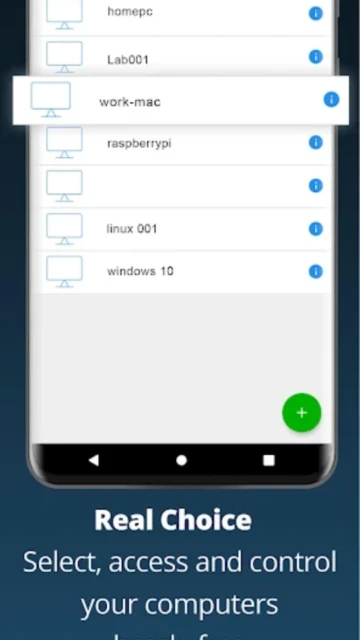
- Download RealVNC Viewer on Mobile/Browser – Install iOS/Android app or access web portal; sign in with same account credentials; managed devices auto-populate in interface
- Select Connection Type and Connect – Choose Cloud (no firewall configuration) or Direct (requires static IP setup); tap device and enter server password when prompted
Who Should Use RealVNC Viewer
RealVNC Viewer targets enterprise IT teams and managed service providers handling 20+ remote systems. The software’s granular permission model, audit logging, and enterprise subscription options justify the cost premium. Organizations with strict compliance requirements (healthcare HIPAA, financial PCI-DSS) and teams using Active Directory/Okta SSO gain value from RealVNC’s robust security architecture.
- Enterprise IT Teams – Premium/Enterprise plans support 150+ managed devices with role-based access controls, session recording, and API-driven automation; Direct connectivity on-premise deployment eliminates cloud privacy concerns
- Managed Service Providers (MSPs) – HelpDesk feature sends guest codes without agent installation; clients click link, session begins instantly; audit logs show technician actions for compliance documentation
- Regulated Industries – HIPAA/PCI-DSS compliance via on-premise deployment, MFA via RADIUS/Okta integration, and granular permissions restrict user access to specific devices or features
- NOT Ideal For – Budget-conscious teams (Professional $40/device/year compounds with scale); macOS users (Android Viewer 4.9.2 released Sept 2025, iOS support strong); teams prioritizing unattended access on free tier (AnyViewer’s free tier superior)
RealVNC Viewer Platform Compatibility
RealVNC’s architecture requires VNC Connect server running on target Windows/macOS/Linux PC. RealVNC Viewer (client) runs on iOS, Android, web browsers, and desktop. This separation enables flexibility: a single RealVNC account can access any server from any viewer device, making it ideal for BYOD environments and support staff roaming between workstations.
| Platform |
Min. Version |
Unique Features |
Limitations |
| iOS |
iOS 13.0+ |
Touch-based trackpad control, Bluetooth keyboard/mouse support, gesture shortcuts (2-finger tap=right-click), cloud and direct connections |
Cannot initiate connections to other iOS devices; limited to Mac/Windows/Linux targets only |
| Android |
Android 5.0+ |
Full VNC Viewer 4.9.2 release Sept 2025 with Android 15 optimization, Bluetooth peripherals, cloud and direct connectivity |
Some users report “Failed to resolve domain name” errors requiring full app force-close; keyboard overlay conflicts with Android notification drawer |
| Web Browser |
Chrome 130+, Firefox 128+, Safari 18+ (macOS), Edge 131+ |
Zero-install cloud access from any device; session recording browser-native support; responsive design for tablet/phone viewing |
Web client requires modern HTML5 browser; older IE not supported; direct peer-to-peer unavailable (cloud-only) |
| Desktop (macOS/Windows) |
macOS 10.13+ / Windows 7 SP1+ |
Full VNC Server installation, multi-monitor support, session recording, direct LAN and cloud connectivity, API access |
RealVNC Server requires purchase; separate download from Viewer; not available as mobile app |
RealVNC Viewer Integrations & Ecosystem
RealVNC Connect excels at enterprise ecosystem integration through APIs, SSO, and MFA protocols. Unlike consumer apps, RealVNC is built for IT workflows: Group Policy deployment, Microsoft Entra ID (Azure AD) SSO, and RADIUS authentication simplify credential management across hybrid teams. Session chat and screen blanking features enable support scenarios where the physical device user remains present during technician troubleshooting.
- Microsoft Entra ID and Azure AD SSO – Teams sign in with corporate credentials via Azure AD; Multi-Factor Authentication via Okta/Duo/RSA SecurID; eliminates separate VNC password management for 50+ user orgs
- Group Policy and Mass Deployment – Premium/Enterprise plans support MSI package deployment via Group Policy Object; automate VNC Server installation to 100+ machines simultaneously; licensing enforced centrally
- REST API for Custom Automation – “Manage account via API” feature enables third-party ticketing systems (Jira, Zendesk, ServiceNow) to trigger remote sessions; custom scripts add devices, update permissions, audit access programmatically
- Direct Connectivity for Air-Gapped Networks – Enterprise plan supports on-premise deployment without cloud relay; direct TCP/IP connections over internal network; essential for government/military networks with internet restrictions
Best Alternatives to RealVNC Viewer
While RealVNC dominates enterprise remote access, competitive alternatives excel in specific niches. Microsoft’s free Windows App serves Azure-native organizations; AnyViewer captures price-sensitive teams; TeamViewer owns the MSP market through ticketing integration; Splashtop leads high-performance streaming scenarios. Feature overlap exists, but selection hinges on ecosystem fit and compliance requirements.
- Windows App (Microsoft Remote Desktop) – Best for Azure Virtual Desktop and Windows 365 users; native Entra ID integration eliminates dual authentication; free for Microsoft cloud subscribers; web-based for cross-platform access
- AnyViewer Remote Desktop – Best for cost-conscious teams; free tier includes unattended access to 10 devices; Professional $43/year vs. RealVNC’s $198 per session for comparable features; sacrifice audit logging for affordability
- Splashtop – Best for remote access over poor bandwidth; proprietary streaming codec adapts to 2G networks; 4.7/5 G2 rating; $259/user/year for hybrid work; superior mobile experience vs. RealVNC on low-bandwidth connections
- TeamViewer – Best for MSPs with ticketing integration; includes unattended access, sales automation, and mobile app control; $409/user/year; market leader in Europe/APAC; free for non-commercial use
RealVNC Viewer vs Top Competitors
Enterprise procurement decisions hinge on device count, encryption standards, and audit logging depth. RealVNC’s 256-bit AES and granular permissions justify enterprise premiums; Windows App’s Entra ID integration suits Microsoft-heavy orgs; AnyViewer’s free tier wins individual technicians. Compliance-conscious organizations (healthcare, finance, government) select based on data residency and audit trail quality rather than cost.
| Feature |
RealVNC Viewer |
AnyViewer |
Windows App |
| Pricing |
Free (cloud 3 devices) / $198/year Essentials (1 active connection) |
Free (10 devices unattended) / $42.96/year Professional |
Free (Azure/Microsoft 365 subscribers) |
| Key Strength |
Enterprise audit logging, 256-bit AES, RADIUS MFA, on-premise deployment, 150+ device scaling |
Free unattended access, fastest file transfer (10MB/s), screen wall monitoring, game mouse mode |
Entra ID SSO integration, unified Azure Virtual Desktop/Windows 365/RDS interface, web-based access |
| Target Users |
Enterprise IT teams, MSPs, regulated industries (HIPAA/PCI-DSS), 20+ device environments |
Individual techs, small business, home remote access, budget-first scenarios |
Microsoft cloud organizations, Azure Virtual Desktop users, Microsoft 365 subscribers |
| Unique Feature |
HelpDesk guest codes (no agent install), session recording, MFA via RADIUS/Okta, API-driven automation |
Screen wall for 2-24 device monitoring, game mouse mode, multi-monitor detection, ECC encryption |
Direct launch URLs, customizable home screen, device redirection support, Teams optimization |
| Offline Mode |
Enterprise plan supports direct peer-to-peer (LAN) without cloud relay; Essentials plan cloud-only |
Direct LAN connection available on same network; no cloud relay required for on-premises access |
Local RDP works offline; Azure Virtual Desktop requires internet; no hybrid offline/online mode |
RealVNC Viewer Privacy & Security Overview
RealVNC Connect implements 256-bit AES-GCM encryption (minimum 128-bit baseline per protocol spec). All sessions encrypt end-to-end; keys never traverse RealVNC servers. Enterprise customers can deploy on-premise without cloud relay, eliminating metadata exposure. Independent security audits by Deloitte (2023) and SOC 2 Type II certification provide third-party validation. GDPR compliance with data deletion rights, and HIPAA-eligible architecture support healthcare deployments.
| Security Aspect |
Implementation |
User Control |
| Data Encryption |
256-bit AES-GCM end-to-end encryption mandatory for all connections; minimum 128-bit baseline per VNC standard; Perfect Forward Secrecy in cloud connections |
Encryption always-on; cannot disable; users can specify cipher suite in Enterprise Advanced Settings |
| Authentication |
Server password + client login; two-factor authentication via email, RADIUS, Okta, Duo, or RSA SecurID; Enterprise supports certificate-based smart card authentication |
Users enable 2FA in account settings (email default); orgs enforce MFA via RADIUS/Okta during provisioning |
| Data Collection |
Collects app activity and device connection metadata; session logs stored server-side for audit trail; no third-party ad networks; UK data residency available (EU compliance) |
Session recording toggleable per connection; audit logs view-restricted by role; Enterprise users export logs for 7-year retention compliance |
| Third-Party Sharing |
Policy prohibits third-party sharing except for legal/compliance obligations; publicly reported zero data breaches; UK-based parent company subject to GDPR enforcement |
Users request data deletion via portal; 30-day processing; audit logs archived separately for 7 years if required |
RealVNC Viewer Accessibility Features
RealVNC Viewer prioritizes accessibility across platforms. iOS VoiceOver support is full; Android TalkBack support added in version 4.9.0 (May 2024). Visual accommodations include high-contrast modes and text scaling. Motor accessibility supports external keyboards and mouse input via Bluetooth. Language support spans 15+ locales with right-to-left rendering for Arabic users.
- Screen Reader – iOS VoiceOver fully supported with gesture alternatives (3-finger tap for controls); Android TalkBack support 4.9.0+ with documented gesture mapping; web client responsive to JAWS/NVDA screen readers on Windows
- Visual – Adjustable text size in settings; high-contrast mode for low-vision users; dark theme available on mobile/web; color-blind friendly interface tested against WCAG 2.1 AA standards
- Motor – Full Bluetooth keyboard and mouse support; voice control via native OS APIs (Siri, Google Assistant); configurable gesture sensitivity for users with tremors or limited dexterity
- Languages – 15 languages including Spanish, German, French, Brazilian Portuguese; Arabic and Hebrew support with full RTL layout; translated help center for major markets
Power User Tips for RealVNC Viewer
Advanced RealVNC configurations optimize security and performance for demanding environments. Direct connectivity setup eliminates cloud latency; permission granularity prevents accidental access elevation; session recording enables compliance audits. API-driven automation scales device provisioning from manual administration.
- Enable Direct Connectivity for LAN Speed – Premium/Enterprise plans support direct peer-to-peer via static IP; configure firewall to allow VNC port (default 5900); direct connections achieve 60fps vs. cloud’s 30fps; suitable for same-site technical support scenarios
- Implement Granular Permission Controls – Enterprise plan’s “Advanced permissions management” creates custom roles (e.g., “ViewOnly” for monitoring, “FullControl” for admins); prevent accidental system damage during delegated support; audit logs show which user executed which actions
- Activate Session Recording for Compliance – Session chat and screen recording auto-enable on Professional+ plans; exported MP4 files preserve technician identity and timestamps; essential for HIPAA/PCI audits and customer dispute resolution
- Configure RADIUS MFA for Zero-Trust Networks – Enterprise customers integrate Okta/Duo/RSA SecurID via RADIUS; users authenticate with corporate credentials + security token; eliminates VNC password sharing; ideal for contractors and remote staff
- Troubleshoot “Failed to Resolve Domain Name” – If Android Viewer shows this error: clear app cache (Settings > Apps > RealVNC > Clear Cache), restart phone, verify internet connectivity on other apps (YouTube, email work), force-close and reopen RealVNC; if persistent, reinstall app or contact [email protected]
RealVNC Viewer Support & Community
RealVNC operates 24×5 technical support (24 hours weekdays, 5 hours weekends) via email and live chat. Premium/Enterprise subscribers receive phone support. Community forums and help center span 50+ knowledge base articles. Average first-response time is 2 hours for Premium tier during business hours.
- Official Help Center – help.realvnc.com provides 200+ articles on installation, troubleshooting, API reference, and enterprise deployment; searchable knowledge base covers iOS, Android, and web viewers
- Community Forum – forums.realvnc.com hosts 10,000+ discussions; peer support from RealVNC engineers and community members; monthly threads on new features and best practices
- Social Media – Twitter @RealVNC and Facebook RealVNC for product updates and security announcements; fastest channel for critical issues requiring immediate escalation
- Contact Support – Email [email protected] for mobile issues; general [email protected] for licensing/billing; Premium+ get live chat access (4-hour response guarantee) via portal