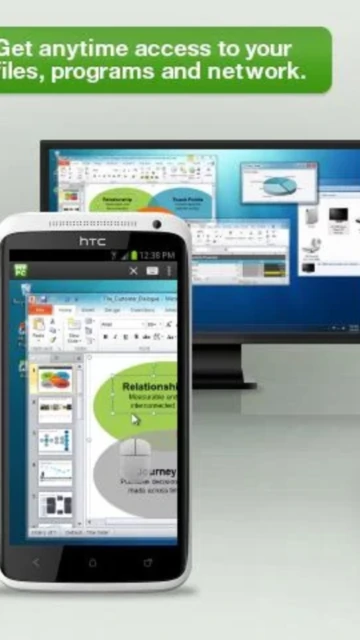
GoToMyPC stands out in the remote desktop landscape as a subscription-based solution prioritizing security and reliability over budget alternatives. Unlike free tools like Chrome Remote Desktop, GoToMyPC delivers enterprise-grade encryption (256-bit AES GCM), multi-factor authentication on Pro accounts, and dedicated 24/7 support. It’s particularly valued for business continuity, remote file transfer, and multi-monitor environments where accessibility and stability matter more than cost. This guide covers setup workflows, platform-specific features, integrations, and honest competitor comparisons to help you determine if GoToMyPC fits your remote access needs.
How to Get Started with GoToMyPC
The onboarding process takes approximately 10-15 minutes. First, you sign up for a subscription at gotomypc.com (offering a free 7-day trial requiring a valid payment method). Then, you download and install the host software on your remote computer, which registers it under your account. Finally, you download the viewer app on your client device and log in to initiate connections.
- Create Account & Subscribe – Visit gotomypc.com, select a plan (Personal at $35/month billed annually, Pro at $41.50/month, or Corporate at $28/month), and confirm payment. A 7-day free trial is available without charging your card initially.
- Install Host Software – Download the Windows or macOS host installer from your GoToMyPC account dashboard. Run the installer with admin privileges and log in with your credentials. The host registers automatically and appears in your “My Computers” list.
- Download Client App – Install the GoToMyPC viewer app from Google Play (Android 5.0+), Apple App Store (iOS 12.0+), or use the web interface at gotomypc.com. On mobile, authenticate with the same credentials used for your subscription.
- Connect to Remote Computer – Open the app, select your registered host from the computer list, and tap to connect. Once authenticated, you gain full keyboard, mouse, and multi-monitor control within 2-3 seconds of connection establishment.
Who Should Use GoToMyPC
GoToMyPC targets professionals and small businesses prioritizing security and support over aggressive cost-cutting. It’s optimized for scenarios requiring reliable uptime and audit compliance rather than one-off remote sessions.
- Business Owners & Remote Teams – Multi-employee access with centralized billing (Pro plan), user role management, and usage reporting for compliance and accountability tracking across multiple staff members and host computers.
- IT Support Technicians – Remote deployment capabilities (Corporate plan), screen freezing recovery (version 2025.2), and session diagnostics measure connection speed, CPU usage, and available memory for troubleshooting in real time.
- Frequent Travelers & Consultants – Universal device support (iOS 12.0+, Android 5.0+, Windows 2000+, macOS 10.11+), multi-monitor navigation via minimap, and file transfer enable accessing office resources from hotels, client sites, and international locations.
- NOT ideal for – Users on extremely tight budgets; TeamViewer or AnyDesk offer comparable features at lower entry points ($5-10/month). Those needing advanced collaboration (like concurrent multi-user sessions) should consider Citrix or Microsoft RDP alternatives.
GoToMyPC Platform Compatibility
GoToMyPC maintains broad compatibility across legacy and modern operating systems. Windows 2000 support (desktop host) is unusually backward-compatible; Android requires 5.0 (API 21) as a minimum; iOS demands iOS 12.0 (released 2018) or newer. App file sizes remain modest: 125 MB on Android, 35.2 MB on iOS.
| Platform |
Min. Version |
Unique Features |
Limitations |
| Android |
5.0 (API 21) or higher |
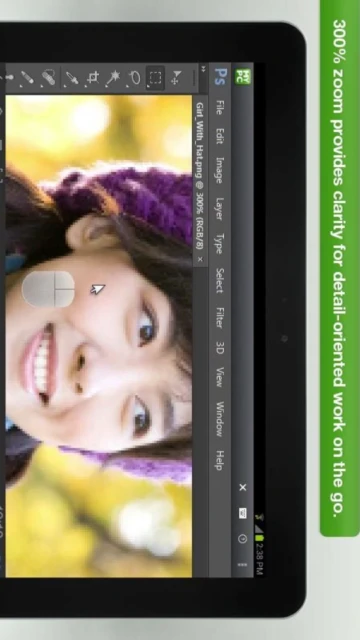
300% zoom, S Pen support (Samsung Galaxy), Bluetooth keyboard/mouse, dual password authentication, external keyboard support |
Keyboard special keys (Page Up/Down, Tab) require extra taps; difficult to drag window splitters in remote apps; left-side screen clicking inconsistent |
| iOS |
12.0 or later (iPhone, iPad, iPod touch) |
Copy-paste between computer and iOS apps, Preview Text auto-correction, Bluetooth keyboard, multi-monitor support with minimap, sound from PC |
iPad interface cramped on smaller screens; no trackpad support with Magic Keyboard until 2025 fixes; keyboard frequently requires activation alongside trackpad |
| Web |
Chrome, Firefox, Edge (Safari 16+) |
Connect in Browser (no native app download), multiple monitor management in windows, remote sound listening, multi-user session diagnostics |
Requires always-on internet; performance slower than native apps; limited offline capabilities |
| Desktop (Host) |
Windows 2000+, macOS 10.11+ |
Keyboard locking, screen blanking (Windows only), file sync, remote printer driver installation, multi-monitor support, calendar integration for availability |
macOS 26 (Tahoe) had screen refresh issues (fixed in version 2025.9.4328); Windows host requires continuous internet connection |
GoToMyPC Integrations & Ecosystem
GoToMyPC prioritizes network security over third-party app integrations. Unlike collaboration tools that integrate deep into productivity stacks, GoToMyPC functions as a layer underneath—you use your remote computer’s native applications exactly as if seated at the desk. Direct integrations exist only with specific enterprise platforms.
- Single Sign-On (SSO) – Corporate plan feature allowing IT administrators to connect GoToMyPC to LDAP, Active Directory, or cloud identity providers, eliminating separate password management for enterprise deployments of 20+ users.
- Remote Printer Drivers – Automatically installs and syncs printer drivers between your client device location and the remote computer’s configured printers, enabling seamless printing from client to office printers via GoToMyPC tunnel.
- File Transfer & Sync – Drag-and-drop file transfer between client and host; files transfer within the encrypted GoToMyPC tunnel without requiring cloud storage, message apps, or USB drives for temporary document exchange.
- Session Diagnostics API – Developers can query session performance data (bandwidth, latency, CPU usage) during active connections via GoToMyPC’s backend diagnostics tool, useful for monitoring support desk performance and troubleshooting connection issues.
Best Alternatives to GoToMyPC
GoToMyPC’s $35-44/month personal pricing positions it in the premium tier. Evaluating alternatives depends on your tolerance for feature trade-offs, security requirements, and team size. Budget-conscious users often migrate to competitors offering similar core functionality at 1/3 the cost.
- TeamViewer – Best for frequent price negotiators, TeamViewer charges $45/month for comparable features but runs aggressive promotional campaigns; PassMark benchmark rates it lower (30 pts vs. AnyDesk’s 40 pts) but offers wider enterprise integrations.
- AnyDesk – Best for speed-focused workflows, AnyDesk’s proprietary DeskRT codec achieved highest independent rankings (PassMark 40/40, ScienceSoft 45/45); pricing starts at $5.19/month; 60 fps refresh rate and near-zero latency suit design/video editing tasks better than GoToMyPC.
- RemotePC – Best for multi-computer setups on a budget, RemotePC’s TrustRadius usability score is 8.2 (vs. GoToMyPC’s 7.3), and pricing scales from $39/month for 5 computers; file transfer speed matches GoToMyPC but lacks enterprise SSO features.
- Chrome Remote Desktop – Best for zero-cost testing, Google’s solution is genuinely free for personal use, requires no subscription, and works across any Google account; tradeoff is zero support, basic encryption, and no multi-monitor support—acceptable for IT admins accessing their own machines.
GoToMyPC vs Top Competitors
Direct feature comparison reveals GoToMyPC’s premium positioning. It leads in support accessibility (24/7 phone line) and encryption strength (256-bit AES GCM) but trails in pricing competitiveness. AnyDesk wins on performance benchmarks; TeamViewer on integration breadth; RemotePC on feature-to-cost ratio.
| Feature |
GoToMyPC |
TeamViewer |
AnyDesk |
| Pricing (Annual) |
$420-$528/year per computer (Personal tier) |
$540/year (often $45/month promotional) |
$62.28/year (monthly) or lower with annual billing |
| Key Strength |
24/7 phone support, 256-bit encryption, multi-monitor stability |
Remote support + remote access in one platform; legacy device support |
Highest performance (60 fps, lowest latency), competitive pricing, open-source codec |
| Target Users |
Small businesses, IT support, compliance-focused teams |
Managed service providers (MSPs), enterprise support teams |
Developers, designers, performance-critical remote work |
| Unique Feature |
Session freeze recovery (2025.2), screen blanking (Windows), anti-virus module |
Whiteboard, meeting recording, chat within app |
DeskRT codec, passthrough printers, file drag-drop without install |
| Offline Mode |
No – always requires active internet; no offline file sync capability |
Partial – stored credentials but no true offline access once session ends |
No – persistent cloud connection required like GoToMyPC standard |
GoToMyPC Privacy & Security Overview
Security is GoToMyPC’s primary selling point. All traffic between client and host passes through 256-bit AES GCM encryption (upgraded 2025.5.4288), dual password authentication, and end-to-end user verification. Pro and Corporate plans mandate Multi-Factor Authentication. Unlike consumer VPNs, GoToMyPC doesn’t log session content—only metadata (connection duration, origin IP, timestamp) for compliance reporting.
| Security Aspect |
Implementation |
User Control |
| Data Encryption |
256-bit AES GCM (symmetric) with dual passwords; 128-bit AES also available for legacy compatibility |
Administrators can customize encryption level in host preferences (version 2025.5.4288+); users cannot disable encryption |
| Authentication |
Username/password + optional MFA (TOTP codes via authenticator app); mandatory on Pro/Corporate, optional on Personal |
MFA can be disabled by admins on Pro accounts; Corporate mandates MFA for all users when account settings enable it |
| Data Collection |
Collects: location, contact info, diagnostics, device identifiers; does NOT record session content, keystrokes, or clipboard data |
Users can request data deletion via support; GoTo’s privacy policy allows opt-out of non-essential diagnostics via account settings |
| Third-Party Sharing |
Data shared only with payment processors (Stripe, etc.) and hosting providers (AWS); no ad networks or analytics trackers; published privacy policy adheres to GDPR/CCPA |
Corporate plan users can disable analytics data collection; GDPR-compliant data residency options available (EU data centers confirmed 2025) |
GoToMyPC Accessibility Features
GoToMyPC’s accessibility support is mixed. iOS/Android apps support standard OS accessibility features (VoiceOver, TalkBack) but lack dedicated app-level accessibility documentation. Desktop viewers on Windows and macOS offer high-contrast modes and keyboard navigation. The interface itself remains relatively simple (few nested menus), which aids visual navigation, but on-screen keyboard options aren’t customizable for minimal-clutter usage.
- Screen Reader – VoiceOver (iOS) and TalkBack (Android) are supported at the OS level; GoToMyPC interface reads navigation buttons and menu items, though real-time session content (remote cursor position) isn’t audibly announced to users with visual impairments
- Visual – 300% zoom available in mobile apps for magnification; desktop version respects Windows High Contrast settings and macOS dark mode; no native light/dark mode toggle within app, only system-level inheritance
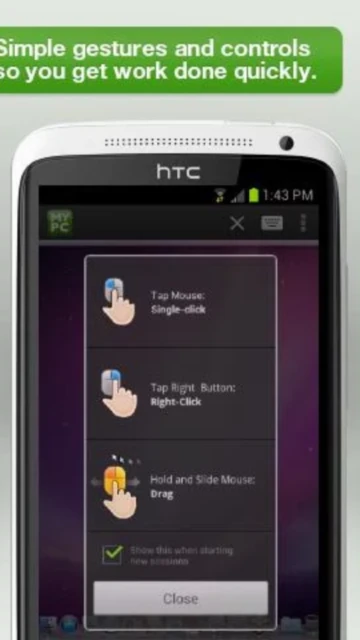
- Motor – Bluetooth keyboard and mouse support eliminates touchscreen reliance; gesture alternatives (double-tap for click) work on iOS; Android’s voice control integrates with Google Assistant; on-screen keyboard remains mandatory alongside external input
- Languages – App interface available in English only (as of December 2025); support documentation in English; RTL language support not confirmed; Corporate plans can request localized support via dedicated account manager
Power User Tips for GoToMyPC
Advanced users can optimize GoToMyPC for faster sessions, lower bandwidth, and smoother multi-monitor workflows. These techniques apply primarily to desktop hosts and Pro/Corporate accounts with advanced settings access.
- Enable Session Diagnostics Mid-Connection – During an active session, press Alt+F1 (Windows) or Cmd+F1 (Mac) to open diagnostics; monitor bandwidth usage, available memory, and CPU load in real-time; if CPU exceeds 80%, close background applications on the remote computer to recover responsiveness within 2-3 seconds
- Reduce Resolution for Rural/Mobile Connections – Set host display resolution to 800×600 or 1024×768 when on 4G or spotty Wi-Fi; GoToMyPC redraws only changed pixels, so lower resolution cuts update traffic by 60-70%; adjust back when on high-speed connections
- Customize Multi-Monitor Minimap – On Pro accounts, the minimap thumbnail in the toolbar lets you jump between monitors instantly; drag the minimap edges to resize each monitor’s visible area; hide monitors you don’t need to reduce cognitive load during troubleshooting
- Configure Inactivity Timeout & Screen Blanking – In host preferences (Windows only), set keyboard lock timeout to 5 minutes; enable screen blanking to prevent shoulder-surfing if you step away; these settings don’t disconnect the session—only lock keyboard/display on the remote machine
- Troubleshoot Connection Drops on Unstable Networks – If your session freezes (common on 3G), the auto-recovery feature (version 2025.2+) detects freezing after 10 seconds of no screen updates and re-establishes connection automatically; no manual reconnect needed, though active file transfers may be interrupted
GoToMyPC Support & Community
GoToMyPC offers 24/7 support through multiple channels. The official help center covers setup, troubleshooting, and account management. Community resources are limited compared to TeamViewer; no public user forums exist, but social media and direct phone/email support provide pathways for urgent issues.
- Official Help Center – support.gotomypc.com provides searchable knowledge base articles (setup, system requirements, updates, billing); covers mobile app usage, desktop installation, multi-monitor configuration, and performance optimization; searchable by topic and accessible without logging in
- Community Forum – No public user forum; alternatives are GoToMyPC’s official Facebook page (facebook.com/gotomypc) for tips and community Q&A, or X/Twitter (@gotomypc) for announcements and direct message support for account issues
- Social Media – Official accounts: Facebook (community tips, product announcements), YouTube (setup tutorials, feature walkthroughs), X/Twitter (@gotomypc for status updates); response times vary from 24-48 hours for non-urgent questions
- Contact Support – Phone (US): (805) 690-6400 24/7 for technical emergencies; Email: [email protected] for billing/account issues; Web form at support.gotomypc.com routes to the next available agent; physical address: 333 Summer Street, 5th Floor, Boston, MA 02210 (mailing correspondence)