Can I use Google Docs offline?
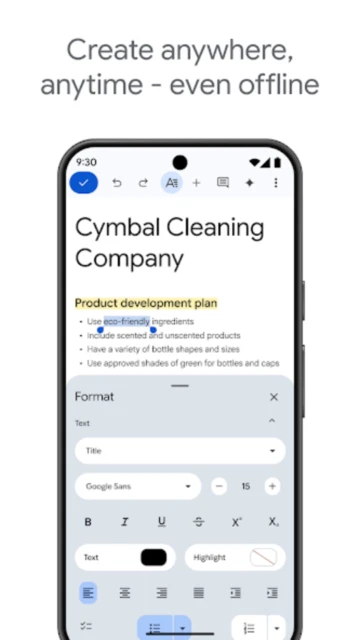
Yes, enable offline mode in settings. You can view and edit documents without internet; changes sync automatically when reconnected. Some features may be limited offline.
 51
51
Create, edit, and collaborate on documents from anywhere
Free cloud-based document editor with real-time collaboration, offline editing, and seamless integration across all devices.
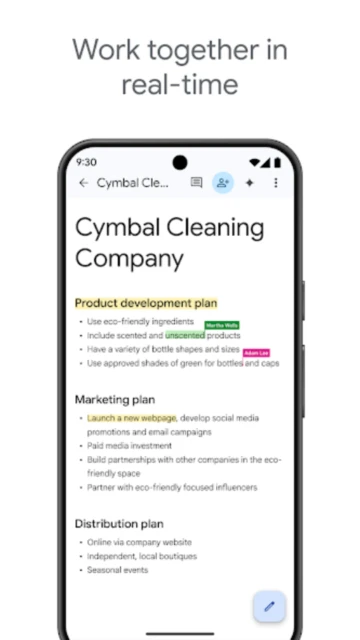
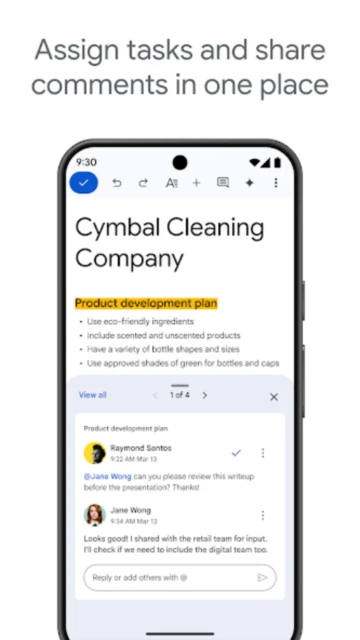
Google Docs is a cloud-based document editor that enables users to create, edit, and collaborate on documents in real time. Part of Google Workspace, it offers automatic saving, version history, offline access, and seamless cross-device synchronization. Users can share documents, leave comments, and see live edits from collaborators instantly.
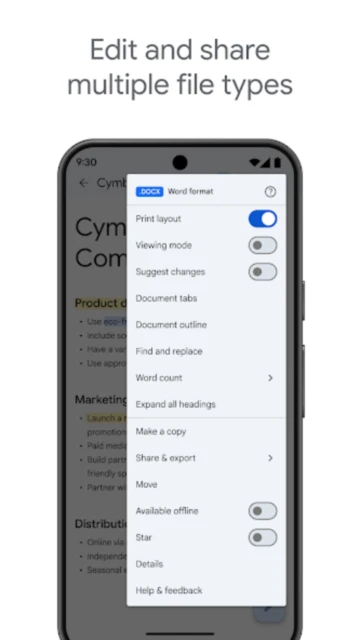
The app supports multiple file formats including Microsoft Word documents and PDFs, allowing easy conversion and compatibility. Google Docs eliminates traditional document management hassles with unlimited free storage in Google Drive and AI-powered writing suggestions available through Gemini for paid subscribers.
Free with optional Google Workspace subscription
| Feature | Free | Premium |
|---|---|---|
| Document Collaboration | Real-time collaboration with comments and suggestions | Enhanced team features with advanced permissions management |
| AI Writing Assistant | Basic formatting and spell-check only | Gemini AI powered drafting and writing suggestions |
| File Storage | 15 GB free Google Drive storage | 2 TB+ cloud storage with Google Workspace subscription |
| Offline Access | View and edit documents offline with automatic sync | Enhanced offline capabilities with advanced features |
| File Formats | Create, edit, export as DOCX, PDF, ODF, RTF, TXT, HTML | All free formats plus advanced conversion options |
| Version History | Unlimited version history with full edit tracking | Same features plus enhanced management tools |
Yes, enable offline mode in settings. You can view and edit documents without internet; changes sync automatically when reconnected. Some features may be limited offline.
Free accounts get 15 GB shared across Google Drive, Gmail, and Photos. Google Workspace subscribers receive 2 TB or more depending on subscription tier.
Yes, upload or open Word documents directly. Google Docs converts them automatically while maintaining formatting. Export back to Word format anytime.
Export as Microsoft Word (.docx), PDF, OpenDocument (.odt), Rich Text (.rtf), Plain Text (.txt), or HTML format with full formatting preservation.
Click Share, enter email addresses or copy the link, select permissions (viewer/editor/commenter), and send. Collaborators see changes in real time as you edit.
Yes, unlimited version history tracks all changes. Access by clicking File > Version history to view edits, see who changed what, and restore any previous version.