How do I add a sticky note widget to my home screen?
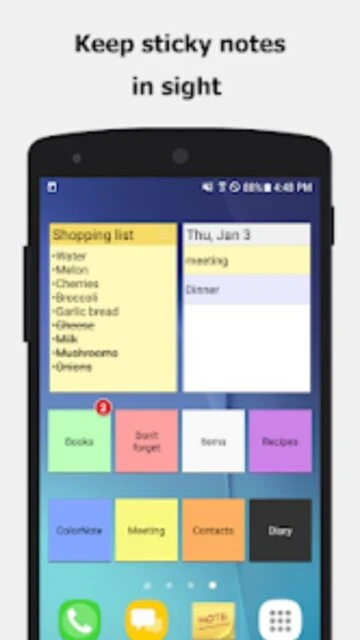
Long-press an empty space on your home screen and select 'Widget'. Find and tap ColorNote to add the widget. You can then create or select notes to display on your widget.
 43
43

Simple and awesome notepad app
ColorNote is a free Android notepad app that organizes notes by color with checklist support, reminders, and cloud sync.
ColorNote Notepad Notes is an intuitive Android notepad application offering color-coded organization, checklist creation, and secure cloud synchronization. Users can create unlimited notes with automatic saving, arrange them by color or date, and manage multiple projects efficiently on a single platform.
The app provides password protection, task reminders with time alarms and repetition settings, and seamless sync between devices. With encrypted backup capabilities, widget support for home screen shortcuts, and offline availability, ColorNote remains a trusted productivity companion for millions of Android users managing daily tasks and personal notes.
Free with in-app purchases
| Feature | Free | Premium |
|---|---|---|
| Note Organization | Color coding and categories | Advanced filtering and custom folders |
| Cloud Sync | Manual backup to storage | Automatic encrypted cloud sync |
| Security | Standard Android storage | Password lock and AES encryption |
| Reminders | Basic notifications | Advanced alarms with lunar calendar |
| Widgets | Single sticky note widget | Multiple customizable widgets |
| Export | Share via SMS and email | Bulk export and scheduled backups |
Long-press an empty space on your home screen and select 'Widget'. Find and tap ColorNote to add the widget. You can then create or select notes to display on your widget.
Android doesn't support widget, alarm, and reminder functions for apps installed on SD cards. Move ColorNote back to device storage in Settings > Applications > Manage Applications > Move to Device, then reboot.
Yes. Sign into the same Google or Facebook account on both devices and enable online backup and sync in settings. Notes automatically synchronize across all connected devices.
Navigate to Menu > Settings > Master Password > Menu Button > Clear Password to reset. Note that clearing the password will delete all currently locked notes, so use this option only when necessary.
Backed-up notes are stored in '/data/colornote' or '/Android/data/com.socialnmobile.dictapps.notepad.color.note/files' directories on your SD card.
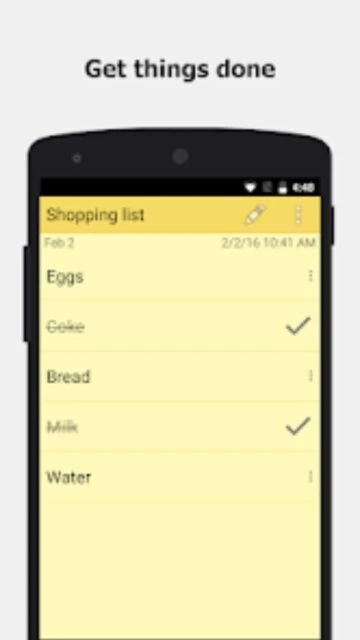
Tap New, select 'Checklist note' option, add your items, and save. Tap individual items to strikethrough completed tasks. Tap items again to uncheck them as needed.