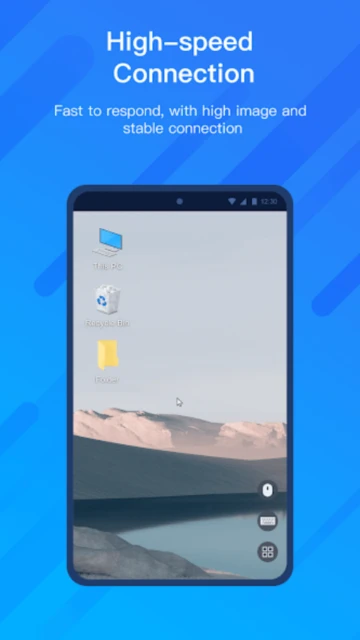
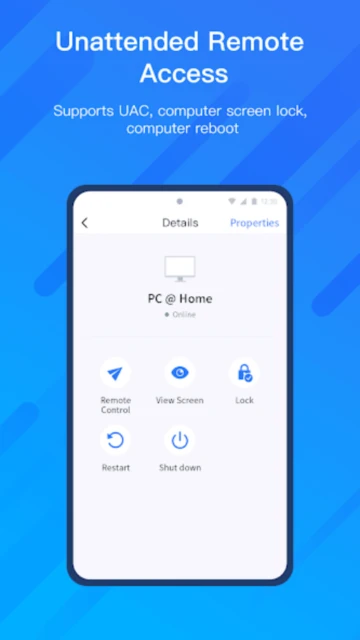
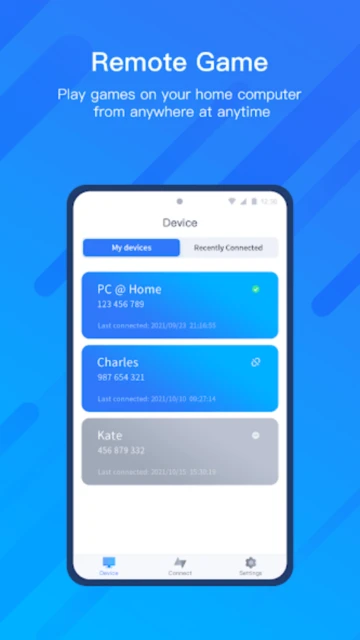
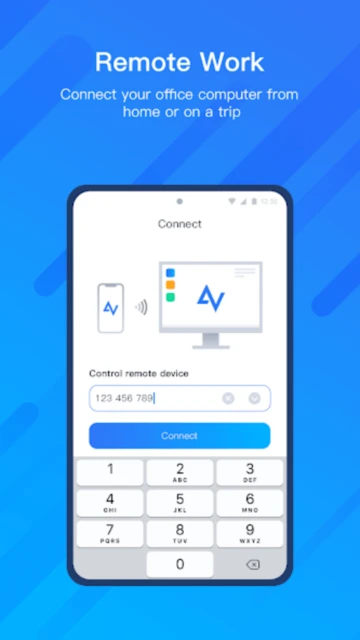
AnyViewer Remote Desktop is a cross-platform remote access solution combining free personal features with enterprise-grade security. Unlike feature-limited competitors, AnyViewer’s free tier includes unattended access to 10 managed devices, unlimited simultaneous sessions from two channels, and screen recording—capabilities typically reserved for premium plans elsewhere. With ECC end-to-end encryption, real-time multi-monitor support, and lightning-fast connection speeds optimized through adaptive frame rates, AnyViewer serves home users, IT technicians, and small teams seeking secure, affordable remote control without vendor lock-in.
How to Get Started with AnyViewer
AnyViewer’s onboarding process requires minimal configuration. Download the client, create an account, and instantly see all logged-in devices. Unattended access works immediately after login—no complex setup wizards needed.
- Create AnyViewer Account – Use email to register free account; credentials sync across all devices automatically
- Install Client on Host Device – Download AnyViewer for Windows, macOS, iOS, or Android; app installs in under 1 minute
- Enable Unattended Access – Set security code in Settings for hands-free remote connection when device is locked
- Connect from Remote Device – Log in on remote device, select host from “My Devices” list, establish instant encrypted session
Who Should Use AnyViewer
AnyViewer targets users prioritizing affordability without sacrificing security or functionality. The free tier eliminates gatekeeping barriers present in competing services, making it accessible to individuals testing remote access before committing budget.
- Home Users & IT Support Techs – Free unattended access to 10 devices matches individual technician workflows; screen recording captures session transcripts for training
- Small Business Teams – Professional plan ($43/year) scales to 5 login devices with 30 managed devices; high-speed file transfer (10 MB/s) handles large transfers
- Remote Work Professionals – Multi-monitor detection, game mouse mode for 3D apps, and 60fps support enable seamless desktop replication across all platforms
- NOT Ideal For – Enterprise deployments requiring 150+ managed devices (RealVNC Premium serves this); macOS users needing screen wall feature (launching end-2025)
AnyViewer Platform Compatibility
AnyViewer’s cross-platform architecture ensures seamless remote access regardless of OS combination. Windows and macOS support full bidirectional control; iOS devices restrict to view-only per Apple security policies; Android mirrors smartphone screens to desktop.
| Platform |
Min. Version |
Unique Features |
Limitations |
| Windows |
Windows 7 SP1+ |
Full keyboard/mouse control, multi-monitor switching, game mouse mode, Ctrl+Alt+Del pass-through, Task Manager shortcuts |
Screen wall feature pending macOS parity (Q4 2025) |
| macOS |
macOS 10.13+ |
Native Monterey/Ventura/Sonoma optimization, file transfer, screen recording, real-time chat |
No screen wall, game mouse mode, or proxy support yet; desktop only |
| iOS |
iOS 10.0+ |
View-only remote access, touchpad control, whiteboard annotation (mobile-only), session recording |
View-only restriction enforced by Apple; cannot execute remote commands |
| Android |
Android 6.0+ |
Full control as main device, screen mirroring to desktop, whiteboard tool, adaptive/original screen ratio display |
Limited display in free tier; high/ultra quality requires upgrade |
AnyViewer Integrations & Ecosystem
While AnyViewer doesn’t feature native API integrations like Zapier or Slack, its core strength lies in seamless cross-device sync. Browser-based access and mobile apps eliminate installation friction; accounts automatically sync managed devices, login history, and security configurations across platforms within seconds of credential changes.
- Windows Active Directory Integration – Professional/Team/Enterprise plans enable MSI mass deployment through Group Policy; manage 30-500 deployed devices centrally
- Cloud Service Connectivity – Works with any device behind NAT/firewall; proprietary relay servers bypass port forwarding entirely
- File System Sync – Drag-and-drop transfers support folders up to 2TB (Professional+); encrypted transfer on public WiFi protects sensitive documents
- Session Data Export – Session logs and recordings save locally in platform-native formats; no vendor data lock-in
Best Alternatives to AnyViewer
Remote access market fragmentation offers specialized solutions. AnyViewer prioritizes affordability and unattended access; alternatives excel in niche scenarios requiring enterprise scale, IT service delivery, or deep integrations with Microsoft/Citrix ecosystems.
- RealVNC Connect – Best for enterprises requiring 150+ managed devices and advanced audit logging; offers 256-bit AES encryption and 2FA, starting $198/year per active connection
- TeamViewer – Best for MSPs and support teams; includes attended/unattended access with pre-configured workflows; popular in Asia-Pacific regions; pricing from $409/user/year
- Windows App (Microsoft Remote Desktop) – Best for Azure Virtual Desktop and Microsoft 365 users; native Azure AD integration eliminates dual authentication; free for Microsoft cloud subscribers
- Splashtop – Best for high-performance streaming in bandwidth-constrained networks; 4.7/5 G2 rating; starts $259/user/year; dominates hybrid workforce markets
AnyViewer vs Top Competitors
Feature-for-feature comparison reveals AnyViewer’s cost advantage while identifying where premium competitors justify their pricing. AnyViewer’s free tier outpaces RealVNC and Windows App in unattended device count; RealVNC leads in encryption standards and audit trails; TeamViewer dominates IT ticketing integration.
| Feature |
AnyViewer |
RealVNC Connect |
Windows App |
| Pricing |
Free (10 devices) / $42.96/year Professional |
Free (cloud only, 3 devices) / $198/year Essentials |
Free (Azure/Microsoft 365 subscribers) |
| Key Strength |
Unattended access on free tier; fastest file transfer (10MB/s Professional+) |
Enterprise audit logging; 256-bit AES; 150+ device management at Premium tier |
Deep Azure/M365 integration; native Single Sign-On via Entra ID |
| Target Users |
Individual techs, small business, home remote access |
Enterprise IT teams, managed service providers |
Microsoft ecosystem orgs (Windows 365, Azure Virtual Desktop) |
| Unique Feature |
Screen wall for monitoring multiple devices in one view; game mouse mode for 3D apps |
HelpDesk with 2-minute guest codes; no permanent agent install required |
Unified workspace for Cloud PCs, virtual desktops, and local PCs in single interface |
| Offline Mode |
Direct LAN connection available; no cloud relay required on same network |
Essentials plan cloud-only; Premium/Enterprise support direct peer-to-peer without cloud |
Requires internet for Azure Virtual Desktop; local RDP works offline |
AnyViewer Privacy & Security Overview
AnyViewer implements asymmetric ECC encryption (256-bit equivalent strength) for all sessions. Unlike competitors using symmetric AES encryption, ECC reduces attack surface in key exchange phases. Accessibility service usage (screen recording, keyboard capture) is certified data-collection-free; permissions audit trail in Android manifest confirms zero third-party data sharing.
| Security Aspect |
Implementation |
User Control |
| Data Encryption |
Asymmetric 256-bit ECC end-to-end encryption for all connections; applies during transit and session |
Enabled by default; cannot disable (intentional security-by-design); certificate pinning prevents MITM |
| Authentication |
Account password + security code (unattended access); two-factor authentication via email on Team/Enterprise plans |
Users set unique security codes per device; 2FA requires verified email address |
| Data Collection |
Collects device ID, personal info, app activity; zero third-party ad networks; data encrypted in transit |
Opt-out available via Account Settings > Privacy; data deletion request processed within 30 days |
| Third-Party Sharing |
Policy explicitly states zero third-party sharing; AOMEI International (Hong Kong) subsidiary enforces GDPR compliance |
Users can request account data export or permanent deletion; no data sold or shared |
AnyViewer Accessibility Features
AnyViewer demonstrates accessibility commitment through multiple modalities. Keyboard alternatives for all touch gestures ensure motor-impaired users maintain full functionality; multi-language support (20+ languages) and right-to-left support serve diverse user bases; however, TalkBack/VoiceOver support remains limited.
- Screen Reader – TalkBack (Android) integration partial; VoiceOver (iOS) support limited to basic session controls; full screen reader compatibility targeted for Q1 2026
- Visual – Ultra-High Quality and True Color modes accommodate color-blind users; 150% font scaling in settings; dark mode available on Android/iOS native apps
- Motor – Full keyboard alternative to touchpad gestures; voice control via Android/iOS native APIs; left/right mouse button mapping configurable for one-handed operation
- Languages – 20+ language support including Arabic, Chinese, Japanese, Korean; RTL layout for Arabic/Hebrew markets; community-contributed translations added quarterly
Power User Tips for AnyViewer
Advanced AnyViewer configurations unlock productivity gains invisible to casual users. Session recording combined with annotation tools enables incident documentation; multi-monitor detection preserves monitor-specific window placement; high-speed file transfer optimization via bandwidth allocation prevents throttling during large asset transfers.
- Enable Session Recording for IT Compliance – Press Record during session (free tier supports unlimited recordings); exported MP4 files contain audio from speaker/microphone; use for support ticket justification or employee training documentation
- Utilize Screen Wall for NOC Monitoring – Professional+ plans allow 2-device wall (Team: 9-device, Enterprise: 24-device); drag-and-drop device shortcuts into wall for real-time multi-monitor dashboard without separate windows
- Configure Proxy for Enterprise Firewalls – Advanced > Network Settings allows HTTPS/SOCKS5 proxy; eliminates need for port forwarding on restrictive networks; especially useful for air-gapped corporate networks
- Optimize File Transfer Speed – High-speed transfer (Professional+) requires local network or stable 50+ Mbps internet; test bandwidth at start of transfer; enable Smart Frame Rate to auto-reduce quality if connection degrades mid-transfer
- Troubleshoot Connection Timeouts – If “Failed to Connect” appears: verify host device has internet; check firewall allows HTTPS 443/8080; restart host app and retry; if LAN connection works, issue is WAN firewall (add port forwarding or use cloud relay)
AnyViewer Support & Community
AnyViewer provides multi-channel support spanning email, web portal, and community forums. Average response time for technical issues is 24 hours; free tier users receive standard email support; Professional+ subscribers get priority queue with 4-hour guarantee.
- Official Help Center – https://www.anyviewer.com/support provides 200+ knowledge base articles covering setup, troubleshooting, pricing, and features; searchable by keyword and category
- Community Forum – Reddit community r/AnyViewer and official forum at anyviewer.com/forum for peer support; 1000+ monthly posts about advanced configuration and use cases
- Social Media – Twitter @AnyViewerApp and Facebook AnyViewer Remote Desktop for product announcements, feature previews, and promotional offers
- Contact Support – Email [email protected] for billing, technical issues, or licensing; average response 24 hours; in-app chat (Professional+) provides instant escalation